Participant
January 9, 2020
Question

Waveform goes empty after saving

  • January 9, 2020
  • 1 reply
  • 1883 views

I have been working on a podcast episode and imported a .wav file from my Zoom device.  The .wav file is about 2hr 45min long and I poured four hours into splitting and editing it in a multitrack session.  There was this really annoying low base sound which made the entire session just sound horrible so in the .wav file using the waveform view I used the marquee selection tool and cut out a thin rectangle from the very bottom of the waveform in an attempt to cut out only that heavy bass sound which made everything else inaudible.  It worked like a charm.  The audio got much more clear.  

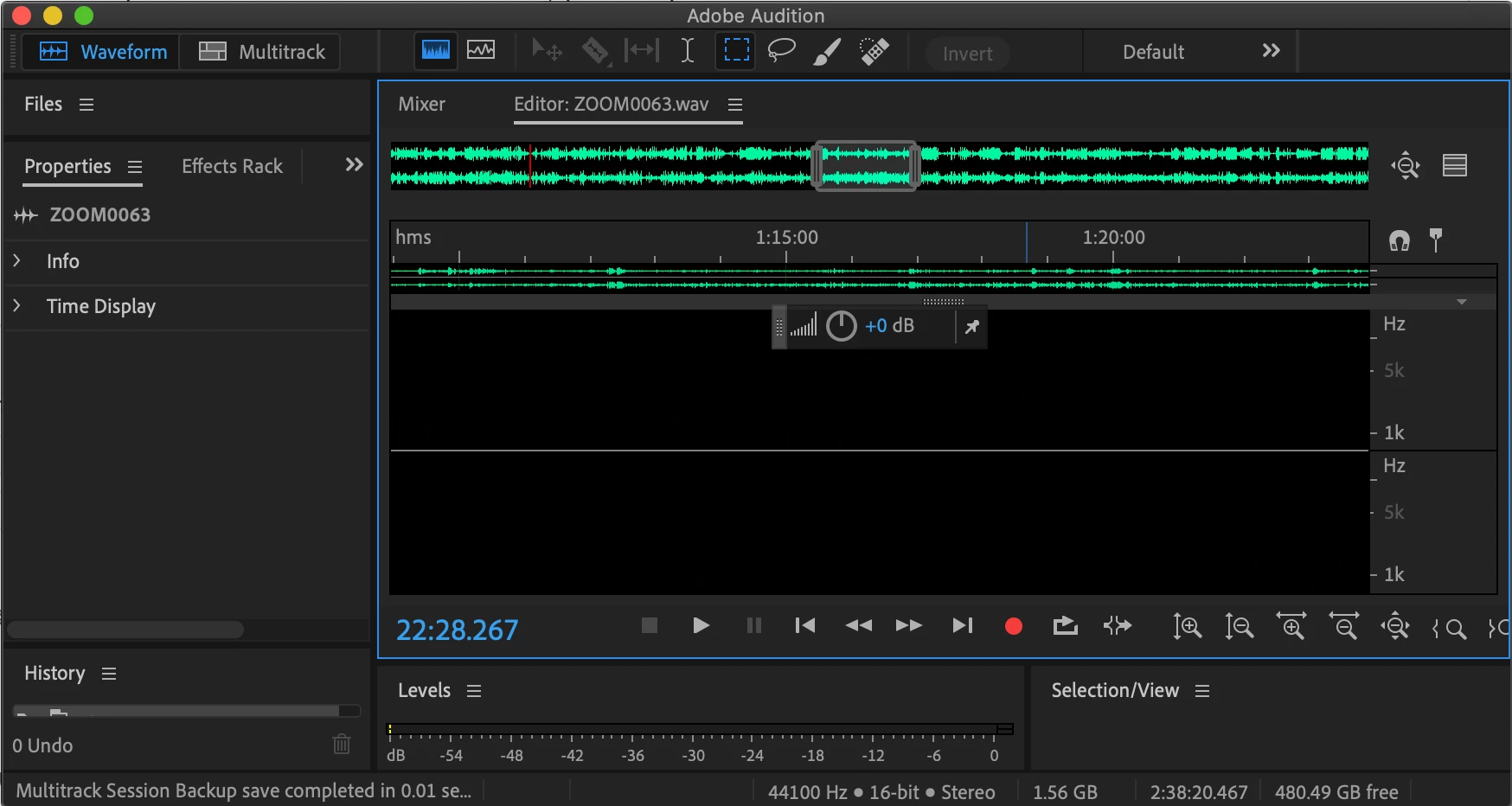
I continued to work on the multitrack session and when I was ready to save, I saved the session.  It took about 2 minutes to save and after saving when I pressed play to continue listening I got no audio.  I turned up the volume a bit and what I actually heard was the heavy base sound which I had cut out.  I looked at the Waveform and low and behold the beautiful red markings from the waveform editor were completely gone.  The waveform view was totally black with just the sliver of heavy base from the bottom of the waveform remained.  For some reason saving the file reversed what I had intended.  It cut out all the audio I wanted and left only the audio I had cut out.  Very frustrating.  

I had to import a new audio of the same recording and redo all the work, split all the audio again.  But now for some reason it is continuing to happen.  Whenever I save this track I get the same thing.  I am continuing to work on it witout saving or powering off my computer but it is highly risky and not sure what I am going to do once it is time to export this to an .mp3 file.  

Please help.  I have a hard deadline on this as my podcast episode is set to air in a little under two weeks.  

I am using an iMac running macOS Catalina Version 10.15.2 with a 3.6GHZ Quad-Core Intel Core i3and 16GB of RAM and running Adobe Audition Build 13.0.1.35

This is what it looks like before saving:
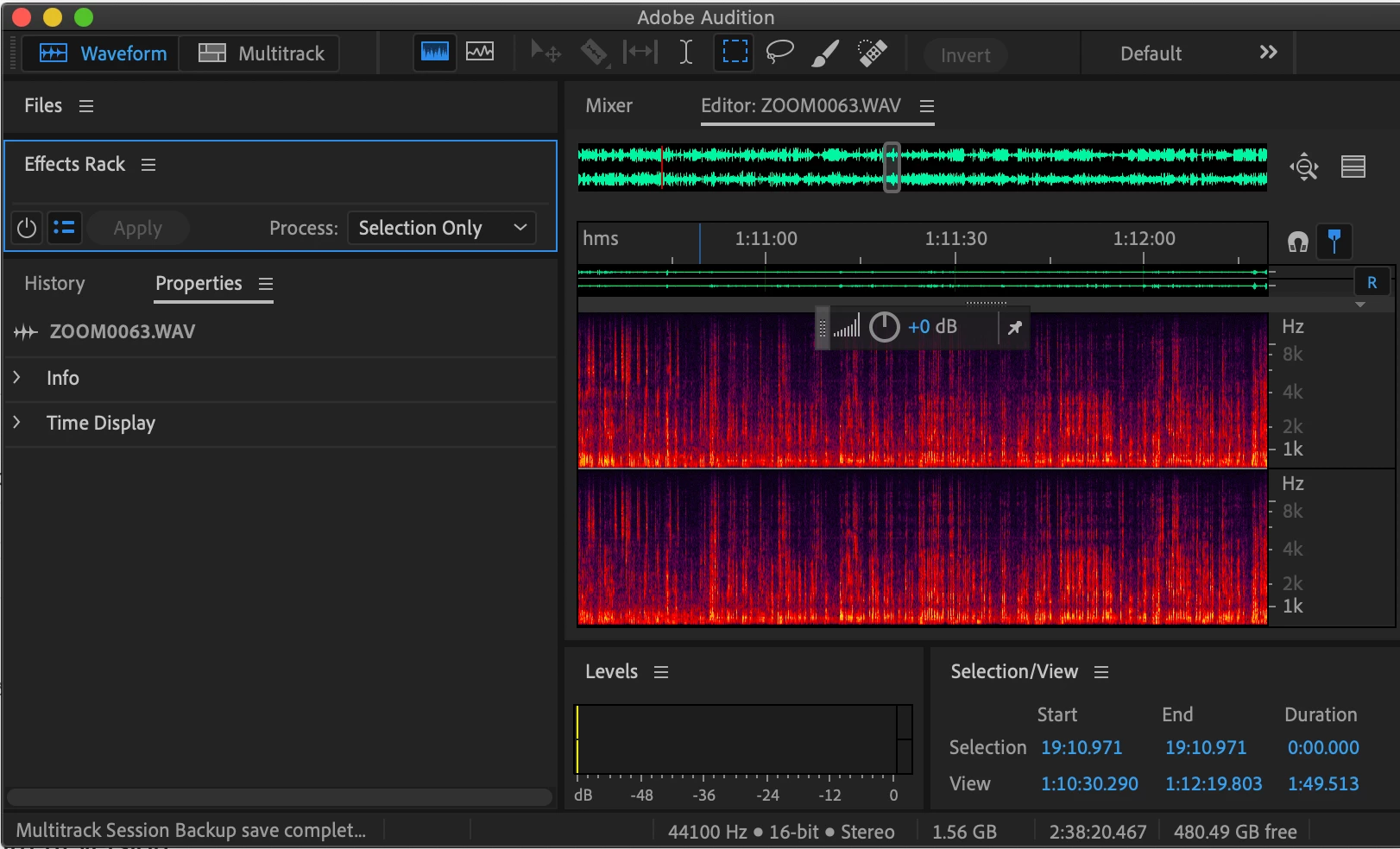


The bottom picture is what it looks like after I saved.  No waveforms.  I also get no sound when I press play in both waveform view and in the multitrack session view.  

Please Help!!

This topic has been closed for replies.

1 reply

SteveG_AudioMasters_
Community Expert
Community Expert
January 9, 2020

Well I can see what you've done, but I'm not entirely sure quite how you managed it! It looks as though you haven't saved a change in Edit view, and when the session finally saves it asks you whether you want to save all changes - and for some reason it manages to invert your selection and save it as that - which will give exactly that when you re-open the file.


What I suggest is that you keep the session as it is.


Open the original file, and make a copy of it. Put the original file in a different folder and ignore it for now. Now open the copy. Don't try to fix it with the spectral editor, but use Effects>Filter and EQ>FFT Filter and then either the 'Kill the subharmonics' or the 'Kill the mic rumble' preset. Apply the result, and listen to the file and make sure it's okay.


Now change the name of the copy to the name the original file has (it's in another folder so there will be no name conflict) and re-open the session. As long as you make no more changes to the original file, the session should play back fine, and a mixdown or export will be correct.


That should at least save you having to do the edit again, although as I said, I'm very slightly mystified as to how you actually got to this state in the first place!

Participant
January 10, 2020

SteveG_AudioMasters_ thank you so much for your prompt response.  A few questions.  When you say open the original file and make a copy of it, do you mean the original .sesx file or the .wav file?  Also how do I make a copy? Do I do that within Audition or should I open up the folder which contains the file and copy it from there?  


Thanks again!

SteveG_AudioMasters_
Community Expert
Community Expert
January 10, 2020

As you've probably figured by now, it's the original recorded material you need to copy, not the .sesx. Rule 1 of editing anything - use a copy for the edit, not the original!


It's not so bad if you have the original on an SD card, or whatever - what you don't do though is just open that, edit it and resave, because then you will have lost your original. So you make a copy of that file and put it in a folder, and edit that instead. So when it all really goes pear-shaped, you still have the opportunity to start over.


As for how you do it - well it's a Mac so I don't know. If all else fails, open the file in Audition and use Save As. This will allow you to resave the file in a different location.