November 18, 2011
Answered

3 Clicks and slide advances with Pause Button in timeline

  • November 18, 2011
  • 2 replies
  • 971 views

I have found if there are more than 3 click boxes on a slide, the slide will advance even with a transparent button on the page as an attempt to pause the slide to advance.  Is there a reason this happens and what type of work arounds are suggested.

I have had the click boxes as pause until clicked and without, it doesn't make a difference.

Thank you in advance!!!

Sunshine

This topic has been closed for replies.
Correct answer Captiv8r

Hi there

This sounds like there is a fundamental misunderstanding of Objects and the Timeline.

Click Boxes and Buttons will normally pause the slide they are on until the user performs some action that causes the playhead to resume play. Consider the image of the Timeline below:

(You may need to click to see a larger view)
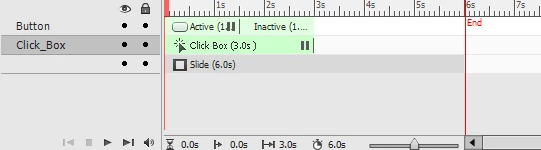
Note that the slide is timed for six seconds. The Click Box is timed for three seconds and will pause at the end as indicated by the pause icon. ( || ).

Note that the Button pauses at 1.5 seconds. So if the Button were clicked and the Pause released, assuming the action of the Button were to "Continue", the slide would pause again at the three second mark because that's where the Click Box is pausing.

So lets assume there are three Click Boxes and a button. Each Click Box is staged to pause the slide at different times.
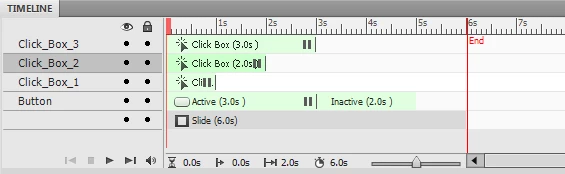
In the image above, Click Box 1 will pause at one second. If the user clicks and the slide continues play, it will then pause again at the two second mark because Click Box 2 pauses there. And the third click box pauses at the three second mark. But if you look closely, so does the Button. This means that if the third Click Box is clicked, the pause is released and the button is still viewable, but isn't pausing the slide as it was before.

If this is your setup, you likely need to stage the pause point of the button a bit farther down the timeline.

Cheers... Rick

Helpful and Handy Links

Captivate Wish Form/Bug Reporting Form

Adobe Certified Captivate Training

SorcerStone Blog

Captivate eBooks

2 replies

Captiv8r
Legend
November 19, 2011

Hello again

Just a bit curious after re-reading. Why are you using a Transparent Button? Click Boxes pause the slide just like Buttons do. I'd use a Click Box.

I am always mystified why folks opt for transparent buttons. Especially in a case such as this one, where you are mixing Click Boxes and Buttons.

Cheers... Rick

Helpful and Handy Links

Captivate Wish Form/Bug Reporting Form

Adobe Certified Captivate Training

SorcerStone Blog

Captivate eBooks

Captiv8r
Captiv8rCorrect answer
Legend
November 19, 2011

Hi there

This sounds like there is a fundamental misunderstanding of Objects and the Timeline.

Click Boxes and Buttons will normally pause the slide they are on until the user performs some action that causes the playhead to resume play. Consider the image of the Timeline below:

(You may need to click to see a larger view)

Note that the slide is timed for six seconds. The Click Box is timed for three seconds and will pause at the end as indicated by the pause icon. ( || ).

Note that the Button pauses at 1.5 seconds. So if the Button were clicked and the Pause released, assuming the action of the Button were to "Continue", the slide would pause again at the three second mark because that's where the Click Box is pausing.

So lets assume there are three Click Boxes and a button. Each Click Box is staged to pause the slide at different times.

In the image above, Click Box 1 will pause at one second. If the user clicks and the slide continues play, it will then pause again at the two second mark because Click Box 2 pauses there. And the third click box pauses at the three second mark. But if you look closely, so does the Button. This means that if the third Click Box is clicked, the pause is released and the button is still viewable, but isn't pausing the slide as it was before.

If this is your setup, you likely need to stage the pause point of the button a bit farther down the timeline.

Cheers... Rick

Helpful and Handy Links

Captivate Wish Form/Bug Reporting Form

Adobe Certified Captivate Training

SorcerStone Blog

Captivate eBooks

November 19, 2011

Thank you Rick...This helped. I find the SUPER SIMPLE concepts get me into more trouble than the complex workaounds.

Regarding Transparent Button, we use this to pause the slide to allow the user to use the Playbar controls to control moving to the next next slide instead of continue playing.  I guess a Click box would work but since a success, failure, hint caption isn't necessary, I've always defaulted to the button.  Is it bad to have both boxes & button's on the slide?

I have found it's easier to identify the button on the timeline if there are mutliple click boxes on the slide.

Captiv8r
Legend
November 19, 2011

Hello again

No, there should be no issue with having the different objects on the slide as long as you are aware of how they react.

I just find it odd that nearly everyone seems to opt for a Button to pause the slide. It is almost as if they don't believe that Click Boxes pause the slide. However, I do suppose that because Click Boxes pause at the end of their play and Buttons generally pause in the middle, folks may believe that Buttons are better because if you have several objects staged to end at the same time, the Button will pause with all objects in full view while the Click Box will pause with most things faded out of view.

But it really all just boils down to simple timing and knowing how to strategically position the pause points.

Glad you seemed to sort it... Rick

Helpful and Handy Links

Captivate Wish Form/Bug Reporting Form

Adobe Certified Captivate Training

SorcerStone Blog

Captivate eBooks