
Christophe_CapDemo
Participant
January 16, 2018
Answered

Add a start and end slide to a Video Demo?

  • January 16, 2018
  • 1 reply
  • 1833 views

I thought there would be a way to create a "title slide" and ending slide to a Video Demo after recording it and perhaps blend them with a fade transition. I just want to begin and end with a couple of informational screens that persist for 10 seconds or so and then roll right into the video (which has already been recorded). I don't see such a provision for creating this kind of feature in a video demo. Then I thought I could create two PowerPoint slides in a .pptx file and somehow insert them into the beginning and end of the video demo. Aside from the fact that opening a PowerPoint presentation in Captivate is crashing the Adobe application, I don't see any evidence of being able to do this.

Is there any way to add a start screen/title slide/preface piece to a video demo? I don't care how it's done. I'm just wondering if it can be done. I look forward to an experience of supreme joy if I can figure out a way to do this

By the way, I'm currently on the trial version, and I have noticed more than a few features apparently disabled in this mode. Not sure if this plays a part in my quandary.

Thanks
This topic has been closed for replies.
Correct answer Lilybiri

That appears to be the way to do it. And thank you for hanging in there and guiding me through this.

The last trick is to get the audio mp3 file playing across all three elements in the cptx file (first Captivate slide, inserted video demo, and last Captivate slide).

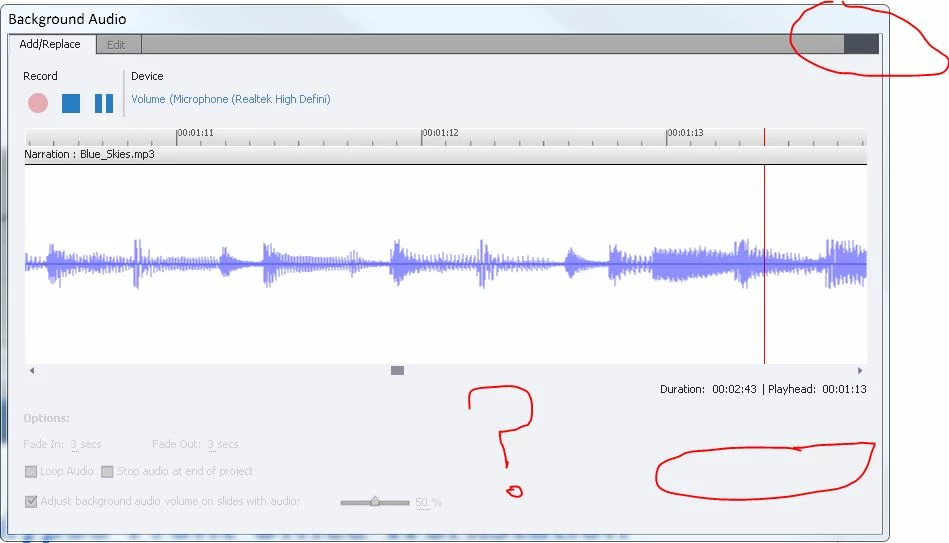
If I go to the Audio menu and import an mp3 as background music, I can make the volume settings and fade-in/fade-out settings I want. But then I can't close the Background Audio window. The controls to Close and Save are not there. Am I missing something?

Is this possibly a problem with what you described in your last comment as staggering the objects (slides and video demo) on the timeline? All three elements currently appear to have their own separate timelines (although Preview does move fluidly through all three as one continuous video). I see in your video (link above) that you have several elements on the same timeline. Can you point out the control that allows me to merge these into one timeline? Or point me to documentation that explains it? I haven't found anything that resembles how to achieve this in menu items.

I don't want to take up all your time. But I appreciate your continued help. If I can figure out how to get the background music attached properly, I should have a working video!


Mostly that is an issue with the resolution of your monitor. Can you change it to have more pixels visible?

Could you have a look at this interactive movie, which I created from a presentation about the Timeline in Captivate:

Timeline Workflows

As for the audio: please use slide audio, not Background audio!

1 reply

Lilybiri
Legend
January 16, 2018

Please forget about PPT.

You can create a cptx-project which is a normal project in Captivate. It is possible to insert the raw cpvc file as a cpvc-slide, from the menu Insert. You can then add slides before and after that cpvc slide and  use all the objects, audio, text that you want. Use the timeline of those slides for eventual synchronizing with audio.

You can also insert static objects in the cpvc itself. WHich output do you want? A pure passive mp4? Or an interactive movie?


Trial version is fully functional, nothing is disabled.

Christophe_CapDemo
Participant
January 16, 2018

Many thanks for the reply. I sincerely appreciate it.

1. Apparently you lose the option to publish as MP4 when you create a .cptx file. I only see options for swf and html output. I simply want to add some short how-to videos to our online help website with text fading in and fading out and corresponding to actions captured by video on the screen. And then some background music to move things along. Using the .cptx file also appears to introduce some problems with syncing the music between slides. I also noticed significant resolution degradation of the video demo when inserting it into the .cptx project. All in all, I didn't have much luck with it.

2. I think I like the sound of your second alternative, adding static objects to the .cpvc file itself. What would that look like? Any tips to adding something like my two start and end PowerPoint slides into the cpvc file as static objects? I am very willing to spend time editing those objects either before or after getting them into the cpvc project if it means containing the cpvc project as a whole.

Again, my sincere thanks for the help.

Lilybiri
Legend
January 16, 2018

Open the dropdown list where you see SWF/HTML and you'll see the option Video which is to MP4

For the second questio I repeat : do NOT use imported powerpoint slides. Create the slides in Captivate itself, that way you can stagger objects on the timeline.

You can add images in the video ediror (cpvc), text etc.. This old video was created with Video Demo, and you'll see that type of static objects throughout the video:

https://www.youtube.com/watch?v=M3nKi-DB6Fw&t=23s