
sheroesent
Participant
December 23, 2015
Answered

Adobe Captivate 9 Software Simulation Issue With High Density Display in Windows 10

  • December 23, 2015
  • 3 replies
  • 2481 views

Running: Adobe Captivate 9 x64

On: Windows 10

I only have one logon (me) which I assume is the same as the administrator as I don't have anyone else set up on this computer.

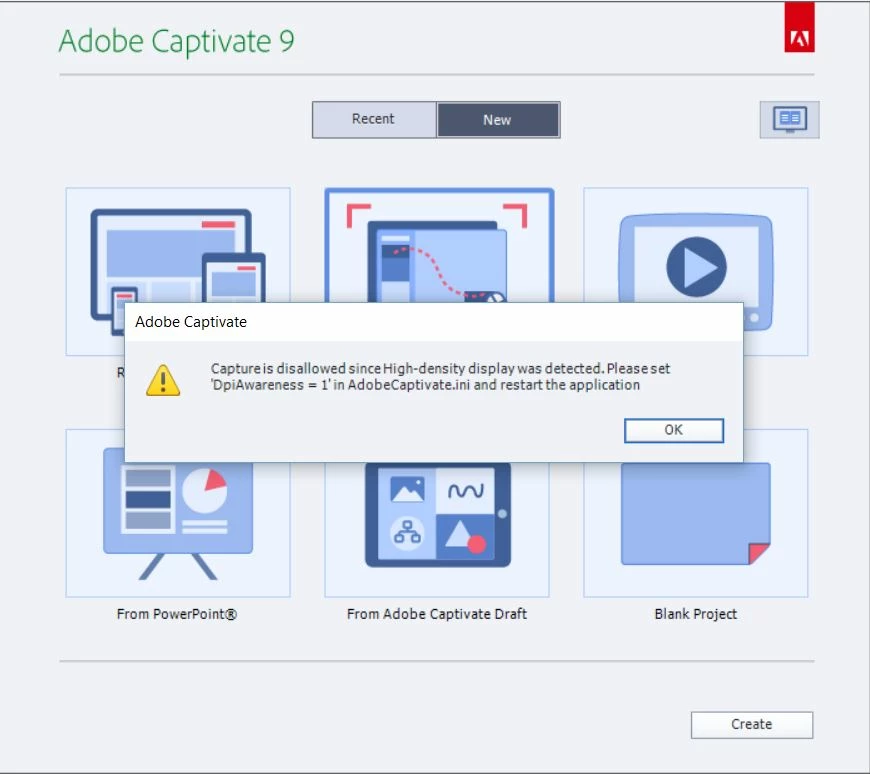
When I click on New -> "Software Simulation" -> "Create" I get a warning box stating "Capture is disallowed since High-density display was detected. Please set 'DpiAwareness = 1' in AdobeCaptivate.ini and restart the application."
I went to Local Disc (C:) -> Program Files -> Adobe -> Adobe Captivate 9 x64 and found the file AdobeCaptivate.ini and double clicked to open it.

It opened in Notepad.

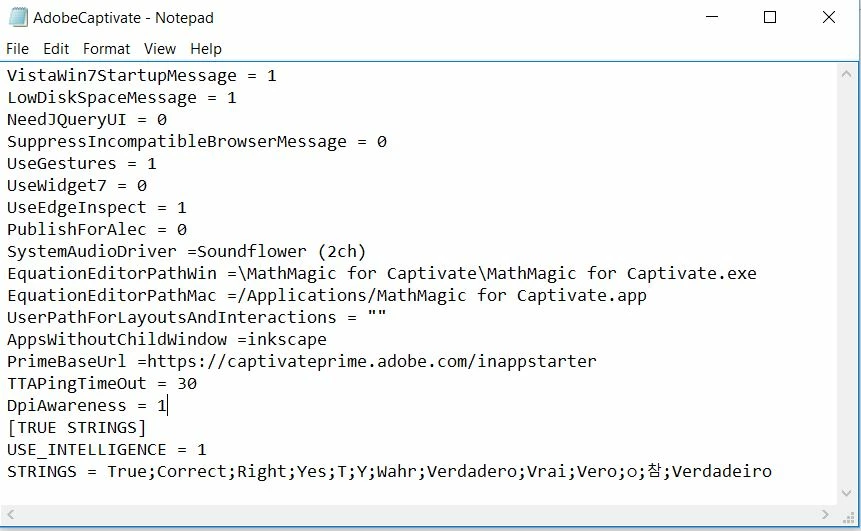
I found the line "DpiAwareness = 0" as the fourth row from the bottom.

I changed the 0 to a 1.
I went to File -> Save

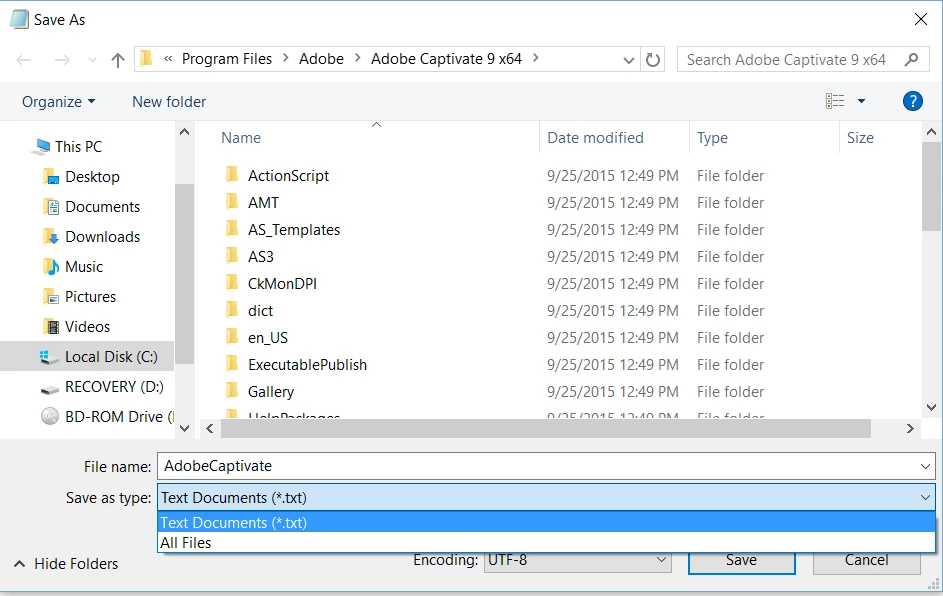
Notepad did not give me the option to save as an .ini file. It only lists .txt as an option and won't let me save in this file type.

I tried saving as "All Files."

"Access Denied" appears on my screen and will not let me save.
I can't save the .ini file so Captivate won't let me do this screen record ability. How do I fix this? Screen recording is the #1 reason why I have this software. I did not have this issue before upgrading to Windows 10. Also, is there a way to make suggestions to Adobe to enable this ability in an update/fix pack to the software? Thanks!

This topic has been closed for replies.
Correct answer Lilybiri

Hello,

I just edited the ini file on my Surface Pro 4, also running on Win10. You need Administrator rights! This was my work flow:

  1. Finding the ini file and copy it to another location (I used the desktop)
  2. Renaming the old ini file (for backup reasons) to AdobeCaptivateOld.ini
  3. Opened the copy in Notepad, edited that line and saved it (will automatically keep the ini extension).
  4. Moved the edited copy to the installation folder of Captivate
  5. Started Captivate

You probably will want to change the display settings of the monitor as well if you are going to work in Captivate.

3 replies

kevin_stagg
Known Participant
June 15, 2016

Nevermind - got it!

kevin_stagg
Known Participant
June 15, 2016

Hey Lieve -

I pasted the change in the file but it would not automagically change the doc type to .ini. It kept it as a .txt file.

So I'm still having the setting issue and not being able to record.

Lilybiri
LilybiriCorrect answer
Legend
December 23, 2015

Hello,

I just edited the ini file on my Surface Pro 4, also running on Win10. You need Administrator rights! This was my work flow:

  1. Finding the ini file and copy it to another location (I used the desktop)
  2. Renaming the old ini file (for backup reasons) to AdobeCaptivateOld.ini
  3. Opened the copy in Notepad, edited that line and saved it (will automatically keep the ini extension).
  4. Moved the edited copy to the installation folder of Captivate
  5. Started Captivate

You probably will want to change the display settings of the monitor as well if you are going to work in Captivate.

sheroesent
Participant
December 23, 2015

Thank you very much Lilybiri! Saving a copy of the .ini file to the desktop and then dragging and dropping the modified version over to the installation folder to overwrite the original did the job! Windows 10 still did an admin warning but allowed me to bypass the warning and do the rewrite this time. Much appreciated!

Lilybiri
Legend
December 23, 2015

Great! Be sure to keep the original ini file, you'll want to reset it if you'll have to do editing work in Captivate.