erins47830490
Participant
February 21, 2018
Answered

Advanced Action Guidance

  • February 21, 2018
  • 1 reply
  • 377 views

Good morning.

I am fairly new to Captivate and figuring out advanced actions.  I am using Adobe Captivate 2017.

I have created a training using buttons I have created myself (next, replay, back).  The training was ready to go.  However, we decided that all new trainings coming out we want to be compliant with closed captioning as well as go back and fix the ones we have already created.  I used the Slide notes/closed captioning features and settings (which was very easy to use).  I do not want to use the full skin editor (play button, back, replay, etc.)  but did add the editor (in overlay) to only show the CC toggle switch in order to turn off and on.

What I would like:

The closed captioning is distracting and I would like to start off with the closed caption off.  If users want to turn the closed captioning on then they can use the toggle switch to turn it on.

All the advanced actions I have tried have not worked for me.  I obviously am not getting something correct. Can anyone give me what they think would be the advanced action to fix this issue.

Here is what I have currently:

Upon Enter of slide

If all conditions are true:

cpCmndCC is equal to 0

Actions:

Toggle cpCmndCC

Continue

Else:

Continue

Sample below:
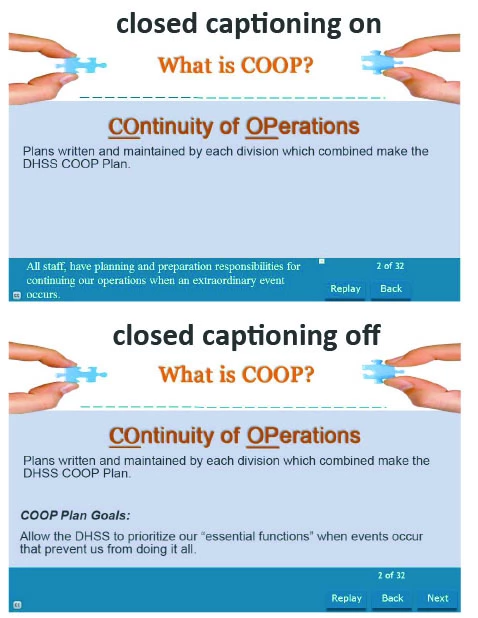
This topic has been closed for replies.
Correct answer Lilybiri

Maybe have a look at this blog post, I used oe shared action to create several toggle buttons.

1 action = 5 Toggle Buttons - Captivate blog

If you want the CC to be off when strarting, you don't have to do anything because the default value of cpCmndCC is set to 0, which means CC is not visible. One exception is CP2017 where you can turn it on by default in the new dialog box. However your conditional action if you want it to be a toggle, is not correct. Please chek that blog post.

I also think this would be a good read as well:

Advanced Actions Dialog box in Captivate 2017 - Captivate blog

1 reply

Lilybiri
LilybiriCorrect answer
Legend
February 21, 2018

Maybe have a look at this blog post, I used oe shared action to create several toggle buttons.

1 action = 5 Toggle Buttons - Captivate blog

If you want the CC to be off when strarting, you don't have to do anything because the default value of cpCmndCC is set to 0, which means CC is not visible. One exception is CP2017 where you can turn it on by default in the new dialog box. However your conditional action if you want it to be a toggle, is not correct. Please chek that blog post.

I also think this would be a good read as well:

Advanced Actions Dialog box in Captivate 2017 - Captivate blog

erins47830490
Participant
February 22, 2018

Thank you Lieve,

The past two days I have been researching and found your toggle article.  It didn't really make sense until I went back and read your first article.  So thank you for taking the time to write those blogs.  I have subscribed to your feed so I can learn more about those advanced actions.

When you said that

"If you want the CC to be off when strarting, you don't have to do anything because the default value of cpCmndCC is set to 0, which means CC is not visible".  It sparked that there was something I was missing in my settings.

I tried that but it still continued to play.  I figured out that under the closed captioning/settings there is a button you check if you want to display closed captioning.  It must override other settings because as soon as I removed that check mark the CC button on the play bar allowed me to toggle (show/hide) and started in the off position.

Thanks Again.

Erin

RodWard
Community Expert
Community Expert
February 22, 2018

That's a new setting that only came in with enhancements to Closed Captioning introduced in Captivate 2017.  It did not exist in previous versions of Captivate.