
Aggregator Navigation Menu Problem & Solution
I just finished publishing a course that has 10 Lessons, with each lesson made up of 10-20 topics.
One consistent problem that I had with the aggregator is that the navigation menu at the bottom on random topics would get cut off.
I spent hours on the line with Adobe Tech support, and we finally figured it out via brute force. Hopefully what I learned can help you save a lot of time and frustration.
NOTE: I am NOT using an LMS, and that might make a difference.
Here is what was happening with the menu bar:
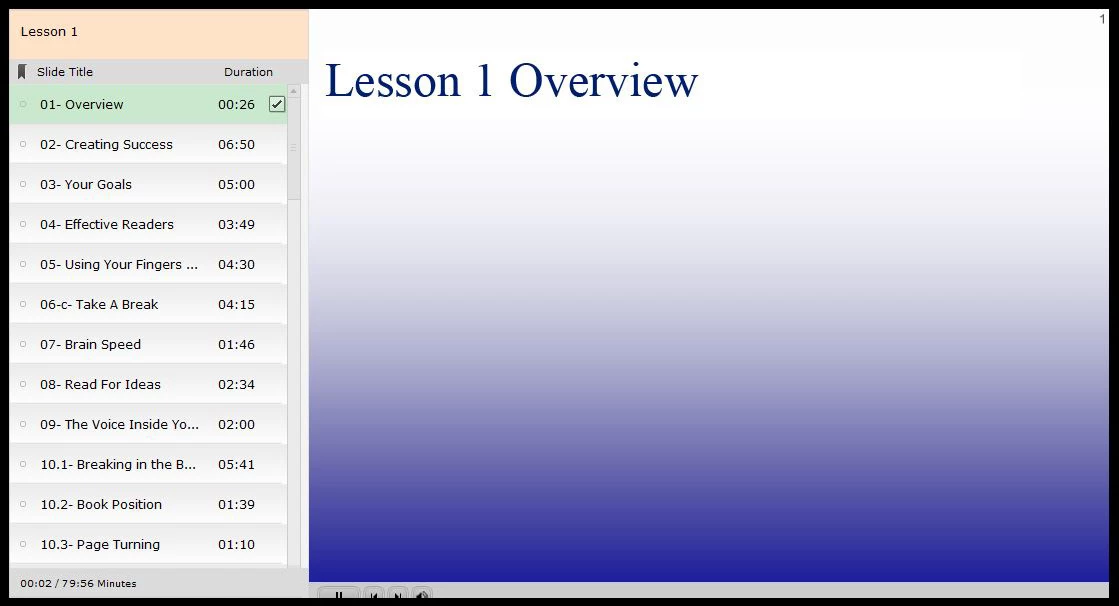
Sometimes it would display correctly on my local machine, but get cut off when I uploaded it to my server.
Here are the steps I took which seem to resolve the problem completely:
1. Delete the following files:
a. On your computer
i. aggregated swf and htm
ii. the .aggr file
b. On your server:
i. ALL swf and htm files for that lesson
ii. ALL other related files (.js, flv, etc).
2. Load Captivate and create a NEW aggregator project from scratch. Completely new. Completely from scratch. I wasted SO much time trying to fix and republish an existing AGGR projects that still did not work. It's faster to just start over.
3. Import all of your topic swf files
4. Save the aggr. project.
5. Publish the project.
6. Upload all of the files again to your server.
If that does not work, you might also do the following (these solutions have been addressed elsewhere:
1. Make sure that ALL of you individual topics are the same size (ex. 800 x 600)
2. Make sure that ALL of your swf files have been PUBLISHED from the most recent version of Captivate.
Aggregator in C9 will NOT correctly aggregate published files from C5.
3. I had problems with some of my old C5.5 projects being imported into C9. I had to rebuild them from scratch in C9. This resolved the issue.
4. If you have multiple lessons (each with several topics), it would probably be a good idea to put each lesson in its own folder.
5. Double-check all of your published file names to ensure that they are consistent and that you are not accidentally loading in an old file.
6. Re-publish your TOPIC project.
7. Ensure that all of your topics have the same skin settings.


 AdChoices