gokhalea3570719
Participant
January 11, 2016
Answered

Back button shows the original position of the button

  • January 11, 2016
  • 2 replies
  • 352 views

Hi,

I am new to captivate and need some help. This might be very basic but I am struggling.

I have three images on the slide, each image click to show a story and then a button that would close the story (hide it). When I inserted a button, it appeared in the middle of the screen so I edited and moved the position to where I need it. I then grouped button along with the text and added action to the click image that would show the text. Once the text is read, you click the button to hide both the text and button. But in preview when I click the button, a similar button appears in the middle of the screen grey in colour. I have tried using advanced actions as well. But the problem still persists.

Can you suggest if I am doing anything wrong?

Thank you

Aditi
This topic has been closed for replies.
Correct answer Lilybiri

You have to check the State view for that button, which looks like being a default Image button (old type). What is the action triggered by the Back button? Since each text caption (it looks like a caption, not a shape) has its proper ID, you'll need to have different actions for each back button. Have a look at my blog post here:

Playing with Captivate 9 - Captivate blog

My approach would be like this for your use case:

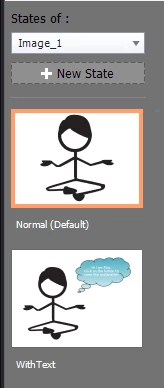
  • For each image create a second state 'WithText', where you add the text container
  • Cover each image with a shape that has Alpha=0 and stroke=0 (invisible to user) and set that shape to act as a button. Check the Rollover and Down states as well, so that they are also invisible.
  • Create a Close button, and hide it in Output (eye icon on the Properties panel).
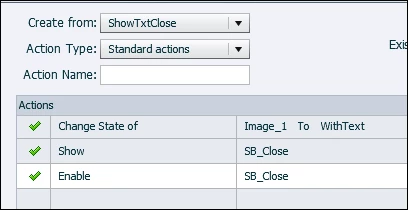
  • Create a shared advanced action for the shape buttons over the characters that will show/enable the Close button and change the state of the character:

    The parameters will be the Image, the State and the Close button
  • Apply this shared action to all the characters. You can name the extra state always the same, that is the easiest way. Only the Image will be different.
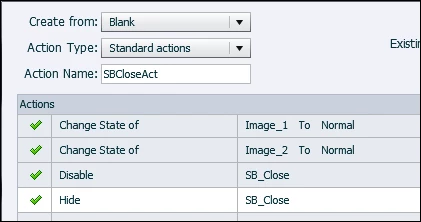
  • Create this advanced action to apply to the Close button (I created the test file with only two images, you'll have to add all the images on the slide). That way you can always use the same button for every image. If this is not OK, you'll need always another button.


2 replies

gokhalea3570719
Participant
January 14, 2016

Thank Lilybiri this worked.

Lilybiri
Legend
January 11, 2016

You forgot something very important: which version are you using?

Aren't you talking about the rollover and/or the down state of that button?

gokhalea3570719
Participant
January 11, 2016

Hi Lilybiri,

Sorry I am currently evaluating version 9.

Captivate Screen below where I have a blue color "back button". All the other text boxes are hidden in preview. When image is clicked it opens up the text and back button. It is a default image button style.

But when you click on back button instead of hiding the text is appears something like below. Back button moves from the bottom right of the text box and appears in the center of the screen. I have checked the action even tried using variable but nothing seems to work.

Thanks

Aditi

Lilybiri
LilybiriCorrect answer
Legend
January 11, 2016

You have to check the State view for that button, which looks like being a default Image button (old type). What is the action triggered by the Back button? Since each text caption (it looks like a caption, not a shape) has its proper ID, you'll need to have different actions for each back button. Have a look at my blog post here:

Playing with Captivate 9 - Captivate blog

My approach would be like this for your use case:

  • For each image create a second state 'WithText', where you add the text container
  • Cover each image with a shape that has Alpha=0 and stroke=0 (invisible to user) and set that shape to act as a button. Check the Rollover and Down states as well, so that they are also invisible.
  • Create a Close button, and hide it in Output (eye icon on the Properties panel).
  • Create a shared advanced action for the shape buttons over the characters that will show/enable the Close button and change the state of the character:

    The parameters will be the Image, the State and the Close button
  • Apply this shared action to all the characters. You can name the extra state always the same, that is the easiest way. Only the Image will be different.
  • Create this advanced action to apply to the Close button (I created the test file with only two images, you'll have to add all the images on the slide). That way you can always use the same button for every image. If this is not OK, you'll need always another button.