
Inspiring
May 17, 2012
Question

Best practice for building extra navigation bar?

  • May 17, 2012
  • 1 reply
  • 1286 views

I've been away from Captivate for a few years.

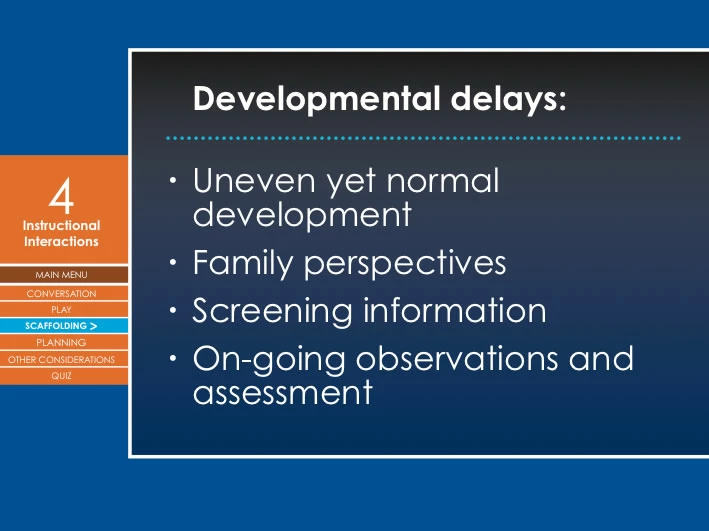
What's the best method to build this navigation system (shown below) with on states, over states? The Captivate nav bar will appear at bottom.

The menu UI will be repurposed across several lessons and units.

I prefer to keep it in Captivate, but could use Flash if needed.

Disappointed that Master slides do not include buttons.

Use custom buttons in a Template?

Or is a Flash widget the best method? How to handle the coding?

Thanks SO much for your suggestions.
This topic has been closed for replies.

1 reply

Lilybiri
Legend
May 17, 2012

For navigation the buttons widget can be used on a master slide.

I would certainly recommend to have a template. If you use normal buttons or other interactive objects (click boxes) you'll have to duplicate them for each slide which is very cumbersome. But do you need to have the menu on each slide? It takes up a lot of real estate. Why not enable the TOC for navigation (where you can group slides and even create multiple levels of grouping)? Or have a menu slide from which you branch and to which you return? Have a look at this old blog post:

Template for reusing script

casbeckAuthor
Inspiring
May 17, 2012

Thanks so much Lilybiri.

I was just at this TOC grouping tutorial: http://captivatecrazy.blogspot.com/

I totally agree about the screen real estate. I usually do the UI design, but this one came to me like this. Perhaps I'll make a recommendation, but it looks like they want it to be super-easy for user to jump around.

The TOC can be in overlay mode, but their users may not be sophisticated enough to know to click it.

RodWard
Community Expert
Community Expert
May 18, 2012

I agree that using a standard TOC set to Separate mode would be your best option in Captivate.  If the client won't budge on the look and feel and insists that it MUST look exactly like the image you show above, I think you might be better off using Flash.  Trying to have this menu show up on each and every slide with On states and Over states for each menu item would require lots of extra work in Captivate. You would need a rollover image for each menu item to simulate the rollovers, plus a click box sitting underneath each rollover image to make it clickable (yes that is UNDER not on TOP) and then you need the item for the current slide section to be shown as selected.  Then you need to copy this arrangement to each and every slide in the project file. 

You could end up with hundreds of objects weighing down your project just to do navigation in a given look and feel, when the same navigation function can be done with far more flexibility in a standard TOC.