Known Participant
October 1, 2016
Question

Blur does not work as expected

  • October 1, 2016
  • 4 replies
  • 464 views

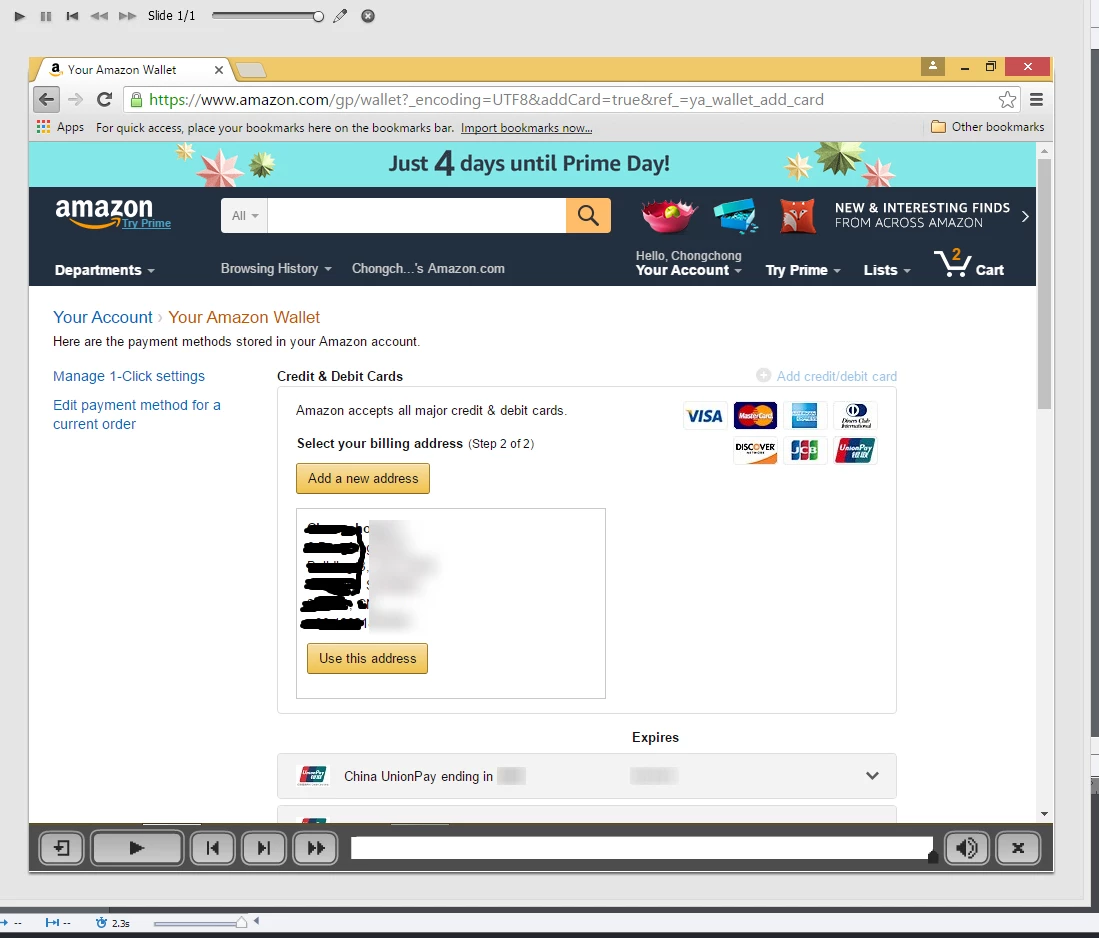
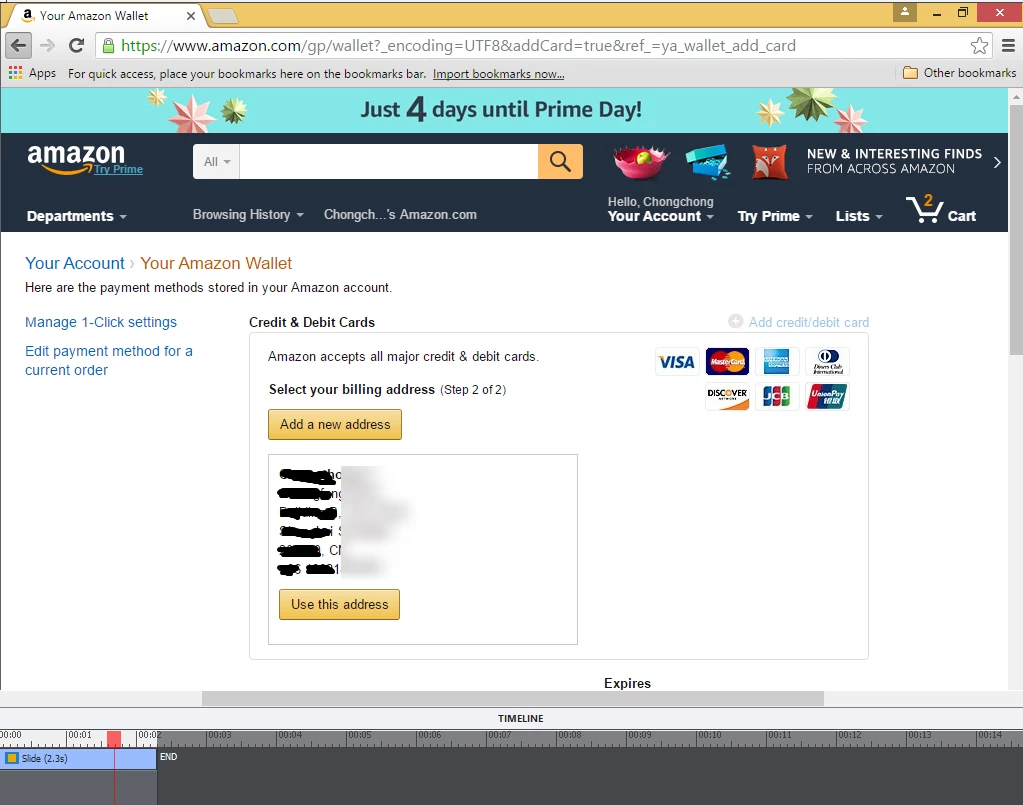
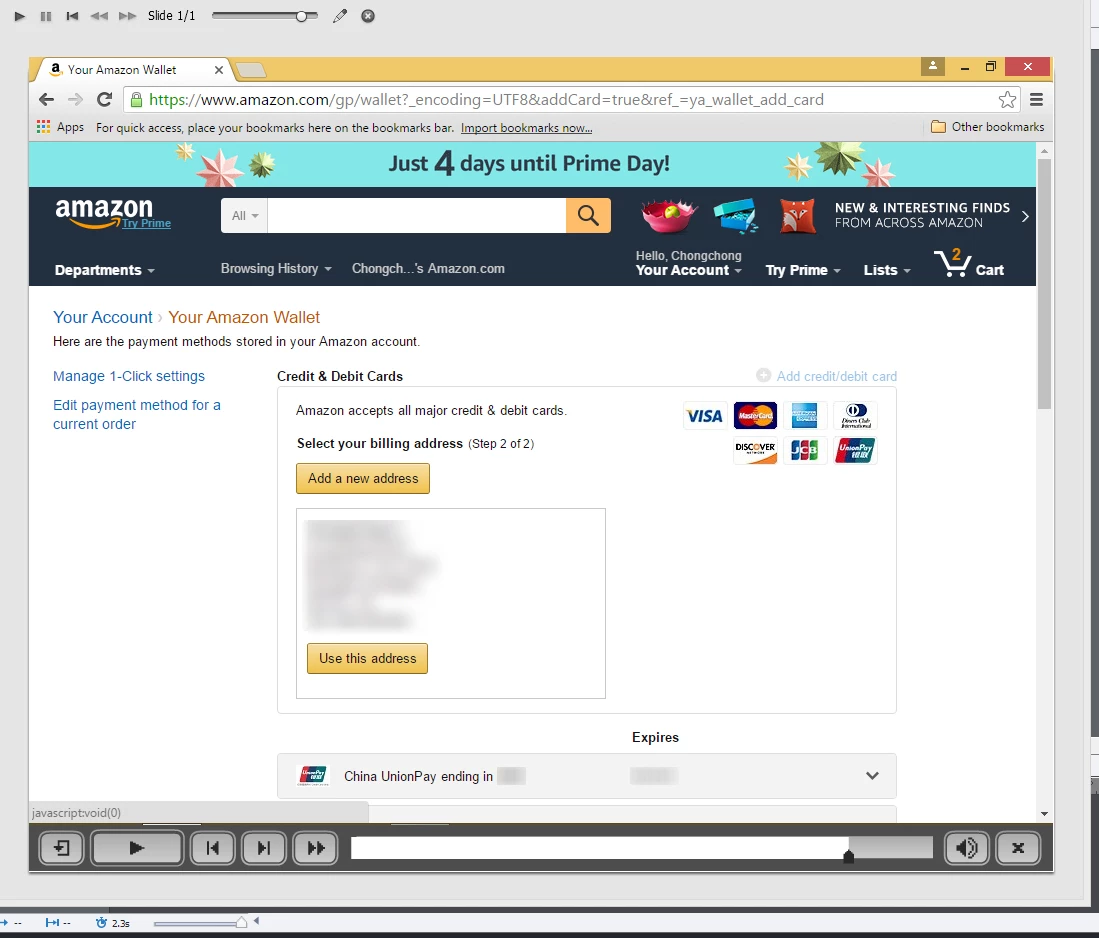
Hi, I edited background image of a slide to blur my address information, but the blur does not work on the whole slide. At the end of the slide, only the right part of my address was blurred. I manually used a pen tool to cover my address.

Why did it happen?
    This topic has been closed for replies.

    4 replies

    November 15, 2016

    I'm experiencing a similar problem as newdragonwarrior. I'm making a software simulation of a new Electronical Medical Record. In one recorded simulation, we could not avoid showing real patient data. Therefore, I used the blur effect of Adobe Captivate 7 to blur the patientspecific data. There were multiple consecutive slides containing this patientspecific data that had to be blurred. During almost the entire slide, the blur function works perfectly. However, in the transition between the various slides, the blurring disappears for a very short moment, but long enough to recognize patientnames or birthdates. Of course, I can't risk publishing the simulation like this, because of risk of patient data leaking out.

    My workflow to blur the sensitive information was:

    In all of the required slides, I right clicked to 'Find the background in the library'. I dragged the background on to the slides and used [Crop image] to crop the background to the piece of patientspecific data. I positioned the image in the exact right spot on the slide and set the timing to 'Display for: rest of slide' and 'appear after 0 sec'. Then I clicked 'Effects' and clicked the button 'Add effect' and chose 'Filters>Blur*'. I changed the settings to 10 px in both Blur X and Blur Y. I set the quality of the blur to 'High'.

    When I use the Live Preview in the Effects tab, I could see that the blurring was perfectly adequate.

    I don't understand why the blurring disappears between the slides. Does anyone know why this happens and how I can solve this problem?

    Known Participant
    October 5, 2016

    Hi all, I think this is a bug of Adobe Captivate.

    I checked my recordings, and found many of these examples.

    Let me give you another example. Use Adobe Captivate to record your Chrome browser (application). Use Chrome to visit: www.ebay.com, and select any item, and click "Buy It Now". Wait until the next page appears. Stop recording.

    Then try to blur your login name at the top left corner, or "Sign in or register" if you are not logged in. See whether it will work.

    BDuckWorks
    Inspiring
    October 3, 2016

    1) I notice that your scrollbar sits in the middle of the screen, Snagit may have placed the edits relative to the left edge of the screen (as if the scroll bar was all the way left).

    2) Try making the blur object wider to cover more of the screen.

    Known Participant
    October 4, 2016

    Hi BDuckWorks, thank you for your reply.

    Even if I blurred the whole background image, when I previewed it, the left part was still not blurred.

    Lilybiri
    Legend
    October 1, 2016

    How did you capture that slide and what was your work flow to blur the sensitive information?

    Known Participant
    October 2, 2016

    Hi Lilybiri.

    I recorded software simulation (demonstration mode, application: Chrome).

    Then I right-clicked this slide, and found the background image. I edited it using SnagIt, and saved it.