Known Participant
February 27, 2014
Question

Button for rest of project

  • February 27, 2014
  • 3 replies
  • 590 views

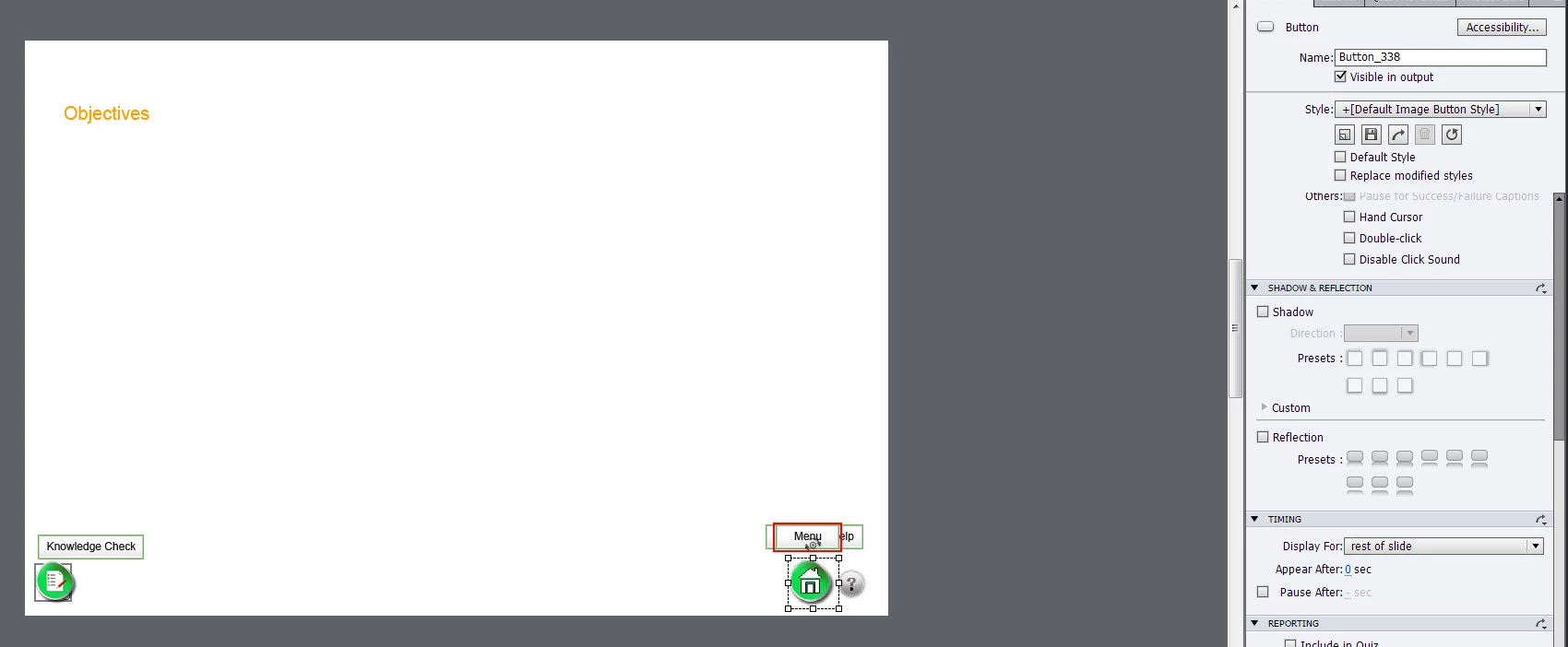
I am working in Captivate 6 on a project that requires 3 specific buttons on most of the slides (see screen shot). I thought it would be best to place the buttons on the intro slide and time for rest of the project.  I started with the 1st button for the Menu which is a default image button, the size has been modified (see screen shot). The problem is:  I don't get this option in the timing, only options available are "rest of slide" and "specific time".

I have done this before using the smart shapes with no problem.
    This topic has been closed for replies.

    3 replies

    Andre Paz Leal
    Inspiring
    February 27, 2014

    I just reply because I like when people have choices. When I say JS I say:

    var mybutton = document.createElement("img");

    document.getElementById("project_main").appendChild(myButton);

    myButton.setAttribute("src", "http://myServer/myButton.png");

    myButton.setAttribute("height", "356");

    myButton.setAttribute("width", "356");

    myButton.setAttribute("style", "position:absolute; z-index:100");

    $(myButton).css('top',108);

    $(myButton).css('opacity',0);

    You could then animate using an external library:

    TweenLite.to(myButton, .7, {left:633,width:100,height:100,opacity:1,scale:1});

    Or use the Jquery that´s already loaded:

    $(myButton).animate({opacity:1,left:633,width:100,height:100},600);

    In here we used in an external JS a bunch of functions that use swype, drag, navigation thru slides, etc, a lot of elements that are loaded dynamic and inside Captivate I only have a script.

    Why that? Because we work today with 15 Instructional Designers, that way I can update any of the 101 courses already uploaded without the need of getting inside of them and making another package, another import, another everything. And most important all the courses mantain a similar design.

    Cheers.

    Lilybiri
    Legend
    February 27, 2014

    Thanks a lot for this answer! And I understand, because you are already using a custom external JS file why you offered this solution as an alternative. I asked because your first answer was so short, and would have puzzled a lot of users. Hope you didn't mind my question.

    Andre Paz Leal
    Inspiring
    February 27, 2014

    No mind at all, I´m glad I could be usefull to someone so Captivated Advanced, kkkkk, award me! kkkkk.

    Andre Paz Leal
    Inspiring
    February 27, 2014

    Place the buttons on the master slide, or if you are ok with advanced JS create elements on the top of the whole project!

    Lilybiri
    Legend
    February 27, 2014

    What do you mean Andre Paz Leal? Why advanced JS? I never use JavaScript for navigation buttons, but willing to learn about it if it could save me time. As I explain in the blog post, for which I posted a link, two possiblities for shape buttons (not for normal buttons):

    1. Put them on the Main master slide (if it is used by all the daughter master slides) or on all the daughter master slides that you are using in the project. Be sure to have them always on top, and if necessary to activate the Pausing for those shape buttons, which will always occur at the end of each slide. Timing accordion is not available for master slide objects, Pausing is to be found in the Options accordion. Disadvantage of this work flow: the shape buttons have no ID, you cannot hide them on some slides for that reason. But you can create a master slide that doesn't have one or more shape buttons if necessary.
    2. Put them on the first slide, with a timing 'Rest of Project' and always on top. That gives you shape buttons with a unique ID, which means that you can control them (hiding/showing) by (advanced) actions.

    Lilybiri

    Lilybiri
    Legend
    February 27, 2014

    Only shape buttons can be timed for the rest of the project or put on master slides, no normal buttons.

    http://blog.lilybiri.com/why-i-like-shape-buttons-captivate-6