dowbright
Known Participant
September 27, 2013
Answered

Can't align or snap lines and text to grid

  • September 27, 2013
  • 2 replies
  • 2300 views

Captivate 7

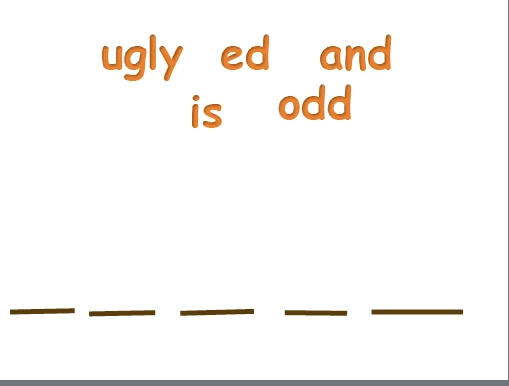
I've been working with this for almost two hours, and can't seem to make align or snap to grid work. I want to drag and drop the words in order: ed is odd and ugly.

But the lines I made won't stay straight horizontally, and I can't seem to equalize the distance between words. I know how to do it easy-peasy in Mac Keynote, but can't figure out how to get it right here in Captivate. Once again I'm missing something obvious. Any tips for me?
This topic has been closed for replies.
Correct answer Kurrykid-jzpfVq

To draw a straight line, hold the shift key. This will keep it straight for you.

To get the same distance between them, select them and click on Modify, Align, Distribute Horizontally. You can also align the edges as well to make sure they are straight.

2 replies

Kurrykid-jzpfVqCorrect answer
Inspiring
September 27, 2013

To draw a straight line, hold the shift key. This will keep it straight for you.

To get the same distance between them, select them and click on Modify, Align, Distribute Horizontally. You can also align the edges as well to make sure they are straight.

Lilybiri
Legend
September 27, 2013

I never use the grid, nor the snap functions. Grid is almost invisible... I continue to plead for real users and the possibility to drag out guides from those rulers as is the case for most Adobe applications.

To align, I will use the Align option in the right-click menu when I cannot solve my problems with shortcut keys. This is an old blog post, but the shortcuts are still working, and I find them very useful:

http://blog.lilybiri.com/shortcut-keys-part-1-moving-and-resizing-obje

As for distributing those words, that is fine if each word is in a different text container.

Lilybiri

dowbright
dowbrightAuthor
Known Participant
September 27, 2013

Thank you all. I wasn't using the align choices correctly, but now get it.

The rest of the solution was truly bizarre: Despite very good lighting in the room and more at my desk, the green lines that tell me things are lined up correctly were invisible in the night. I couldn't see them at all, despite using them frequently before. This morning when I returned to it, voila. There they were, visible again in daylight.

And Lilybiri, you are so right about the grid. It's useless. Those things should be editable by the user to match their vision needs. Or maybe they are, and I'm unaware of it.

Now wish me luck with getting my first Drag and Drop to work!

Legend
September 27, 2013

I don't use Snap to Grid, so can't really help with that. And, since you haven't mentioned what you have already tried, I may be suggesting something you already did.

You can do this from the Align toolbar. To evenly space the word blocks, select the text blocks and click the Distribute Horizontally icon. I can see that blocks on the 2nd row is not aligned correctly. For that, select those two text blocks and click Align Top or Align Bottom.

You can do the same for aligning your lines (Align Top or Bottom).

Alternatively, off late I use the Drawing/Smart Guides feature while placing these objects on the slide itself. You can enable this from the View menu.

Sreekanth