



Cannot use Captivate - phantom drive letter
When I click New Project, Captivate displays the following error messages:
Failed to create Cache folder: Falling back to the default locationCaptivate Cache
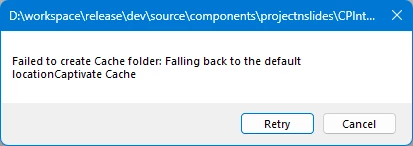
Followed by:
Failed to create default project caceh folder: falling back to %temp%
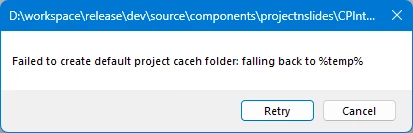
Yes, I noted the typos 🙄
Clicking either [Retry] or [Cancel] has no effect.
Thinking Captivate is trying to create a cache in a non-exsistent location (I neither have a second physical drive lettered D nor a network drive mapped to D), according to the title bars in the dailog boxes:
D:\workspace\release\dev\source\components\projectnslides\CPint...
I tried to open the Preferences menu from Edit. Except, as soon as I did that, this error message appears:
An unexpected error has occurred, which may cause Captivate to behave unexpectedly. You can restart Captivate with backed-up project.
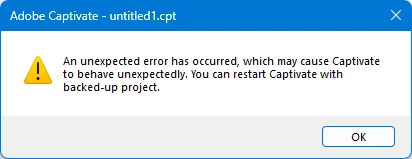
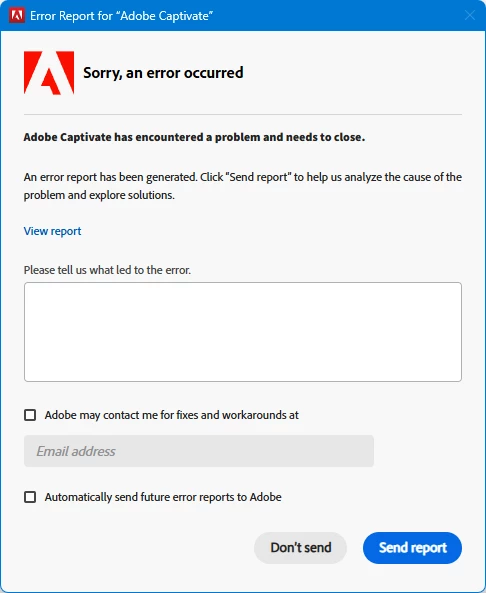
As soon as I click [OK], the Error Report for "Adobe Captivate" dialog appear and Captivate crashes back to the Windows 11 Enterprise desktop
 AdChoices