
JL_AM
Participating Frequently
September 16, 2017
Answered

Captivate 2017 "L" symbols text captions

  • September 16, 2017
  • 2 replies
  • 374 views

Hello,

I'm using Captivate 2017 in break point mode and I'm having "L" symbols and a blue "read more" icons appear in some browsers.

I have made tests in several other computers and using different browsers and trying to make a little bigger the text containers and/or checking for blank spaces and  can't find why the symbols appear and sometimes don't

Here is an image of the symbols.
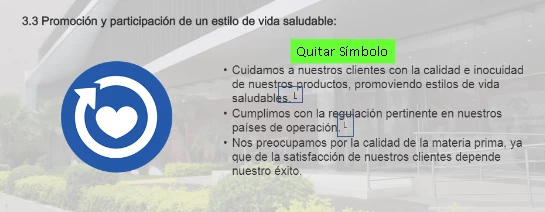
Any help or pointer as how to solve this will be greatly appreciated

Thanks

JLA

This topic has been closed for replies.
Correct answer Lilybiri

You have a soft return, take it out.

2 replies

Paul Wilson CTDP
Community Expert
Community Expert
September 16, 2017

Also take a look at this video. It may help you as well.  https://youtu.be/yNO5eWTr6jc

Paul Wilson, CTDP
Participant
January 11, 2018

Soft returns can't be seen in Captivate 2017, so here's a solution to convert them to hard returns while in Captivate.

  1. Publish a simple Captivate slideshow which contains a soft return.
  2. Go to the published folder and find and open up the CPM.JS file with a text editor (I used BBedit).
  3. You'll find the soft return up towards top. It looks like a red upside down question mark.
  4. To find it, do a BBedit search of the text immediately in front of the soft return.
  5. Copy the red, upside down question mark.
  6. Go back to Captivate and open the file with the problem soft returns.
  7. Launch the "Find and Replace" and paste the copied question mark into the "Find" field. NOTE: It's OK if it looks like it didn't get pasted. IT'S THERE.
  8. Type a "flag" character into the replace field (I used the ~).
  9. Set the "Search In" field to "All Object Types".
  10. It should look like this:
  11. Click the "Find Next" and the first text box in your document with a soft return will be selected.
  12. Hit "Replace" and look at the text box. The replacement character has swapped with your soft return.
  13. Highlight the replacement character in the text box and change it into a hard return, and your done with your first replacement.
  14. Repeat 11 thru 13 until Captivate tells you your finished.

It even found a soft return in the slide notes.

I'm on a Mac. Hope it works on a PC.

Lilybiri
LilybiriCorrect answer
Legend
September 16, 2017

You have a soft return, take it out.