


Participating Frequently
April 17, 2020
Answered

Captivate 2019 creates invalid file type when project is previewed

  • April 17, 2020
  • 1 reply
  • 1047 views

Hello from Chicago!

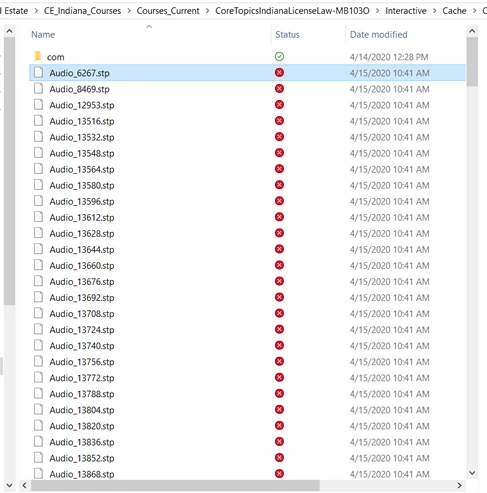
When I attempt to "Preview Project", Captivate creates dozens of " Audio_xxxx.stp" files in the project cache.

Trouble is, Captivate inserts a blank space before the word "Audio" and thus renders the file name invalid.

Because my company uses OneDrive to store these projects, the invalid file format causes syncing to stop until I, manually, delete each of the .stp files. 

Has anyone else experienced this?

Any ideas?
Thank you all for your help!

Wishing health and safety to you and all your families.

Serko 

    This topic has been closed for replies.
    Correct answer RodWard

    You're not going to like my suggestion, but I never use OneDrive this way.  I always open Captivate projects that are located on my local hard drive folders, not from the OneDrive folders.  If I want to backup my projects in OneDrive, I throw them in there AFTER I have saved and closed down from Captivate.


    I also have the process of immediately doing a Save As and renaming the Captivate CPTX that I am working on each day.  I add the current day's date in reverse format (e.g. 20211008) to the end of the filename so that I know which day that project file was worked on.  This has saved my bacon on a number of occasions because then if anything bad happens to that CPTX and it gets corrupted, the maximum amount of work that I lose is less than one day.


    So it's up to you how you choose to use OneDrive, but my advice is NOT to open Captivate files directly from it and to use upload backup versions there AFTER closing down from Captivate.  That way there is absolutely no chance that any glitches in network traffic for OneDrive and affect your files and potentially corrupt them.

    1 reply

    RodWard
    Community Expert
    Community Expert
    April 18, 2020

    NEVER set your Captivate cache to be anywhere other than on your local PC hard drive.  Otherwise you could end up with corrupted projects.  Set up a special folder near the root level of your local hard drive to use as the Captivate Cache and then go into your Edit > Preferences settings and change the Default Location for the Cache to be that folder.


    You should always be working of CPTX files that have already been downloaded to your local hard drive and opened by Captivate from there.  Do not use Captivate to open a project file on the server and work on it from there.  Corruption and lost work can result.  Once you have finished working on a CPTX, save and close, THEN upload it back to your OneDrive location.  


    Many users report no problems using OneDrive but what I outline above has always been the safest way to use Captivate.  Working over a network may also hamper the responsiveness of Captivate.  Working from your local drive is the way to go.

    AHI225Author
    Participating Frequently
    April 29, 2020

    Thank you SO much @RodWard!

    I've been working (toying) with Captivate for a little while now and I have run into the corruption issue you mentioned, at least two or more times that I can remember; NEVER would have guessed that was the issue!


    I really appreciate your help!

    Stay safe!

    Serko