You appear to be still confusing TTS and CC. They are really quite different (though related).
Text to Speech (TTS for short) is only usable by the E-learning Developer because it is one way to generate audio that is based on the text typed into the Slide Notes area. Closed Captioning provides the developer with a way to show a synchronised transcript of the audio track at runtime. The developer can determine whether the CC text is present by default, or initially turned off by default. If the developer activates the Captivate playbar with the CC button, then the user can opt to turn CC tex on or off at runtime.
Closed Captioning (CC) will only be possible to activate if there is slide audio present at the time. That's why you were unable to get CC text to appear unless you used Text-to-Speech (TTS) because it is one way to generate and add audio to a slide. (You could have used a microphone to record your own voice and that would have achieved the same result of adding audio to the slide.)
So, TTS is just to add audio to the slide. Once you have generated the audio, you could deselect the checkboxes for TTS in the Slide Notes panel for that slide and nothing would change because the audio is already now present.
However, the CC checkboxes that appear to the left of each line in the Slide Notes panel will determine whether or not that particular line of text can appear at runtime IF Closed Captioning is turned on. Deselecting the checkbox on a given line would mean the user could not activate that text to appear even if they wanted to.
So if you want to give end users the choice about whether or not CC text is on, then:
- Add audio to the slide (either by using TTS or recording your a human voice).
- Add text in the Slide Notes area that transcribes the audio track.
- Check the CC box for the lines in the Slide Notes that you want available as CC text at runtime.
- Synchronise the CC text lines so that they match closely with the audio during playback.
If you want to give control over the CC text to your end users:
- Turn on the Captivate playbar
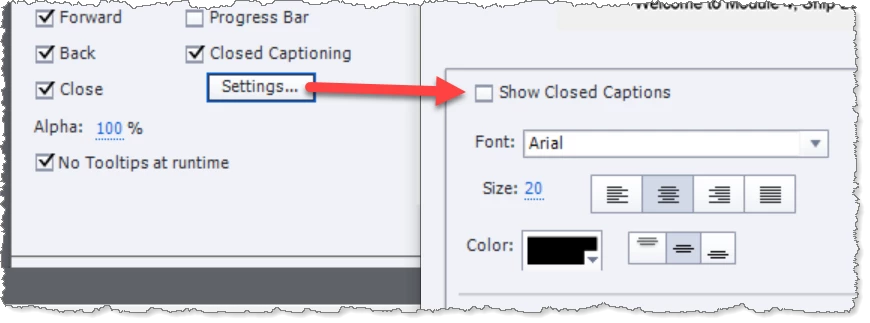
- Make sure the CC button is selected in the Playbar settings.
If you want CC text OFF by default:
- On the Playbar settings panel, click the Settings button underneath the Closed Captioning checkbox.
- Make sure the Show Closed Captions checkbox is deselected. This means the CC text does not become visible unless the user clicks the button on the playbar at runtime.




 AdChoices