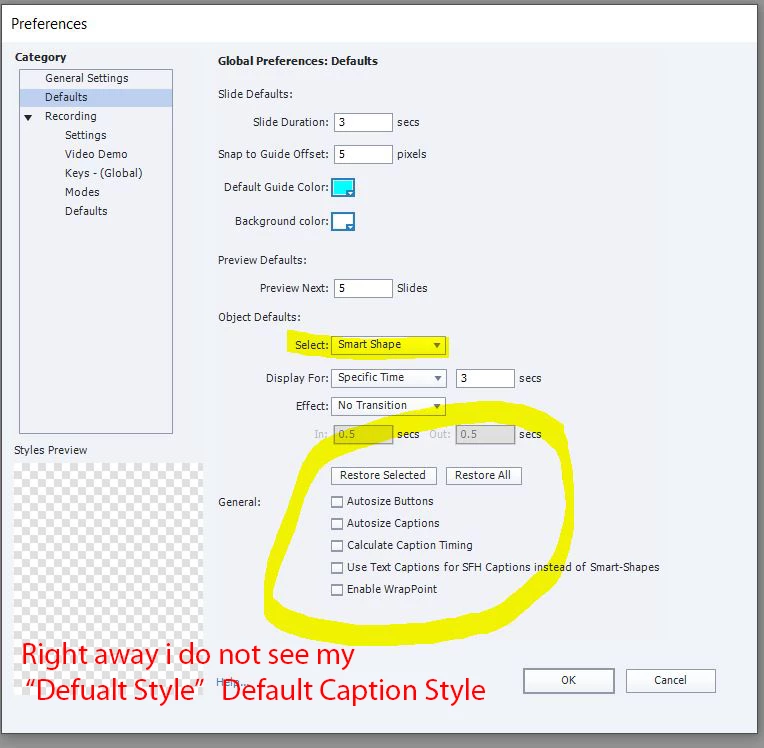
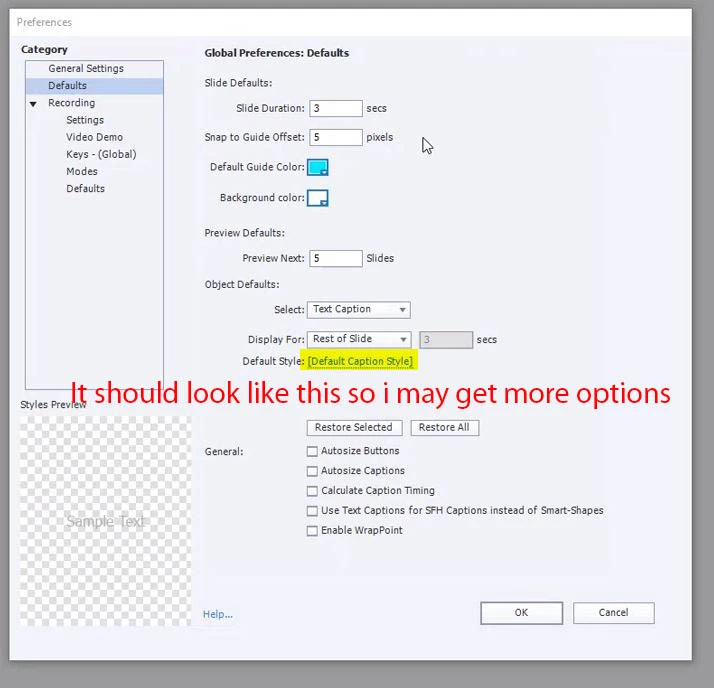
I think something might not be right about your installation in Adobe Captivate. Even with no project open, there is always a default theme preselected. You can change the theme which will change the default object styles for all the elements including Smart Shapes. Without a project opened I just went in to see what my Preferences window looks like and indeed you can select the Default Style for Smart Shapes as you can see in my screenshot (similar to your second one).
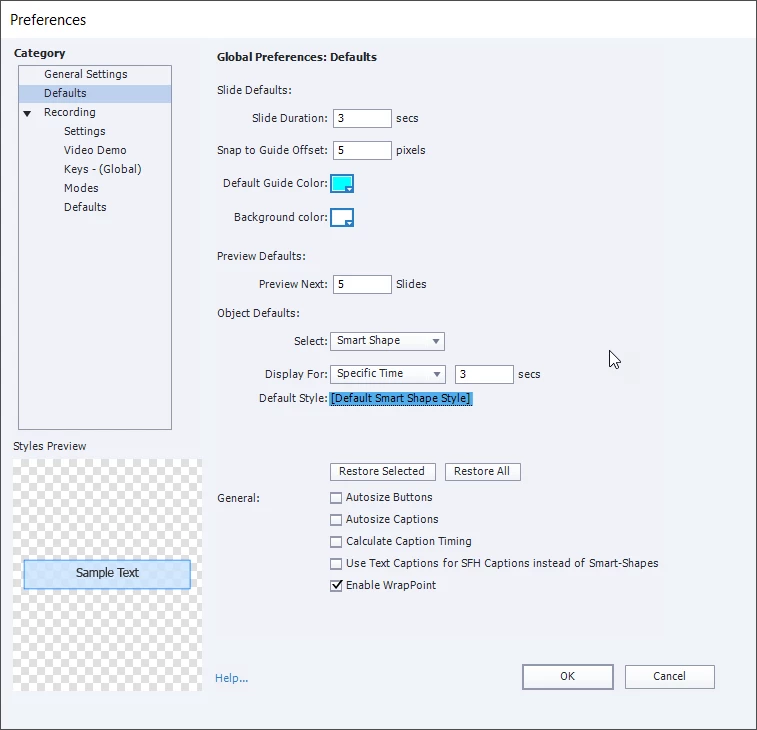
When you click on Default Smart Shape Style this will take you to the Object Style Manager where you can change the defaults for items such as Smart Shapes. Keep in mind that you will need to save these changes as a new Object Style and possibly a new Theme. You will also need to make this new Theme the default so that the object styles are used on new projects and recordings.
Back to the issue at hand, the Default Style is no appearing for you. You may wish to try resetting your installation of Adobe Captivate. Use the steps I outline in this video: What to Do When Captivate Stops Working
If this doesn't work for you you might wish to reach out to Adobe directly. You can email them at...
CaptivateHelp@Adobe.com




 AdChoices