Known Participant
April 23, 2015
Question

Captivate 7: Properties panel too narrow

  • April 23, 2015
  • 2 replies
  • 298 views

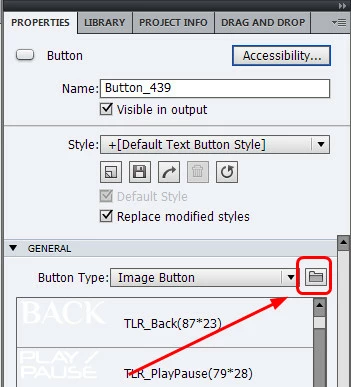
My co-worker is unable to see the full width of her Properties Panel.  We often customize the look of our navigation buttons to match the theme of the course.  Having this limited size is causing some extra work and frustration.

To explain:  When clicking on a BUTTON object (from the timeline or workspace), we look at the PROPERTIES tab.  Under the GENERAL section of the Properties tab, I am able to see the Folder that allows me to navigate and change the image of my button (this is to the right of the dropdown selection).  My coworker is ONLY able to see the dropdown button, even when the panel is undocked.  We are unable to resize the width of the panel, allowing it to display the folder-button.I have tried to search through the different settings and am unable to help her expand the area.

It seems especially strange that my version of Captivate is fine but her version is more narrow.  Any recommendations?
    This topic has been closed for replies.

    2 replies

    Lilybiri
    Legend
    April 24, 2015

    The width of the Properties panel has a maximum by design, something I regret very much because for most Adobe applications you are totally free to resize each panel. And in CP8 it certainly didn't improve at all, customization is wound back compared with previous versions. Resetting Preferences will not help in this case, the reason is a bad practice of having too long custom names for objects, like for custom buttons. The field where those names appear will increase to fit the longest name, but that means that the Browser icon you are talking about disappears in the ...clouds One of the drawbacks of lack of customization. Tell your colleague to use short names. In the DOS era this has never been a problem because names were limited to 8 characters, I try when possible to keep to that rule.

    Legend
    April 24, 2015

    Try these:

    1. Reset preferences.

    2. Clear cache.

    3. Close and launch Captivate.

    One or a combination of these will work.

    Sreekanth