
Participant
December 8, 2015
Answered

Captivate 8 background audio buttons disappear after audio import

  • December 8, 2015
  • 1 reply
  • 620 views

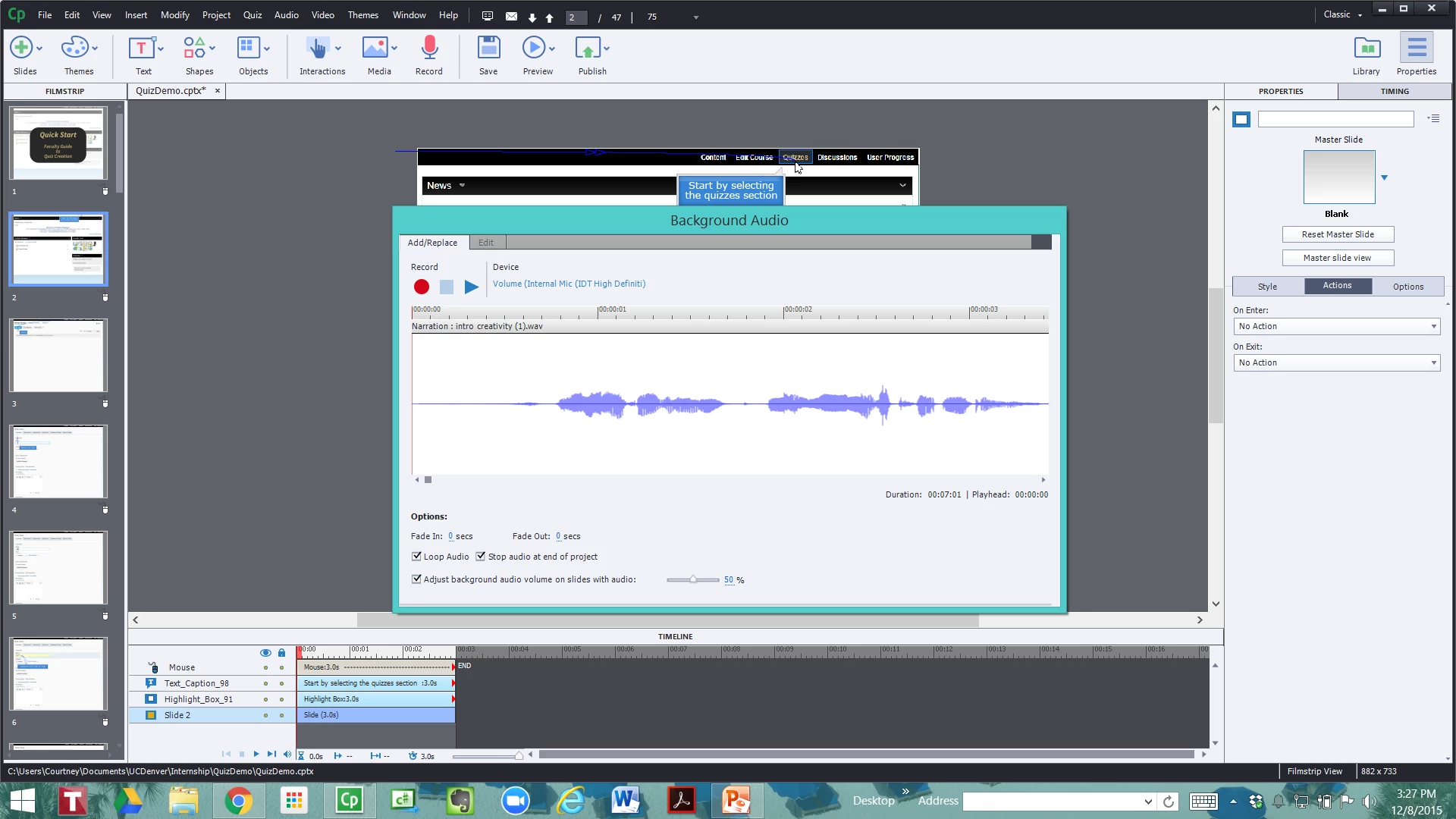
Every time I try to add background audio to a project it imports the audio and then this screen comes up.  You will note the Background Audio pop-up does not have the two buttons on the lower right corner which state "Save" or "Cancel".  It literally sticks on this screen and I cannot exit or get it to save in any way, I always have to reboot the project and it never adds the background audio.  Is this a bug or am I doing something wrong?  Any advice would be greatly appreciated.
This topic has been closed for replies.
Correct answer dalecou

I just found the solution.  In Audio Management, if the Show Object Level Audio box is checked, then the Save and Cancel buttons will not appear.  By simply unchecking this box I finally was able to apply background audio- only wasting about 10 hours of work arounds in the process.

1 reply

RodWard
Community Expert
Community Expert
December 9, 2015

This is a screen resolution issue. It's not showing the buttons at the bottom because they're cut off.

Try changing to a different screen resolution to see if you can get them back.

dalecouAuthor
Participant
December 10, 2015

Thanks for the suggestion but even at lower resolution I am still not getting the Save and Cancel buttons needed to apply the background audio.  I enlarged it a bit in the screenshot below- in the lower right hand corner of the audio it just seems to be missing the buttons to actually attach the file, what a weird bug?

dalecouAuthorCorrect answer
Participant
December 10, 2015

I just found the solution.  In Audio Management, if the Show Object Level Audio box is checked, then the Save and Cancel buttons will not appear.  By simply unchecking this box I finally was able to apply background audio- only wasting about 10 hours of work arounds in the process.