
akaskens
Known Participant
September 14, 2016
Answered

captivate 9 drag and drop

  • September 14, 2016
  • 2 replies
  • 262 views

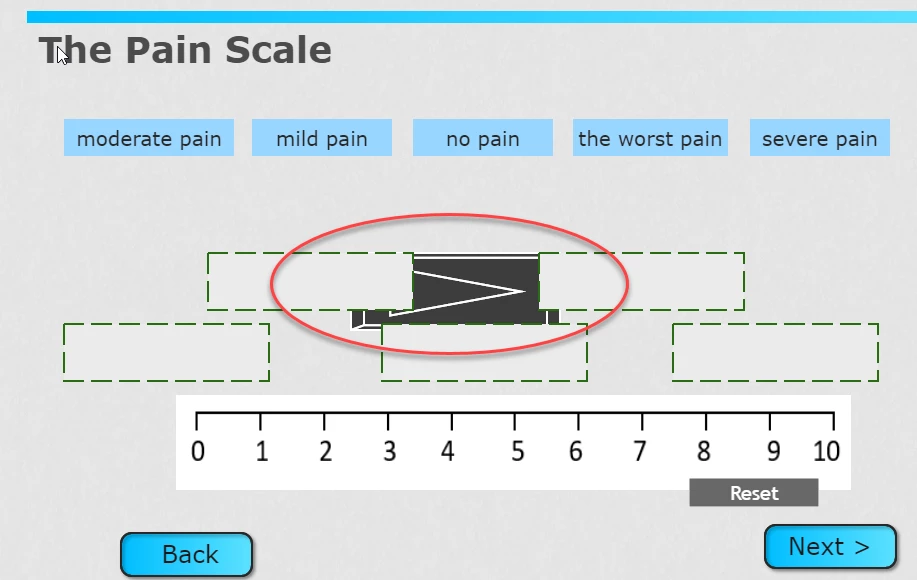
If anyone can help, I have two questions. I am trying to create a simple drag and drop in captivate 9. question 1: My preview output has a weird black shape in the middle of it - no clue why. I don't see that shape when not in preview, and i don't see it on the timeline. question 2: The project is responsive, but the text I put into shapes does not resize when I click on the table and phone icons. (however, the text inside the buttons (next and back) does. Is there a reason for that, and any way to get the text to automatically resize, as it does in a button?  thanks!
    This topic has been closed for replies.
    Correct answer Lilybiri

    That black shape is one of the included shape buttons with Captivate, it is probably on the master slide used for this slide, or it could be on a previous slide timed for the rest of the project.

    As for the responsive project text: you need to use styles for your text containers, whether you use shapes or captions. The object styles have a font size for each breakpoint view. I posted a more detailed explanation in this thread just half an hour ago:

    Font size in a Responsive project

    Be sure to use the Position Properties for the text containers themselves.

    2 replies

    akaskens
    akaskensAuthor
    Known Participant
    September 14, 2016

    Thanks very much!! I was able to get rid of the shape (copy and pasted into another project, and then that shape became visible so I could remove it).

    Regarding the fonts - I ready your explanation above, as well as your other post, but I'm not sure I understand. Do you mean that I have to set the font sizes for each breakpoint myself (using the styles)? (isn't there a way that captivate does it automatically?). If there is a way, then I don't understand how. thanks!

    Lilybiri
    Legend
    September 14, 2016

    All the styles included with the themes do have font sizes for each breakpoint view. Check which style you did use in those objects, and look in the Object Style Manager for the different font sizes. Especially if you added two breakpoints you'll have to check.

    I tried to explain that the approach is different for fonts than for object sizes. For an object size you can use the Position Properties panel and use % (and/or Auto for the other dimension). That is not possible for font sizes: you cannot set them to a %. If you want to achieve this, you should have to convert all text to images (maybe SVG) and then you could set them to %. But if you want to use editable text, you'll have to check the styles for each breakpoint view.

    Lilybiri
    LilybiriCorrect answer
    Legend
    September 14, 2016

    That black shape is one of the included shape buttons with Captivate, it is probably on the master slide used for this slide, or it could be on a previous slide timed for the rest of the project.

    As for the responsive project text: you need to use styles for your text containers, whether you use shapes or captions. The object styles have a font size for each breakpoint view. I posted a more detailed explanation in this thread just half an hour ago:

    Font size in a Responsive project

    Be sure to use the Position Properties for the text containers themselves.