Participant
July 12, 2016
Answered

Captivate 9: how do I stop auto progression of slides?

  • July 12, 2016
  • 2 replies
  • 2875 views

I'm very new to Captivate and I'm using 9.

We want our projects to hide the project skin so the learner will always have to use the buttons on each slide we designate for the next step(s) to take.  I don't think taking away the project skin stop the auto-play of the project though. Will placing a forward or backward button do that automatically?

This topic has been closed for replies.
Correct answer Lilybiri

Captivate 9 has many new features that can be useful for your goal, hence my request to start a new thread.

If you use default settings for a normal button, it will have a duration of 3 secs and a pause at 1.5secs. You can see this clearly when you insert that button in two locations:

  1. On the timeline panel (be sure to have it open all the time, that newbie UI is hiding it by default which is not a good idea): you'll see the length of the button timeline (make the slide longer to see the default duration) and you'll see a thin vertical line at 1.5secs which is the pause (it has a Pause symbol before that line).
  2. In the Timing Properties panel you'll see both duration and the pausing time.

If you don't want the buttons to pause the slide, you can uncheck that Pause feature in the Timing Properties panel.
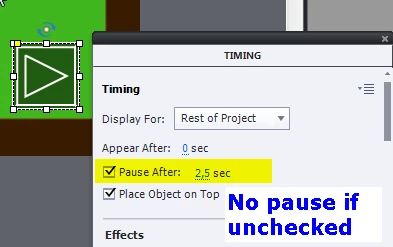
Since you are talking about Next/Back buttons, I would strongly recommend to use shapes with the functionality of a button. The reasons for that recommendation: have a look at this blog post Why I like Shape Buttons - Captivate 6! - Captivate blog  Once I presented a webinar for Adobe, only about shape buttons. They can be used on master slides (but lose their InBuilt states, a bug in Captivate 9 that has to be fixed) or put on the first slide, and timed for the rest of the project. The screenshot was taken about such a shape button.


2 replies

September 29, 2020

Very pointed on bases.

Lilybiri
LilybiriCorrect answer
Legend
July 12, 2016

Captivate 9 has many new features that can be useful for your goal, hence my request to start a new thread.

If you use default settings for a normal button, it will have a duration of 3 secs and a pause at 1.5secs. You can see this clearly when you insert that button in two locations:

  1. On the timeline panel (be sure to have it open all the time, that newbie UI is hiding it by default which is not a good idea): you'll see the length of the button timeline (make the slide longer to see the default duration) and you'll see a thin vertical line at 1.5secs which is the pause (it has a Pause symbol before that line).
  2. In the Timing Properties panel you'll see both duration and the pausing time.

If you don't want the buttons to pause the slide, you can uncheck that Pause feature in the Timing Properties panel.

Since you are talking about Next/Back buttons, I would strongly recommend to use shapes with the functionality of a button. The reasons for that recommendation: have a look at this blog post Why I like Shape Buttons - Captivate 6! - Captivate blog  Once I presented a webinar for Adobe, only about shape buttons. They can be used on master slides (but lose their InBuilt states, a bug in Captivate 9 that has to be fixed) or put on the first slide, and timed for the rest of the project. The screenshot was taken about such a shape button.

Participant
July 12, 2016

Thank you!
