
RyanS_Extron4075776
Inspiring
December 1, 2018
Answered

Captivate Drag and Drop - Making Sure Drag Sources Land on Correct Targets
  • December 1, 2018
  • 4 replies
  • 543 views

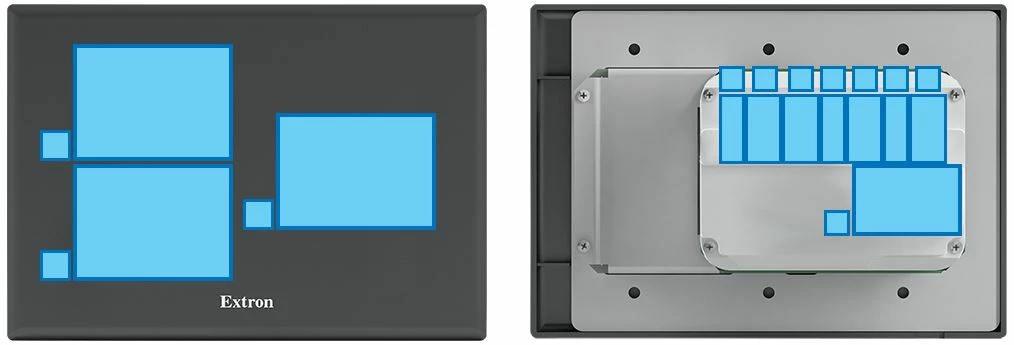
When previewing the drag and drop assessment, as I hover the drag source right over a particular target, the source then slides into the target area under or next to the one I want it dropped into. Is there a way to make sure this doesn't happen, or are the targets to small and close together to avoid this? This problem happens even if the source is right over the correct target. Thanks.

    This topic has been closed for replies.
    Correct answer Dirlo

    ...

    Hello !...

    I have the same issue with puzzles animations, I have to make smaller drop zones than drag objects, so there’s no confusion for the drags to drop on the good drop areas.

    You can have a look there :

    Puzzles with Captivate 2019 - eLearning

    ...

    4 replies

    RyanS_Extron4075776
    Inspiring
    December 4, 2018

    Thanks everyone for your helpful answers. I think the anchor position is best for this scenario, although I'll probably use absolute in another circumstance. I do have redrag selected, but spacing my targets by making them smaller did the trick. I didn't know targets could be smaller than the drag sources, and still work properly. Fortunately, the actual targets are invisible, so they can be smaller than the blue rectangles that the user sees.

    Paul Wilson CTDP
    Community Expert
    Community Expert
    December 2, 2018

    The proximity of your objects makes it difficult for users to isolate one drop target from another. Another thing you can do to help your users is to turn on Redrag the dropped source from the Options tab of your Drag and Drop panel. This will give your users a chance to move items dropped on the wrong targets.

    Paul Wilson, CTDP
    Dirlo
    DirloCorrect answer
    Inspiring
    December 1, 2018

    ...

    Hello !...

    I have the same issue with puzzles animations, I have to make smaller drop zones than drag objects, so there’s no confusion for the drags to drop on the good drop areas.

    You can have a look there :

    Puzzles with Captivate 2019 - eLearning

    ...

    Lilybiri
    Legend
    December 1, 2018

    Select the drop target and look at the Snap part of the Properties panel. If you want the drag source to be exactly where you dropped it, you need to choose Absolute

    Anchor will snap to the center point for all the drag sources, Tile will put them tiled like you showed.