kdmemory
Inspiring
December 3, 2020
Answered

Captivate VR: Can I get rid of those green assessment ticks?

  • December 3, 2020
  • 2 replies
  • 697 views

Hi, I'm building a Virtual Reality project with Captivate. It's a virtual exhibition in an artist's studio.


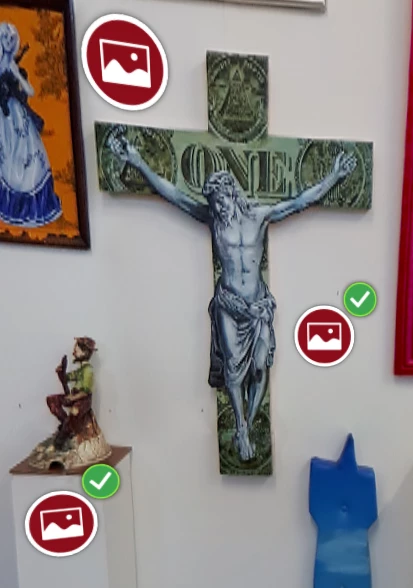
Next to paintings and sculptures on the 360background I placed a number of hotspots which will display either images or videos. Important issue here is that the whole project is not particularly an E-learning project, rather it is simply a Virtual Reality experiment. Hence I want to get rid of those green/white ticks which are displayed once a hotspot has been clicked/gazed. Like these:

I tried to overwrite in the published module in assets/htmlimages the following files (which in my opinion represent the green ticks) with empty/purely transparent items:

  • assessmenthotspotvisited.png
  • assessmenthotspotvisited.svg
  • assessmenthotspotvisited@2x.png

But then after the first selection and consequently deselection of the displayed image the whole project stops and I get this error in the browser's web console:

Uncaught DOMException: An attempt was made to use an object that is not, or is no longer, usable CPXHRLoader.js line 37 > eval:22872

Does anybody know another way to avoid the assessment ticks in a 360 Virtual Reality project?

Thanks in advance

Klaus

This topic has been closed for replies.
Correct answer kdmemory

REVISION of the topic:

Just in case somebody comes here with the same issue. I found a safer solution:

The reason for persisting to work on this is that the Uncought DOMExeption didn't go away in Firefox. After some research on the Web it turns out that this error is almost always related to HTML documents which utilize the <canvas> element. Further always when some properties within the <canvas> are set to zero. Like width, height or probably also opacity. And Captivate's VR is happening in a <canvas>.

So going back to the drawing board I thought about that an SVG graphic is mainly a XML (-script). My guess was that I could try to change something in the assessmenthotspotvisited.svg SVG-XML script to achieve invisibility. I opened the file in an editor (like Brackets or Notepad) and made the following changes resp. additions:


<svg xmlns="http://www.w3.org/2000/svg" xmlns:xlink="http://www.w3.org/1999/xlink" width="64" height="64" viewBox="0 0 24 24">
  <defs>
    <circle id="assessment-hotspot-visited-b" cx="11" cy="11" r="9"/>
    <filter id="assessment-hotspot-visited-a" width="144.4%" height="144.4%" x="-22.2%" y="-22.2%" filterUnits="objectBoundingBox">
      <feMorphology in="SourceAlpha" operator="dilate" radius="1" result="shadowSpreadOuter1"/>
      <feOffset in="shadowSpreadOuter1" result="shadowOffsetOuter1"/>
      <feGaussianBlur in="shadowOffsetOuter1" result="shadowBlurOuter1" stdDeviation="1"/>
      <feComposite in="shadowBlurOuter1" in2="SourceAlpha" operator="out" result="shadowBlurOuter1"/>
      <feColorMatrix in="shadowBlurOuter1" values="0 0 0 0 0   0 0 0 0 0   0 0 0 0 0  0 0 0 0 0"/>
    </filter>
  </defs>
  <g fill="none" fill-rule="evenodd" transform="translate(1 1)">
    <rect width="64" height="64" fill="#FF13DC" fill-rule="nonzero" opacity="0"/>
    <use fill="#000" filter="url(#assessment-hotspot-visited-a)" xlink:href="#assessment-hotspot-visited-b"/>
    <circle cx="11" cy="11" r="9.5" fill="#3DA64F" stroke="#90EA42" opacity="0"/>
    <path fill="#FFF" opacity="0" d="M16.6983932,7.4432308 L10.1603932,15.4862308 C10.0710846,15.5961916 9.93932373,15.6631081 9.79784964,15.6703534 C9.65637555,15.6775987 9.51846802,15.6244927 9.41839323,15.5242308 L5.14639323,11.3342308 C4.95120226,11.1389809 4.95120226,10.8224807 5.14639323,10.6272308 L5.85339323,9.9202308 C6.04864315,9.72503983 6.3651433,9.72503983 6.56039323,9.9202308 L9.66039323,12.9342308 L15.1463932,6.1832308 C15.3201942,5.9709935 15.6325415,5.93842014 15.8463932,6.1102308 L16.6223932,6.7412308 C16.8368603,6.9142991 16.8708517,7.22827312 16.6983932,7.4432308 Z"/>
  </g>
</svg>


Well, line numbers would be helpful, but I try my best to explain:

  • In the line which starts with <feColorMatrix in="shadowBlurOuter1" values="... I changed the fourth 0-series in the fourth position from 0.5 to 0. This relates to the dark shadow outline of the checkmark/tick.
  • In the line which starts with <circle cx="11" ... I added opacity="0". This relates to the green circle with the bright green outline.
  • In the line starting with <path fill="#FFF" ... I too added opacity="0". This is the white tick of the checkmark.

With this it works perfectly. Regarding the remaining

I guess they will work when you just make them completely transparent in i.e. Photoshop. For the desktop version of Captivate VR it's the SVG which really matters.

Klaus

 

2 replies

kdmemory
kdmemoryAuthorCorrect answer
Inspiring
December 10, 2020

REVISION of the topic:

Just in case somebody comes here with the same issue. I found a safer solution:

The reason for persisting to work on this is that the Uncought DOMExeption didn't go away in Firefox. After some research on the Web it turns out that this error is almost always related to HTML documents which utilize the <canvas> element. Further always when some properties within the <canvas> are set to zero. Like width, height or probably also opacity. And Captivate's VR is happening in a <canvas>.

So going back to the drawing board I thought about that an SVG graphic is mainly a XML (-script). My guess was that I could try to change something in the assessmenthotspotvisited.svg SVG-XML script to achieve invisibility. I opened the file in an editor (like Brackets or Notepad) and made the following changes resp. additions:


<svg xmlns="http://www.w3.org/2000/svg" xmlns:xlink="http://www.w3.org/1999/xlink" width="64" height="64" viewBox="0 0 24 24">
  <defs>
    <circle id="assessment-hotspot-visited-b" cx="11" cy="11" r="9"/>
    <filter id="assessment-hotspot-visited-a" width="144.4%" height="144.4%" x="-22.2%" y="-22.2%" filterUnits="objectBoundingBox">
      <feMorphology in="SourceAlpha" operator="dilate" radius="1" result="shadowSpreadOuter1"/>
      <feOffset in="shadowSpreadOuter1" result="shadowOffsetOuter1"/>
      <feGaussianBlur in="shadowOffsetOuter1" result="shadowBlurOuter1" stdDeviation="1"/>
      <feComposite in="shadowBlurOuter1" in2="SourceAlpha" operator="out" result="shadowBlurOuter1"/>
      <feColorMatrix in="shadowBlurOuter1" values="0 0 0 0 0   0 0 0 0 0   0 0 0 0 0  0 0 0 0 0"/>
    </filter>
  </defs>
  <g fill="none" fill-rule="evenodd" transform="translate(1 1)">
    <rect width="64" height="64" fill="#FF13DC" fill-rule="nonzero" opacity="0"/>
    <use fill="#000" filter="url(#assessment-hotspot-visited-a)" xlink:href="#assessment-hotspot-visited-b"/>
    <circle cx="11" cy="11" r="9.5" fill="#3DA64F" stroke="#90EA42" opacity="0"/>
    <path fill="#FFF" opacity="0" d="M16.6983932,7.4432308 L10.1603932,15.4862308 C10.0710846,15.5961916 9.93932373,15.6631081 9.79784964,15.6703534 C9.65637555,15.6775987 9.51846802,15.6244927 9.41839323,15.5242308 L5.14639323,11.3342308 C4.95120226,11.1389809 4.95120226,10.8224807 5.14639323,10.6272308 L5.85339323,9.9202308 C6.04864315,9.72503983 6.3651433,9.72503983 6.56039323,9.9202308 L9.66039323,12.9342308 L15.1463932,6.1832308 C15.3201942,5.9709935 15.6325415,5.93842014 15.8463932,6.1102308 L16.6223932,6.7412308 C16.8368603,6.9142991 16.8708517,7.22827312 16.6983932,7.4432308 Z"/>
  </g>
</svg>


Well, line numbers would be helpful, but I try my best to explain:

  • In the line which starts with <feColorMatrix in="shadowBlurOuter1" values="... I changed the fourth 0-series in the fourth position from 0.5 to 0. This relates to the dark shadow outline of the checkmark/tick.
  • In the line which starts with <circle cx="11" ... I added opacity="0". This relates to the green circle with the bright green outline.
  • In the line starting with <path fill="#FFF" ... I too added opacity="0". This is the white tick of the checkmark.

With this it works perfectly. Regarding the remaining

I guess they will work when you just make them completely transparent in i.e. Photoshop. For the desktop version of Captivate VR it's the SVG which really matters.

Klaus

 

Paul Wilson CTDP
Community Expert
Community Expert
December 3, 2020

I think you found the right files but perhaps you didn't write over them with something that Adobe Captivate can work with. I just completed an experiment where I edited copies of the three files in question. The two PNGs in Photoshop and the SVG in Illustrator to create completely transparent versions of these files. I completed a little test with a sample VR project and the green checkmarks don't appear.

Paul Wilson, CTDP
kdmemory
kdmemoryAuthor
Inspiring
December 3, 2020

Thanks Paul,

I did precisely the same (in principle). I made from copies of those 3 files completely transparent versions and saved them under the same file names. 'Then I replaced them in the publish folder // assets/htmlimages. The green checkmark didn't appear (as expected) but when I tried to continue (moving around) it came to the mentioned Uncaught DOMException and the entire module refused to do anything. After a few seconds the browser window went black. I will give another shot tomorrow.

Klaus

Paul Wilson CTDP
Community Expert
Community Expert
December 3, 2020

I replaced the versions that are located in the folder...
C:\Program Files\Adobe\Adobe Captivate 2019 x64\HTML\assets\htmlimages

This is where the publish procedures get the images when publishing so perhaps this difference allows it to work.

Paul Wilson, CTDP