

Allta Media
Community Expert
Community Expert
February 6, 2019
解決済み

Change color of "The Play" button

  • February 6, 2019
  • 返信数 2.
  • 1055 ビュー

Just wondering if there is a way to change the color of the initial "Play" button for HTML5 projects. The rest of the project is not published with any playback controls.
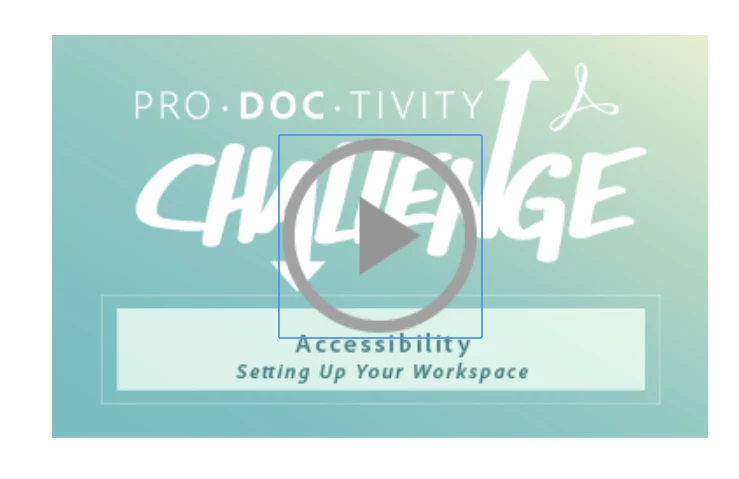
The current grey button is too light to pass Accessibility contrast ratios.

TIA!

    このトピックへの返信は締め切られました。
    解決に役立った回答 Lilybiri

    I simply replace it by an empty PNG and make it clear on the the start screen that they should click in the center of the slide (which remains active). Have a look at:

    Poster Image - AutoPlay - Captivate blog

    返信数 2

    Paul Wilson CTDP
    Community Expert
    Community Expert
    February 6, 2019

    I prefer to have a filled in image instead of the default. Here is my solution: Adobe Captivate - Get Rid of Blank Project Startup - YouTube

    Paul Wilson, CTDP
    Lilybiri
    Lilybiri解決!
    Legend
    February 6, 2019

    I simply replace it by an empty PNG and make it clear on the the start screen that they should click in the center of the slide (which remains active). Have a look at:

    Poster Image - AutoPlay - Captivate blog

    Allta Media
    Community Expert
    Allta MediaCommunity Expert作成者
    Community Expert
    February 6, 2019

    Ah, I didn't realize that the play button was removed in 2019. This will make it much easier. I can just create a high-contrast play button in the Illustrator poster image file.

    @Paul -- I followed your solution initially to create a poster image.

    Thank you both so much!

    Paul Wilson CTDP
    Community Expert
    Community Expert
    February 6, 2019

    Cool. Keep watching my videos. I have hundreds more.

    Paul Wilson, CTDP