
Inspiring
April 4, 2017
Answered

Change colour behind the preloader

  • April 4, 2017
  • 2 replies
  • 1040 views

Hi there,

I am trying to change the colour of the background in my project. I am exporting as HTML 5 only. I need white background. In the preferences, I set the colour to white. However, when I export, the background colour while the preloader is visible is grey. I found where in which file I can change the colour AFTER export. This is where I find the file \assets\css\CPLibraryAll.css

This is the line where I can change the colour, but it is a hassle.
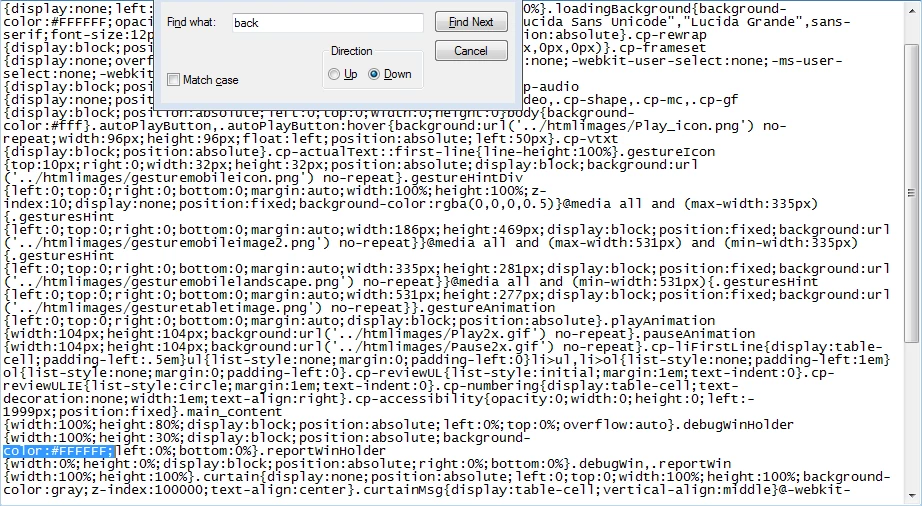
I need to reinsert the css file in the SCORM package and it is not the best solution. anyone with similar experience and possibly a solution?

Thank you in advance

Bobby

This topic has been closed for replies.
Correct answer TLCMediaDesign

You can put is in the template files located here:

C:\Program Files\Adobe\Adobe Captivate 9 x64\HTML\index.html

C:\Program Files\Adobe\Adobe Captivate 9 x64\HTML\assets\css\

Put your css file in the css folder and create the link in the index.html file.

<!DOCTYPE html>
<html lang="en">
<head>
<meta name='viewport' content='initial-scale = 1, minimum-scale = 1, maximum-scale = 1'/>
<meta http-equiv="Content-Type" content="text/html; charset=utf-8" />
<meta http-equiv="X-UA-Compatible" content="IE=edge" />
<title>@MOVIETITLE</title>
<style type="text/css">#initialLoading{background:url(assets/htmlimages/loader.gif) no-repeat center center;background-color:#ffffff;position:absolute;margin:auto;top:0;left:0;right:0;bottom:0;z-index:10010;}</style>
<link rel="stylesheet" type="text/css" href="assets/css/your_css.css">

It will get published every time and while previewing in the browser.

2 replies

Sierzpow-BJuupH
Participant
April 18, 2017

Hi!

Actually, you don't have to reinsert the css. The fact is, if you save your custom CPLibraryAll.css file under Captivate's default css directory (eg. C:\Program Files\Adobe\Adobe Captivate 2017 x64\HTML\assets\css), every time a HTML5 project is published (SCORM or not) a modified CPLibraryAll.css file will be automatically generated along with it.

Cheers,

Maciek

Inspiring
April 18, 2017

Thank you Maciek

TLCMediaDesign
Inspiring
April 4, 2017

You can include a custom css file when you publish and never have to change it again.

You can add the css:

.main_content

{

color: #FFFFFF !important

}

Inspiring
April 18, 2017

Thank you for taking time and replying and sorry for my late reply.

Would you please clarify at what stage should I create the custom CSS?

Is it after the  Captivate output is generated?

Thank you once again

Bobby

TLCMediaDesign
TLCMediaDesignCorrect answer
Inspiring
April 18, 2017

You can put is in the template files located here:

C:\Program Files\Adobe\Adobe Captivate 9 x64\HTML\index.html

C:\Program Files\Adobe\Adobe Captivate 9 x64\HTML\assets\css\

Put your css file in the css folder and create the link in the index.html file.

<!DOCTYPE html>
<html lang="en">
<head>
<meta name='viewport' content='initial-scale = 1, minimum-scale = 1, maximum-scale = 1'/>
<meta http-equiv="Content-Type" content="text/html; charset=utf-8" />
<meta http-equiv="X-UA-Compatible" content="IE=edge" />
<title>@MOVIETITLE</title>
<style type="text/css">#initialLoading{background:url(assets/htmlimages/loader.gif) no-repeat center center;background-color:#ffffff;position:absolute;margin:auto;top:0;left:0;right:0;bottom:0;z-index:10010;}</style>
<link rel="stylesheet" type="text/css" href="assets/css/your_css.css">

It will get published every time and while previewing in the browser.