danield3
Known Participant
September 1, 2017
Answered

Change state of button and shape

  • September 1, 2017
  • 1 reply
  • 1427 views

Hello everyone

I'm using Captivate 9.

I have the scenario, that I want to activate and deactivate (show and hide) a geometrical form with a button¨, and change the state of the button in the same time.

So everytime I click the button, the form (for example rectangle) appears and the button goes into an activated state. (green)

When I click again the button, the button goes back to normal state and the form disappear.

I'm struggling with the button. To make it be active an inactive. I've tried with advanced or conditional actions, but I didn't found a solution.

In the "normal" action interface on the right, I have already achieved to change the state of the geometrical form everytime I click the button. But in this case, the button stays the same state. With the advanced actions I didn't find the option "go/jump to the next state", which I was using with the "normal" action interface.

I appreciate any help. Thanks in advance.
    This topic has been closed for replies.
    Correct answer Lilybiri

    Sure. Sorry, I have a german version.

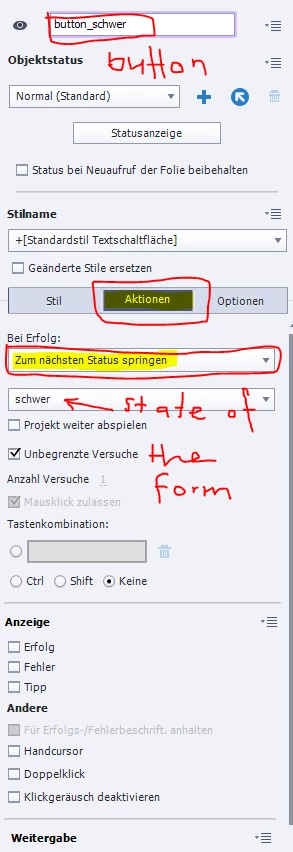
    In my attempt I dont use any advanced action. I only use the "normal" action option on the right, when I click on the button.

    I tried to use an advanced action, but I wasn't able to find a working solution.

    (Error in the second image: With form I mean shape -> state of the shape)


    German is not a problem for me (my 4th language), I just don't want to write in German but being Flemish understanding is fine.

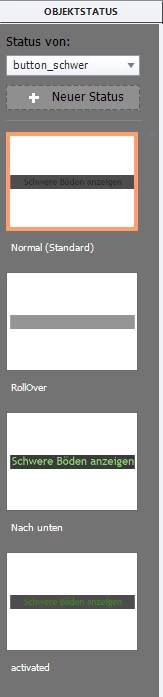
    You can only switch between the Normal and the 'activated' state (which is a custom state). Since you want a 'toggle' button the easiest way will be to define a user variable (I call it v_visib) that will be Boolean: default value = 0 (button has not been clicked, state is Normal, shape is not shown. When you click the button, variable is toggled to 1, shape is shown and state 'activated' appears. This means a conditional advanced (or shared if you want to use this several times) action, similar to this:

      IF v_visib is equal to 0

          Change state of Bt to activated

          Assign v_visib with 1

           Show shape

    ELSE

         Change state of Bt to Normal

         Assign v_visib with 0

         Hide shape

    Try this out, please?

    1 reply

    Lilybiri
    Legend
    September 1, 2017

    Do you understand the difference between InBuilt states and custom states?

    The button InBuilt states: Normal, Rollover, Down (CP2017 has also Visited, but not CP9). Those states can NOT be controlled by an action, they appear automatically in the situation where they should appear: when hovering over the button Rollover state appears, when pressing the button Down state appears.

    If you want to be able to control a state by an action you have to use Custom states.

    As for Go to Next/Previous State,  I logged a feature request immediately to have them as commands in the Advanced Actions. That feature request was realized in Captivate 2017. In CP9 you only have Change State command in which you need to specify the wanted state.

    danield3
    danield3Author
    Known Participant
    September 1, 2017

    Yes I understand the difference.

    I only have Captivate 9. As I understand I want to use the Inbuilt States from CP2017 in Captivate 9 (as custom states).

    But when I use the Change State command and change the state, I'm not able to change the state back, when I click again the button.

    Any ideas?

    Lilybiri
    Legend
    September 1, 2017

    Can you post a screenshot of the object state panel and of the advanced

    action?