Participant
October 28, 2019
Answered

Check boxes using Advanced Actions

  • October 28, 2019
  • 1 reply
  • 591 views

Hello all,


I'm running into an issue when trying to use Advanced Actions to simulate clicking several check boxes in a Software Simulation. 

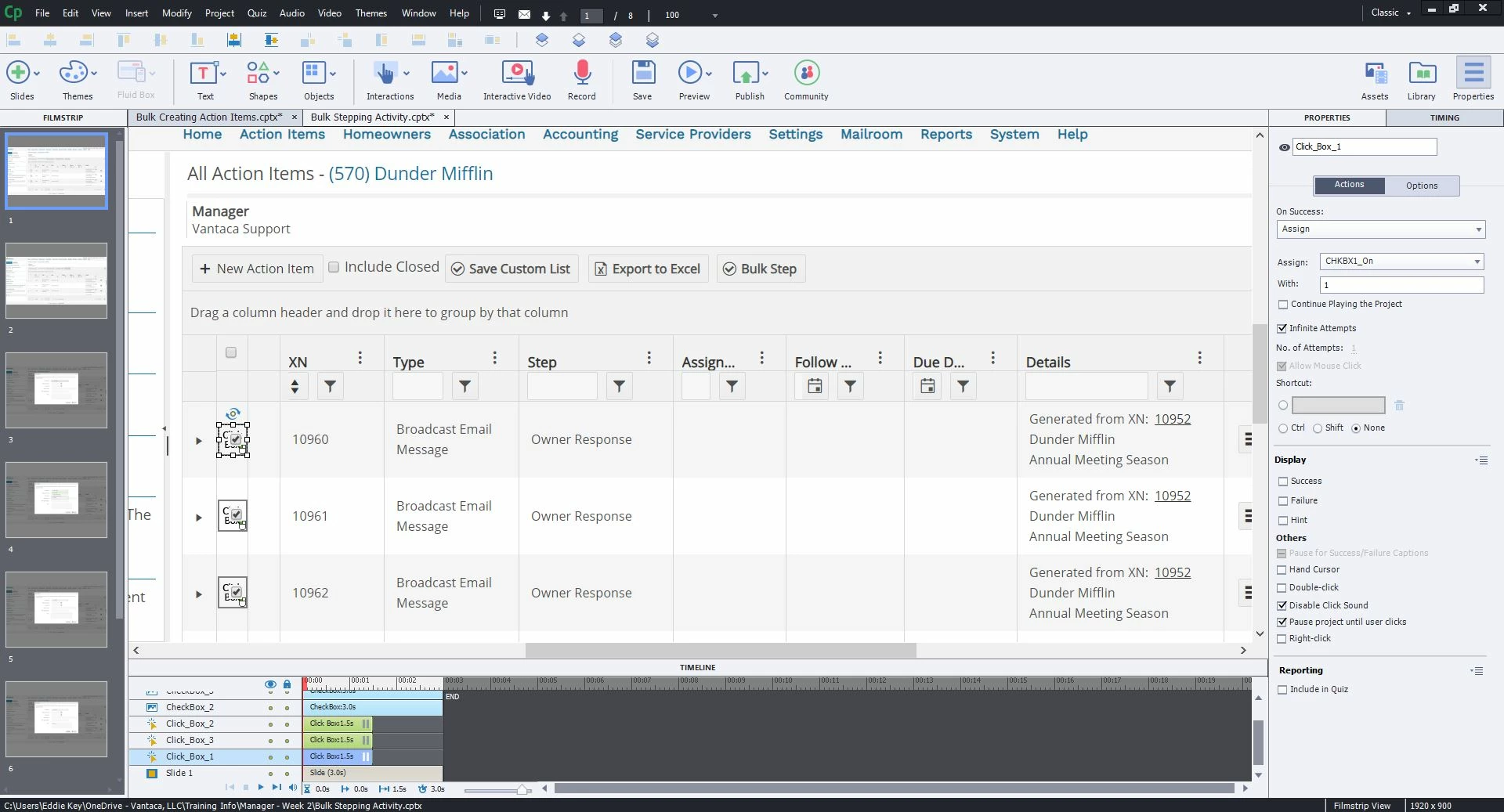
I have three Click Boxes, that all assign a variable (i.e. CHKBX1_On) with 1 upon Success.

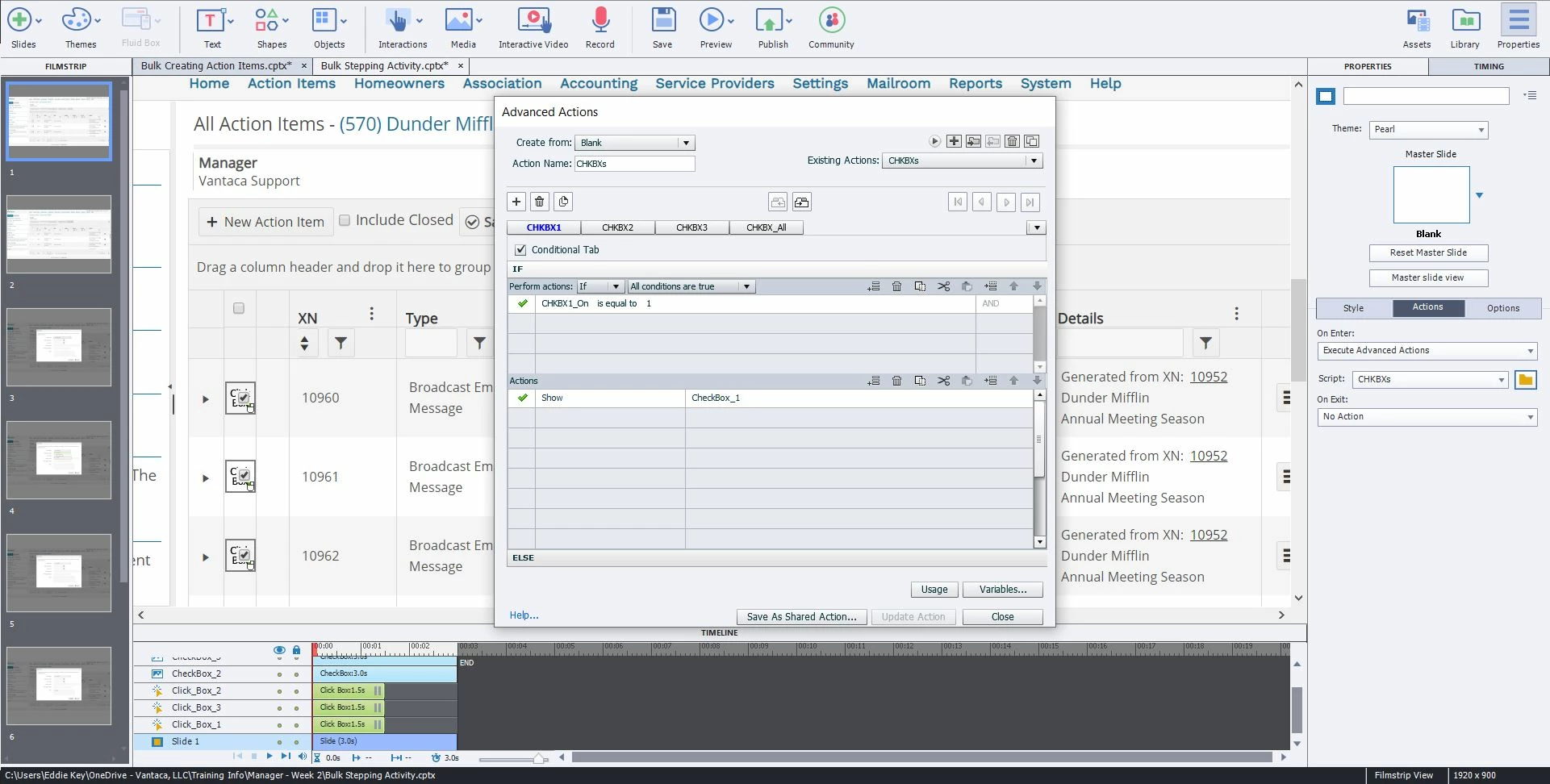
In my Advanced Action, I have it set to If CHKBX1_on is equal to 1, show CheckBox_1 (An image of a checked box). Else - hide CheckBox_1

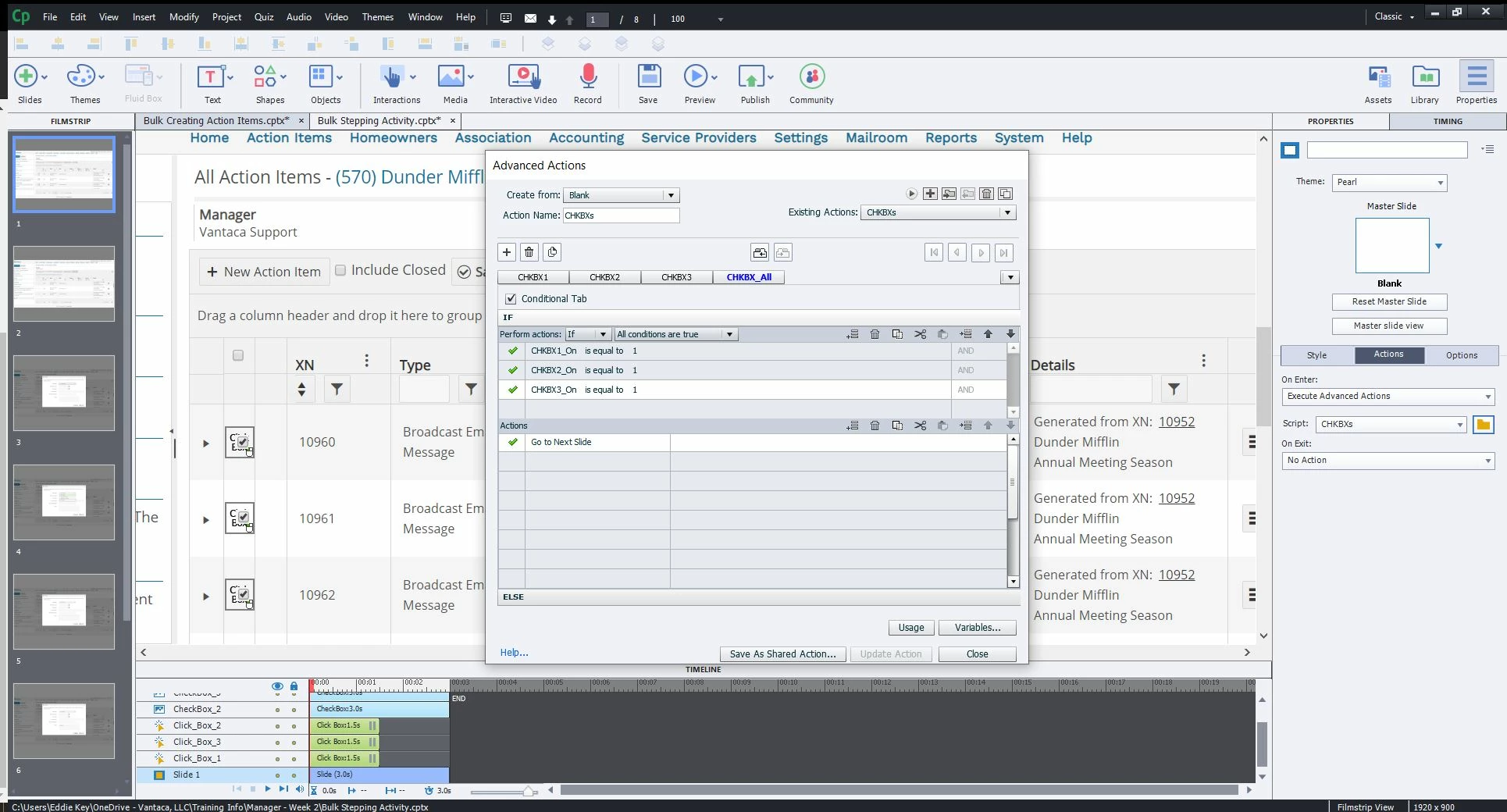
Now I have three check boxes that I need clicked in order to click a final click box to "select" and go to the next slide. Meaning within my Advanced Action, I have another rule that

If  CHKBX1_on is equal to 1

and

If  CHKBX2_on is equal to 1

and

If  CHKBX3_on is equal to 1

then

Enable ClickBox_Next

else

Disable ClickBox_Next.


So far this has not worked at all. Clicking any of the original 3 click boxes does not trigger the showing of the image, and I am able to click ClickBox_Next regardless of what else I have clicked. I even removed ClickBox_Next and placed it the next slide, and changed the AA to If all three equal 1, Go To Next Slide. This is also not working. Below are some screenshots, please give me a hand with what I'm doing wrong. 
 

    This topic has been closed for replies.
    Correct answer Lilybiri

    So does that mean I would need to initiate separate Advanced Actions for each click box?


    Indeed, but they will be not so complicated. You will need an action with two decisions:

    1. First decision 'Always' will not be conditional, but assigns the value 1 to the variable of that interactive object and changes the state for that checkbox
    2. Second decision 'CheckAll' is what you now had as last decision. Since sequence is always respected, it will also test on the variable which just got its value 1


    Duplicate that action, and you'll only need to edit the first decision: change the variable and the multistate object which is the checkbox. Nto so much work at all, and the action is less complicated.


    BTW: you can download a table (for free) with all events available in Captivate from this post: 

    http://blog.lilybiri.com/available-events-in-adobe-captivate-2019

    1 reply

    Lilybiri
    Legend
    October 28, 2019

    Some information is missing: which EVENTS do trigger which actions. Which version do you use? 

    Images are fuzzy (it is this forum, ot you). Is it possible to use the Preview feature of Advanced actions to show the complete action in one screenshot? Preview button is the first button in the top right control panel, looks like an arrow.

    Participant
    October 28, 2019

    Sure!

    I'm using Version 11.5.1 (Latest Version)

    The event that traiggers the action is clicking the Click Box. On Success > Assign: CHKBox1_On 

    (See screenshot below.)

    Here is a screencap of the Advanced Action Preview. Clicking the ClickBox should assign the Variable with 1, but that is not translating to showing the image. Clicking all three also does not advance to the next slide.

    Should I change the Click Boxes to 0% opacity buttons? I would imagine that would accomplish the same thing. 


    Thanks for all your help!

    Lilybiri
    Legend
    October 28, 2019

    Which EVENTS do you use? You show me an advanced action with 4 decisions, but it is important to know which event is triggering that action. I suspect you are not using the correct event to have the wanted result.