
greenlc
Participant
November 29, 2016
Question

Click Boxes aren't Responding

  • November 29, 2016
  • 2 replies
  • 396 views

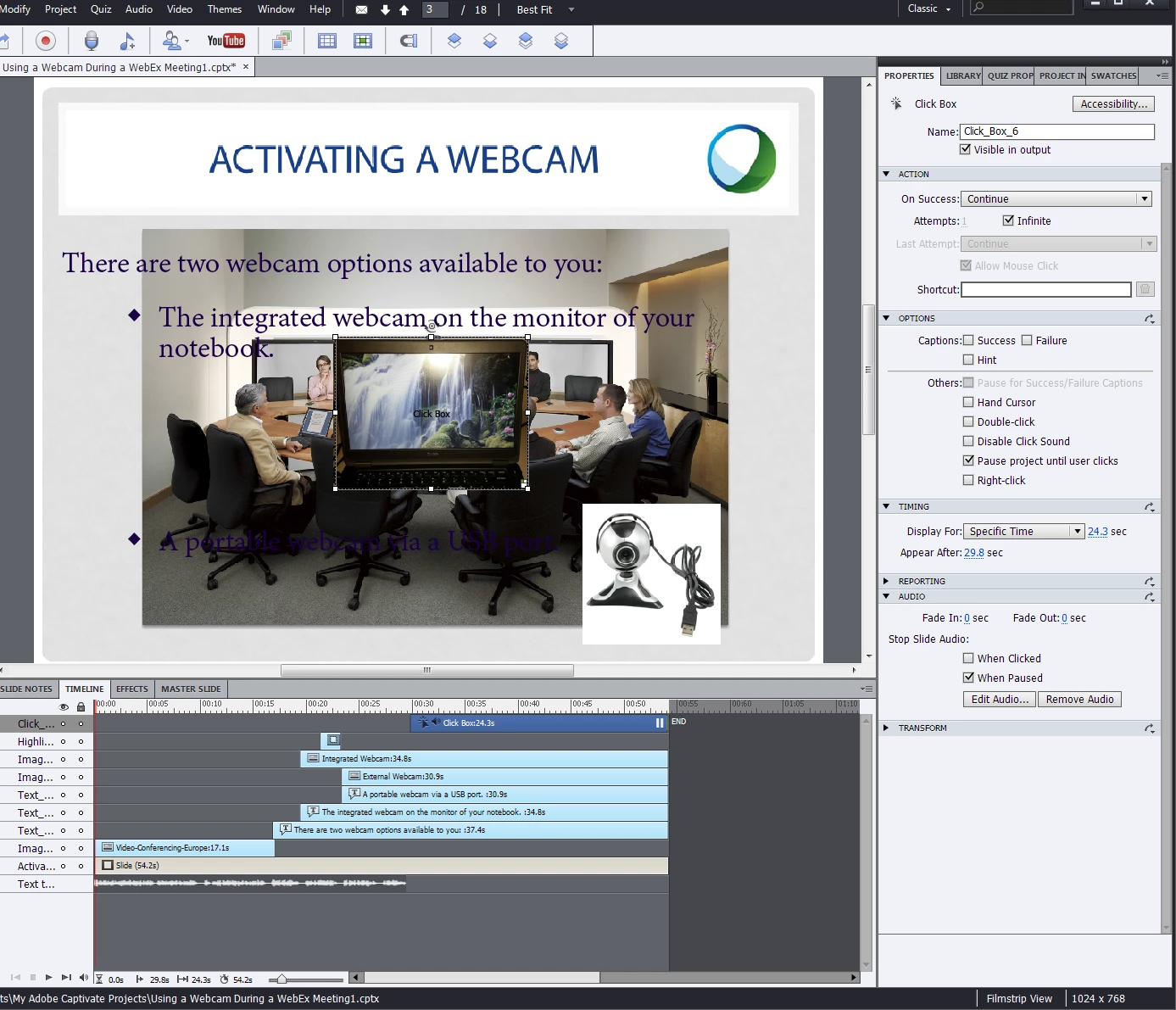
I'm a very new user using Captivate 7. I want the user to click on the monitor for more info. I've added the additional audio to the click box.

So basically, the main slide's audio finishes and instructs the user to click on the monitor for more info, but the click box audio starts automatically without user input. Can you please help me with settings?
This topic has been closed for replies.

2 replies

Participant
November 30, 2016

Welcome to the Captivate Community! Get ready for a "unique" eLearning experience!

Looking at the timeline, I don't see anything to pause the progression of the slide. Something must be in the timeline to pause. If not, the audio will begin playing. There are several solutions to this issue. Here is one:

  1. Insert a click box - It's my practice to actually drag the box off of the slide and on to the margin
  2. In the 'Properties' for the Click Box, make sure 'Pause project until user clicks' is selected
  3. Make sure the new Click Box appears after the slide's "main audio" and before the "additional info" begins

This will work every time but may not be as "sexy" as some of the solutions above.

Good luck!

Participant
November 30, 2016

Opps...

Make the click box ON THE SLIDE and covers the area where the user likely to click. In fact, It should probably cover the entire slide.

Sorry...

RodWard
Community Expert
Community Expert
November 29, 2016

Sounds like you have set the audio to be attached to the Click Box itself rather than having the Click Box execute an action to Play Audio (with the specific audio clip selected to be played).  If the audio is attached to a slide object (e.g. the click box object) then the audio will start to play as soon as that object enters the timeline.

Is that possibly the issue?

greenlc
greenlcAuthor
Participant
November 29, 2016

RodWard,

Thank you so much for responding. That's exactly what I've done. So basically what you're telling me is...I need to remove the audio from the click box and add it to the main slide audio?

& if that's the case, when would you ever attach audio to a click box and how is it suppose to behave?

Lilybiri
Legend
November 29, 2016

Object audio (any object can have audio attached to it) can be very useful in some situations:

  • Since the audio will not play when the object is hidden, this is a possibility to have a audio playing only in a specific situation, like when visiting the slide for the first time. Use a conditional action to track a visit counter, and after the first visit you hide the audio.
  • If for some reasons you want to have two audio clips playing at the same time. That is not possible with slide audio, not with the P;ay audio command, only with object audio.

Maybe these blog posts could provide you with some ideas:

Audio Objects: Control them! - Captivate blog

Playtime with Audio and Widgets - Captivate blog