
Known Participant
October 14, 2019
Answered

Clickbox Woes: Can't repeat action

  • October 14, 2019
  • 2 replies
  • 572 views

Greetings, Community!

I am having a clickbox conundrum. I have a slide set up with two clickboxes, each of which is set to "show" an image group upon success. The clickboxes are set to be visible for the entire slide, and the image groups are each set to show for 8 seconds. There is a third click box set to advance to the next slide.

What I want to happen: I want the students to be able to click on each box and see the associated mark-ups that appear over the background image. I want them to be able to show both at once, or see each set individually, and I want them to be able to go back and forth, seeing one set and then the other, and back to the first if they want (infinite attempts?).

What is happening: if I set the clickbox to "infinite attempts" and "Continue Playing," I can click the first box, and it will stay for 8 seconds. If I click the second box during that 8 seconds, then it will also show, and also fade out after 8 seconds. However, if I wait until the first image group disappears before clicking the second box, then nothing happens when I click on the second clickbox  (the click sound plays, but the associated images do not appear). In either case, if I click on a box a second time, nothing appears. So, I tried leaving the boxes set to "infinite attempts" but unchecking "continue playing." When I did that, I could click on either box, and the associated image group would appear, but then it wouldn't disappear after 8 seconds, as it was set to do. The action just paused right there with the image groups showing, so once again, no infinite attempts to see each group.


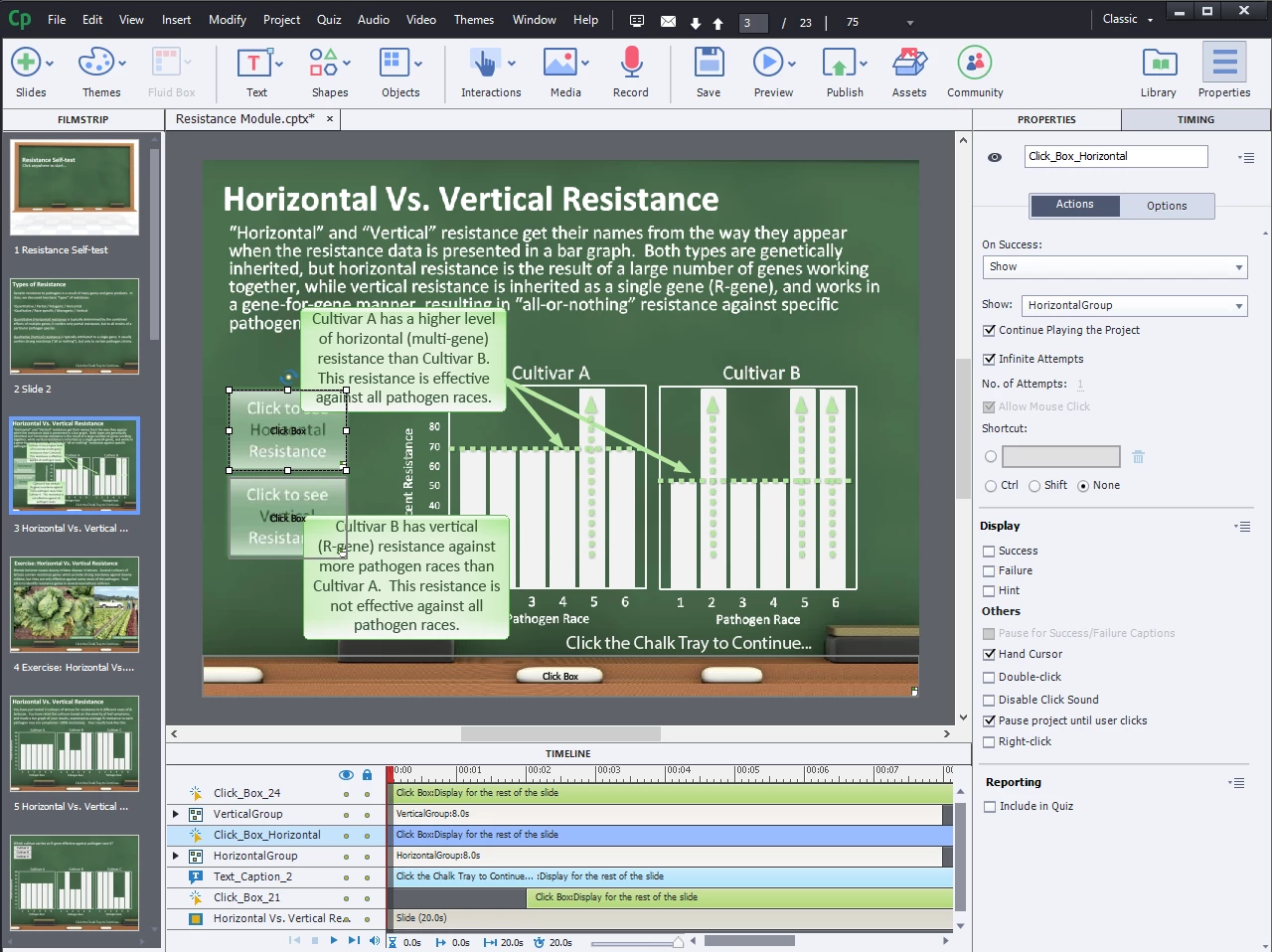
Below is a screencap of my original set-up (with both continue and infinite checked), but I've tried both ways, and neither gets me where I'm trying to go. Is there something else I'm missing?


Many thanks!


    This topic has been closed for replies.
    Correct answer Lilybiri

    The fact that you showed a screenshot with Continue Playing the Project proves that there is some lack in understanding the Timeline and how pausing is working. I strongly recommend to read at least this post, from my sequence about the Timeline:

    http://blog.lilybiri.com/pausing-captivates-timeline

    Do not feel offended, lot of CP users have issues understanding the timeline, which is never properly explained in most trainings and books. Feel very sad about that, because that lack of understanding causes a lot of frustrations.

    These are the problems with your timeline:

    • You wrongly thinks that timing the grouped objects for 8 seconds will allow them to show up always for 8 seconds.
    • The playhead continues until the next pausing point, which is in this case at the end of the slide since both click boxes are displayed for the rest of the slide and by default they always have the pausing poiint at the end of their timeline, since they are invisble (inactive part has no sense as for buttons).
    • Timeline slide is unnecessary long.... has no sense unless for the staggered click box (why) and if you would have slide audio.


    To achieve what you want, two possibilities:

    1. You could use micronavigation to rewind the playhead to the start of the slide to show the group with the transition effect, probably too complicated.
    2. You use a shared or advanced action with three commands
      1. Show group      which is timed for the rest of the slide; in a shared action would be the unique parameter
      2. Delay Next Command by 8 seconds
      3. Hide group

    No need for a long timeline in that case, default 3 secs is fine for the second scenario. If you really need a transition you'll have to add an Alpha from To effect.


    2 replies

    Lilybiri
    LilybiriCorrect answer
    Legend
    October 14, 2019

    The fact that you showed a screenshot with Continue Playing the Project proves that there is some lack in understanding the Timeline and how pausing is working. I strongly recommend to read at least this post, from my sequence about the Timeline:

    http://blog.lilybiri.com/pausing-captivates-timeline

    Do not feel offended, lot of CP users have issues understanding the timeline, which is never properly explained in most trainings and books. Feel very sad about that, because that lack of understanding causes a lot of frustrations.

    These are the problems with your timeline:

    • You wrongly thinks that timing the grouped objects for 8 seconds will allow them to show up always for 8 seconds.
    • The playhead continues until the next pausing point, which is in this case at the end of the slide since both click boxes are displayed for the rest of the slide and by default they always have the pausing poiint at the end of their timeline, since they are invisble (inactive part has no sense as for buttons).
    • Timeline slide is unnecessary long.... has no sense unless for the staggered click box (why) and if you would have slide audio.


    To achieve what you want, two possibilities:

    1. You could use micronavigation to rewind the playhead to the start of the slide to show the group with the transition effect, probably too complicated.
    2. You use a shared or advanced action with three commands
      1. Show group      which is timed for the rest of the slide; in a shared action would be the unique parameter
      2. Delay Next Command by 8 seconds
      3. Hide group

    No need for a long timeline in that case, default 3 secs is fine for the second scenario. If you really need a transition you'll have to add an Alpha from To effect.


    Known Participant
    October 14, 2019

    Thanks, Lilybiri,

    I take no offense at all. I fully admit that I struggle with the timeline construction - it isn't the least bit intuitive to me, and I've found the same thing in the manuals: the underlying functionality is not well-explained. I'm sure if I worked with it for a living, I'd figure it out eventually, but it's not really part of my job, so I haven't had time to get there. I will read your blog post and see if it helps!


    As for the problems, I don't know what you mean by "staggered" click boxes. How are they staggered? To me, there are simply two boxes for two sets of images I want to show.


    I'll play with the advanced action option ... I've set those up before, and I think I could handle making that work!

    🙂

    -BSR-

    Lilybiri
    Legend
    October 14, 2019
    Stqggered. second click box timeline starts later. Whenever I coach a basic training my first and principal goal is to make the trainee understand the timeline. I have presented sessions about it at the Learrnig summits as well.
    Lilybiri
    Legend
    October 14, 2019

    Please UNCHECK 'Continue Playing the project'. Any reason why you staggered the click boxes on the timeline? I cannot see the timeline completely, certainly not horizontally. Please move the zoom slider so that the whole timeline is visible.

    Known Participant
    October 14, 2019

    Hi, Lilybiri,


    I did uncheck "continue playing the project." Please see the original post: I tried it both ways, and had a different problem each way. I'll try to get a better screen cap of the timeline for you, but I have to use Captivate on my PC, which has only a tiny monitor - it doesn't fit everything in one window, even fully expanded. I do everything else in life on my Mac, so I'm also a little slow at PC stuff!


    Edited to add image with timeline scaled:

    (Again, it is shown with "continue playing" selected, but I have already tried unselecting that option.