LMS_90
Inspiring
July 26, 2014
Answered

Clicking anywhere advances slide imported from PPT 2013 - CP8?

  • July 26, 2014
  • 5 replies
  • 3374 views

Hi,

Here's the situation.

I imported a file from powerpoint as move automatically (not on click). I then manually added a clickbox to each slide with a pause on it. If I click ANYWHERE on the slide, not in the click area, the slide advances.  This is not what happens in a new blank project created from within captivate. So I did some research and learned that perhaps it is the setting in PPT to move on mouse click. I created a new PPT with this box deselected:
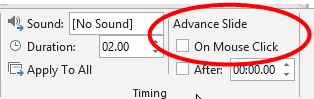
Same behavior. When I click anywhere, regardless of clickbox area which is set to pause until user clicks, it moves to the next slide.  Yes, I am sure of the clickbox settings because I just copied and pasted it from the blank project in to the project from PPT. 

Is there a way to disable this behavior?

Thanks!

Lori

This topic has been closed for replies.
Correct answer dcelaya

I tried several different options, and it does seem that if you want the high image quality that "High Fidelity" gives when importing a ppt, you have to do a workaround in Captivate to get the interaction you want.

I don't think it matters what options you check in ppt before importing. If you have animations or other stuff in your ppt that you cannot, or don't want to recreate in Captivate, a funky workaround would be to place a button or click box over the entire slide. You could then set this button to "No Action" and place it on a layer below all your other active buttons. Probably not the most elegant solution, but maybe the only one other than not using the High Fidelity import (or not importing the ppt ).

The project I'm working on now is based on a ppt someone gave me. I exported all the ppt slides as png's, and imported them to a Captivate "slideshow". Works just like any other presentation if I use the built in player controls, or my own on screen button navigations. This way I have the option to use the ppt slide as it was, or place a few visual elements over the existing content, or just rebuild the slide in Captivate, using the ppt background as a template.

5 replies

sapphiregraphics1
Known Participant
October 30, 2015

Did anyone figure out a reasonable workaround (better than pasting an object on each screen)?

danielb51742821
Inspiring
November 29, 2017

When I add a transparent click box over the entire screen with a pause and the action item to "No Action", the clicking on the screen no longer advances, but my content does not appear. I did import as Hi Fi and Advance Automatically. Might just have to deal with this inconvenience.

dcelayaCorrect answer
Participant
August 5, 2014

I tried several different options, and it does seem that if you want the high image quality that "High Fidelity" gives when importing a ppt, you have to do a workaround in Captivate to get the interaction you want.

I don't think it matters what options you check in ppt before importing. If you have animations or other stuff in your ppt that you cannot, or don't want to recreate in Captivate, a funky workaround would be to place a button or click box over the entire slide. You could then set this button to "No Action" and place it on a layer below all your other active buttons. Probably not the most elegant solution, but maybe the only one other than not using the High Fidelity import (or not importing the ppt ).

The project I'm working on now is based on a ppt someone gave me. I exported all the ppt slides as png's, and imported them to a Captivate "slideshow". Works just like any other presentation if I use the built in player controls, or my own on screen button navigations. This way I have the option to use the ppt slide as it was, or place a few visual elements over the existing content, or just rebuild the slide in Captivate, using the ppt background as a template.

Known Participant
October 11, 2014

I don't think anyone knows what is the answer to this issue...

Participant
July 31, 2014

Same problem here. It's something in the code that's created with the project background.

The only way I was able to "fix" it, was to do a new Captivate ppt import, and on the import settings, choose, "Advance automatically". Then in Captivate, place your own transparent advance (or any other action) button.

LMS_90
LMS_90Author
Inspiring
July 31, 2014

so you are covering the entire slide with a clickbox then? that's a workaround I've done too, but just was hoping there was a setting somewhere to remove the click through from the ppt project - I'm sure it's a ppt setting, but being that it's a cp/ppt workflow figured you all might know what it is.

Thanks,

Lori

Participant
July 31, 2014

Ahhh, sorry. I didn't read the beginning of your original post carefully enough. You did import the ppt with Advance automatically, then put in your own click box/button. When I do that, the slide does NOT advance when clicking outside of the click box/button.

It's definitely something in the Project background that's being created on the ppt import. If you change the background to something like master slide, it will no longer advance when clicking off of your action item. But then you don't have your ppt content.

I just checked, and the ppt I'm linking to does have Advance slide on mouse click checked. In fact, I'm having trouble repeating the issue now. Trying various import combinations...

Update: Stange, unchecking "High Fidelity" on import seems to eliminate the problem of advancing when clicking outside of the click box.

Justenuf2bdangerous
Inspiring
July 28, 2014

My assumption is you want the slide to pause, then on click, to execute whatever animation or effects you brought in from PPT, then auto advance, correct?  If so, set the click box to "continue", not to "go to the next slide" - this will allow the animation to play out and the slide to auto advance to the next pause you set.

Lilybiri
Legend
July 26, 2014

Can you check the Action On failure? Do you have infinite attempts for the click box?

LMS_90
LMS_90Author
Inspiring
July 26, 2014

yup, infinite attempts is selected.

Like I stated, it works in a blank project the way you would expect. Then I copied/pasted the clickbox to the from PPT project and it behaves differently. I'm guessing there is something in PPT I need to set, but don't know what.

THX.

LMS_90
LMS_90Author
Inspiring
July 26, 2014