May 28, 2009
Answered

Closed Caption - Need text to stay longer than audio

  • May 28, 2009
  • 1 reply
  • 479 views

Hello,  I am running Captivate 4 and am using the Closed Caption feature for the first time. My project was created from a MS PowerPoint file and I am using the text from the NOTES section in Captivate as the Closed Caption text.  When I run the SWF file the text is only visable for the amount of time that he audio runs and then goes away. Some of our hearing impared employees may need longer to read the text.  I cannot find a way to specify how long the text should appear, or I should say it will not allow me to edit the length of time


Any ideas on how I can accomplish this?

Thanks,

Angel
    This topic has been closed for replies.
    Correct answer RoboWizard

    Hi there

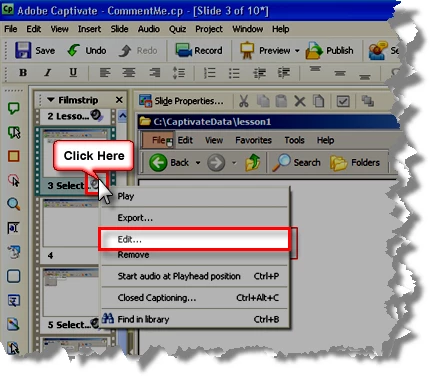
    What you need to do is extend the audio clip. You may do this by clicking the speaker icon in your Film Strip and choosing Edit.

    Try adding some silence very near the end of the audio clip. Don't add it at the very end as Captivate will likely "helpfully" undo your desired action.

    Once the clip is longer, the Closed Captioning should remain on the slide longer.

    Cheers... Rick

    1 reply

    RoboWizard
    RoboWizardCorrect answer
    Inspiring
    May 28, 2009

    Hi there

    What you need to do is extend the audio clip. You may do this by clicking the speaker icon in your Film Strip and choosing Edit.

    Try adding some silence very near the end of the audio clip. Don't add it at the very end as Captivate will likely "helpfully" undo your desired action.

    Once the clip is longer, the Closed Captioning should remain on the slide longer.

    Cheers... Rick

    May 29, 2009

    You are right on again Rick!  I thought I was going crazy before when I was trying to add silence to the audio file and it would not save my added time.  Your tip to be sure to not add it at the very end of the audio clip was right on. Worked like a charm!  Thanks again!

    Angel