Gray Susan
Inspiring
February 24, 2020
Answered

copy background

  • February 24, 2020
  • 1 reply
  • 1529 views

I'm having a brain lapse.  When does the Copy Background from the edit menu work? A coworker wants to copy the background from one slide to another but the option is grayed out.

This topic has been closed for replies.
Correct answer Lilybiri

My first recommendation was to use the Library. I never used the Copy Background commend (really, believe me) since the menus were almost completely stripped out with version 8.  Maybe it is always dimmed, just for a software simulation I didn't check. My workflow is:
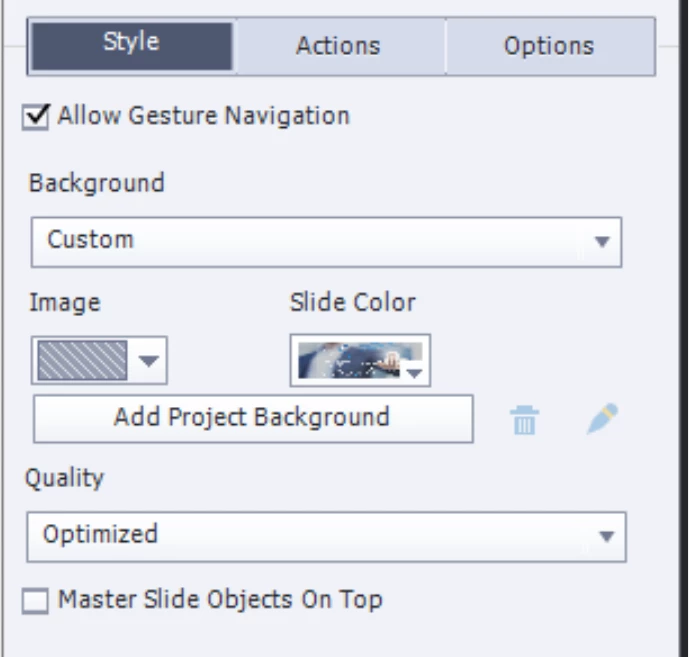
  • Look for the name of the image used as background in the Style tab, under Background, Custom
  • In the destination slide, change Background to Custom, Fill to Image Fill, and look in the Library (browse icon) for the same image. 

BTW more options in Edit menu are dimmed and do not appear in the context senstivie menus, like Find Background in Library. That one existed in older versions, don't remember when.

1 reply

Lilybiri
Legend
February 24, 2020

Use the Library? Or just duplicate the slide in the Filmstrip (with CTRL-D) and taken ou everything which you don't need, background will remain.

Gray Susan
Inspiring
February 24, 2020

We've had issues with using duplicate in the past.  When we'd change the slide notes in the new slide it would change them in the slide it was duplicated from.  I suggested they use Copy or make a new slide pick the correct master to apply to it and copy the objects they want to it.  
But back to the original question when does the copy background work?

Lilybiri
LilybiriCorrect answer
Legend
February 24, 2020

My first recommendation was to use the Library. I never used the Copy Background commend (really, believe me) since the menus were almost completely stripped out with version 8.  Maybe it is always dimmed, just for a software simulation I didn't check. My workflow is:

  • Look for the name of the image used as background in the Style tab, under Background, Custom
  • In the destination slide, change Background to Custom, Fill to Image Fill, and look in the Library (browse icon) for the same image. 

BTW more options in Edit menu are dimmed and do not appear in the context senstivie menus, like Find Background in Library. That one existed in older versions, don't remember when.