Inspiring
April 26, 2016
Question

Corrupted file???

  • April 26, 2016
  • 2 replies
  • 1661 views

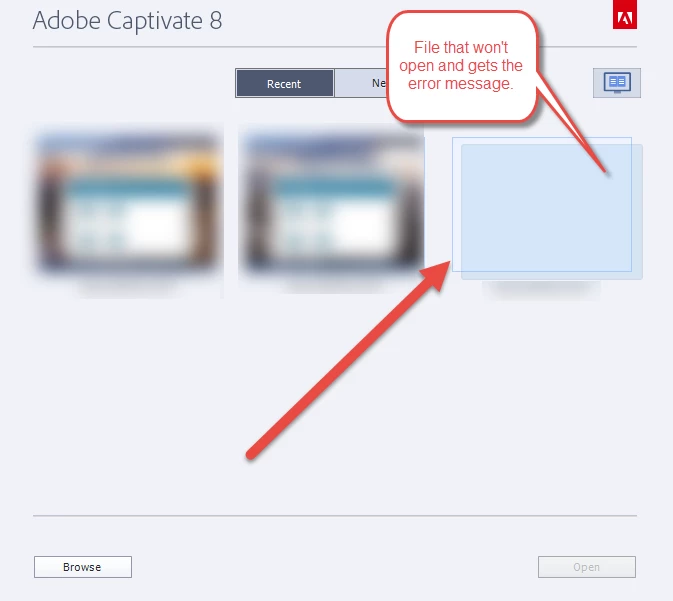
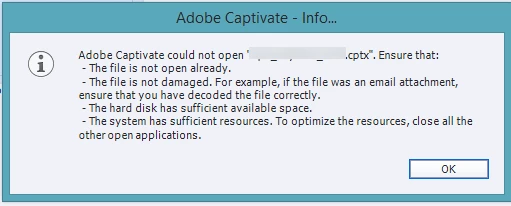
My latest edition of my Adobe Captivate 8 file will not open the latest file.. I have moved it several times from my desktop to our server. I thought I should leave it on the desktop. After working with the Text to Speech tool and importing music files I started having the problem. It will NOT open in Captivate 8.

I suppose the file is corrupt. Has anyone here resolved this issue?
This topic has been closed for replies.

2 replies

BDuckWorks
Inspiring
April 27, 2016

There is another thread that discussed recovering lost work from the Captivate cache files:

Re: How do you recover a project from Cache files in CP8

Keep in mind that Captivate can frequently and consistency have trouble with files that have been moved across the network.

Your working files should always be stored on a local drive on your computer, it does not have to be the boot drive with the computer's operating system; but you should never open Captivate files for editing from a network location, like a shared drive.

This is a serious limitation in today's corporate IT environment, as most IT organizations are now useing shared drives as networked storage for their user files.

Best practice would be to use a local file system for the cptx file, with backups turned on in Cp preferences.

To begin your day:

Use 'Save as' to make a new project file for that days work, and save it to the local file system.

At the end of the day:

Copy the files to a network drive as your offline backup.

You may wish to verify the size of the files in your os, or run a file copy program that will verify size and continuity of the files transferred.

At the end of the week:

After the daily archive, move local copies to the trash but do not empty.

At the end of the month:

After daily and weekly processes, verify that the network copies are usable.

Copy a few back to local storage, open and verify they'll publish a working course. You may need to test in your LMS or SCORM Cloud.

Once you're confident that the networked files are suitable as a backup, then empty trash and (on windows) run disk cleanup to recover space.

You may also consider archiving projects to CD/DVD/Blue Ray media that don't need to be stored on the network any longer, but beware that removable media has an expected life of 10 - 12 years, and is not permanent storage.

clworkAuthor
Inspiring
April 28, 2016

BDuckWorks thank you for this information.

oleb68801795
Participant
August 8, 2016

If you can locate and remove the corrupting elements, you can usually restore your project to full functionality.  If fortune smiles and you can still open and navigate the project, try using a process of elimination to locate the offending slide or object and remove it. 

Here’s how:

  1. Hide all slides in the first half of your project and try to publish again. 
  2. If you still cannot publish, hide all slides in the last half of the project and try to publish. 
  3. If you are able to identify the half of the project where the corruption exists, use the same slide hiding process to progressively narrow down where the problem slide is.
  4. Once you identify the issue, remove the object or slide and try publishing again.
Lilybiri
Legend
April 26, 2016

Do you have the backup file (at least if backup is turned on in Preferences)?

Do not clear the cache, may be the last solution to recover an older version.