
Known Participant
June 26, 2013
Answered

Course not fitting in display area

  • June 26, 2013
  • 10 replies
  • 2340 views

I am using Captivate 7 to publish a course.  The course appears to be larger than the play area when I preview and after I publish so a lot of my content is getting "cut off" around the edges.  I published this exact same course using CP 6 just last week and did not have this problem.  The content stayed within the play area boundaries on both IE and the iPad.

I can see this problem even before I publish, using the Preview options in Captivate.  Is there a new setting in CP 7 that I am missing?  Why is my course too big for the play area?  Some screen shots below:

From Captivate window:
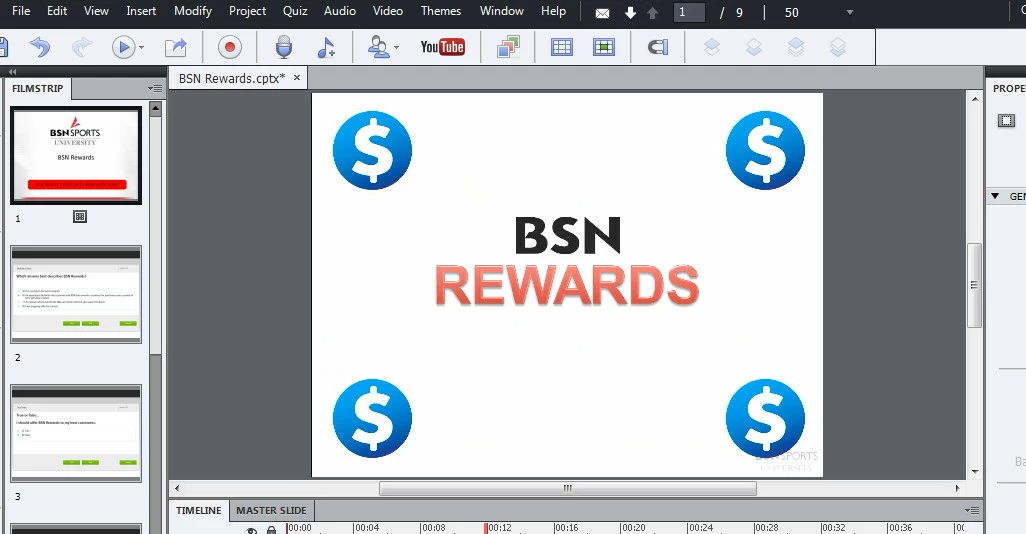
this is what I see in the Preview:
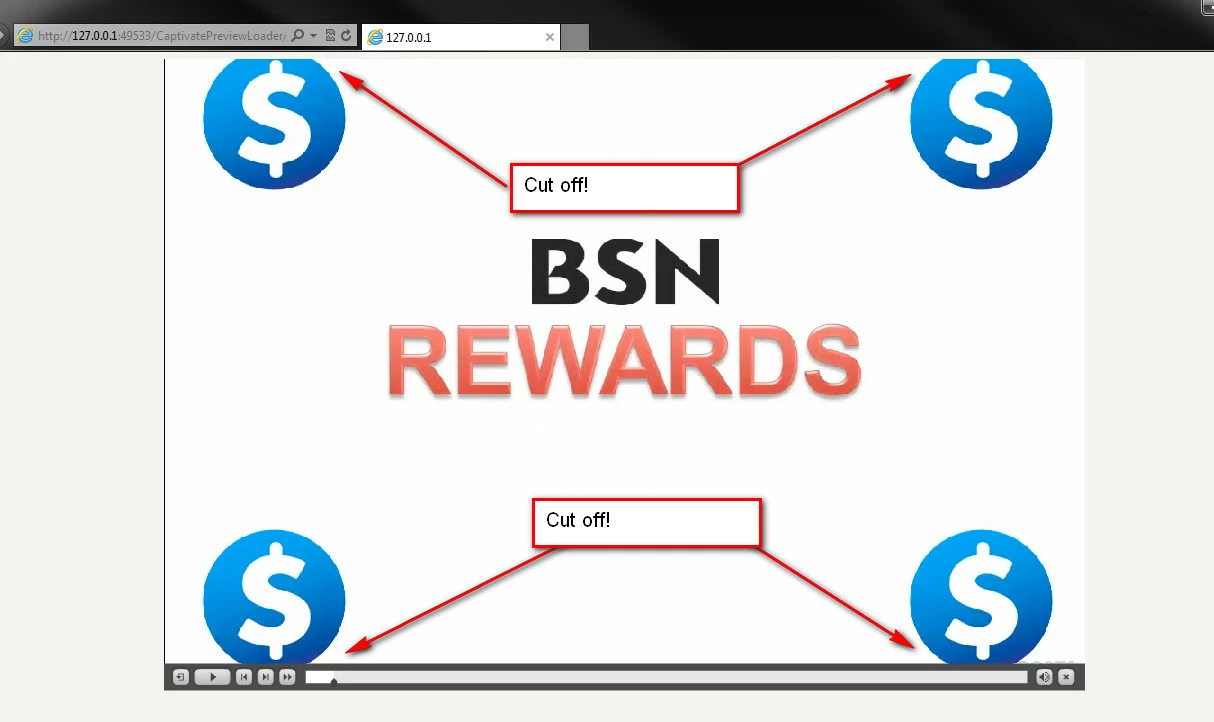
 

This topic has been closed for replies.
Correct answer RodWard

I have a thought here.  It's a long shot but worth checking:

In Captivate SWF content you can resize images to whatever size you want and even though the original image was much larger, the published content will only show the image at the reduced size.  In the example you show above, was the original background image exactly the same as your current project dimensions, or was it perhaps larger and you just resized it down in Captivate by dragging in the corners?  If so, when the content publishes out to HTML5, perhaps the original background image is being used in the output, not the resized version of the same image.  If the original image is too large, that might explain your issue.

If the image with the dollar signs is a background image in your project, try inserting a replacement of it that you resize in a graphics editor BEFORE inserting it into Captivate.

10 replies

ibracadabra224
Participant
March 27, 2019

Hi everyone,

I have a similar problem with my captivate 2019 project. I have imported a powerpoint project in captivate 2019 and everything looked well till I decided to publish the project. once I open the index file to see how it looks the module is way bigger than my screen and it is kind of annoying for me to scroll all the time to submit my answers etc etc. is there any suggestion you can give me to make the project fit the screen? I also tried resizing the project and it work ok but the module is not centered on the screen but on the left.

thanks

RodWard
Community Expert
Community Expert
March 28, 2019

After you have imported the PPT into Captivate, what does it say the height and width of the stage area is in pixels?  You should be able to see these measurements in the lower right corner of the Captivate interface.

ibracadabra224
Participant
March 28, 2019

Hi Rod, I think I solved the problem but thanks anyway. I do have another question for you though. how come in captivate my slide looks perfect and when I run the project preview it looks different?

thanks again for your help

HimanshuSatija
Adobe Employee
Adobe Employee
June 26, 2013

Hi There ,

Are you having the same issue on all of the slides or any particular slide ?

Have you included any recording as well in your project ?

If yes , Did you keep the resolution of the recording same as your project ?

Thanks and Regards

Himanshu Satija

RodWard
Community Expert
RodWardCommunity ExpertCorrect answer
Community Expert
June 27, 2013

I have a thought here.  It's a long shot but worth checking:

In Captivate SWF content you can resize images to whatever size you want and even though the original image was much larger, the published content will only show the image at the reduced size.  In the example you show above, was the original background image exactly the same as your current project dimensions, or was it perhaps larger and you just resized it down in Captivate by dragging in the corners?  If so, when the content publishes out to HTML5, perhaps the original background image is being used in the output, not the resized version of the same image.  If the original image is too large, that might explain your issue.

If the image with the dollar signs is a background image in your project, try inserting a replacement of it that you resize in a graphics editor BEFORE inserting it into Captivate.

Known Participant
June 27, 2013

I didn't get a chance to respond to Rod directly.  thanks, Rod, for your response.  the dollar sign image you saw is just a snapshot of a 4 minute video.  It is not a background image, it is part of the video.  You can see in my post below that I was able to correct the problem, although I admittedly can't tell exactly what went wrong..  My same steps I took in CP6 didn't work in CP7.  So I started the project from scratch and now it seems to fit just fine.

HimanshuSatija
Adobe Employee
Adobe Employee
June 26, 2013

Hi There,

Can You tell me the resolution of your project when you were publishing in Captivate 6 ?

What is the resolution of your new project in Captivate 7?

Have you checked whether both of projects have same resolution or not ?

How did you upgraded your project to Captivate 7 ?

Thanks and Regards

Himanshu Satija

Known Participant
June 26, 2013

Thanks for the quick response. I have been using the default iPad settings all along. 1024 x 768. For both old projects and new.

I upgraded the project by opening it in CP 7. When I saved the project, I got a message that said the project was being saved as version 7.

I have created a brand new project in CP7 to test my issue. I have the exact same problem on this new project. The course will not fit in the play area.