



Creating a comment button inside of Captivate
I am trying to create a comment button inside of Captivate. The button's purpose is to give our users a chance to complain, comment or report bugs on any page they encounter. Currently, the button is on the lesson navigation bar so the user can be on any slide of the lesson to create a comment on that page. Here is what the button needs to do:
- The button needs to open a pop-up window with a text entry box for the comment, a cancel and submit button.
- I already have code that will capture the page number, student information and lesson information and will execute an excel spreadsheet with this information. I will tie this information to the submit button that will email us the report.
- The user must be able to click on the button multiple times througout the lesson with a new entry box every time.
At first, I tried to create these elements hidden on the first slide of the lesson, but a text entry box will not carry over for the rest of the project, let alone clear itself after ever submission.
So the next thing I tried was to have the button launch a separate captivate lesson in a new window with just the one slide. This had a few issues including having to hit the "play_icon" before the window loads (which is just annoying). And secondly, since the button launches a new project, I can't pull up the needed variables (lesson and student information) that is relevant to the comment.
I'm reaching out here to see if anyone has any suggestions or solutions to tackle a problem like this. I have attached an image of what the comment button and pop-up box looks like.
Thanks for reading! Any questions and suggestions are welcome!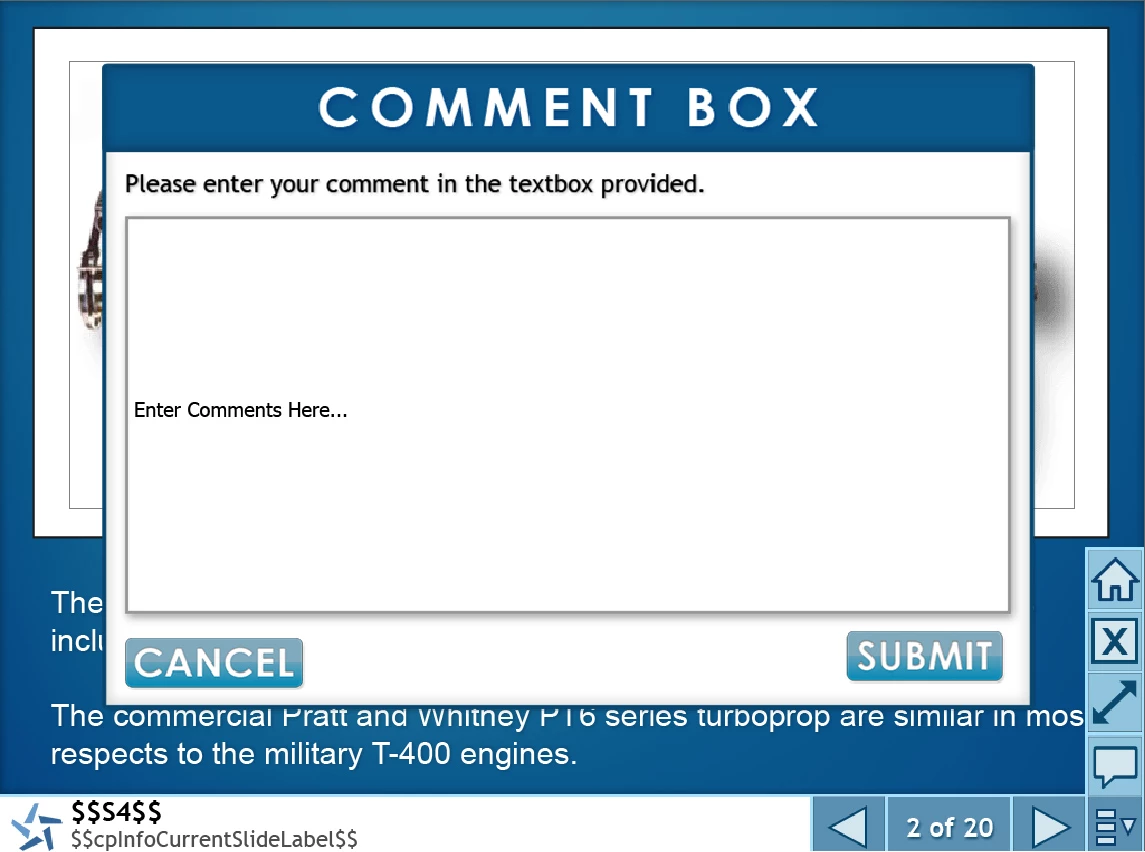
 AdChoices