


Participating Frequently
March 22, 2021
Question

Date Modified in Windows Explorer

  • March 22, 2021
  • 2 replies
  • 466 views

I know this looks like it's a Windows issue, but it's only happening with Captivate-related files, as far as I've identified, so I want to check with this community.

When I re-save a CPTX or re-publish to a ZIP, and then go to Windows Explorer, the Date column does not update to Date Modified (it stays at Date Created).
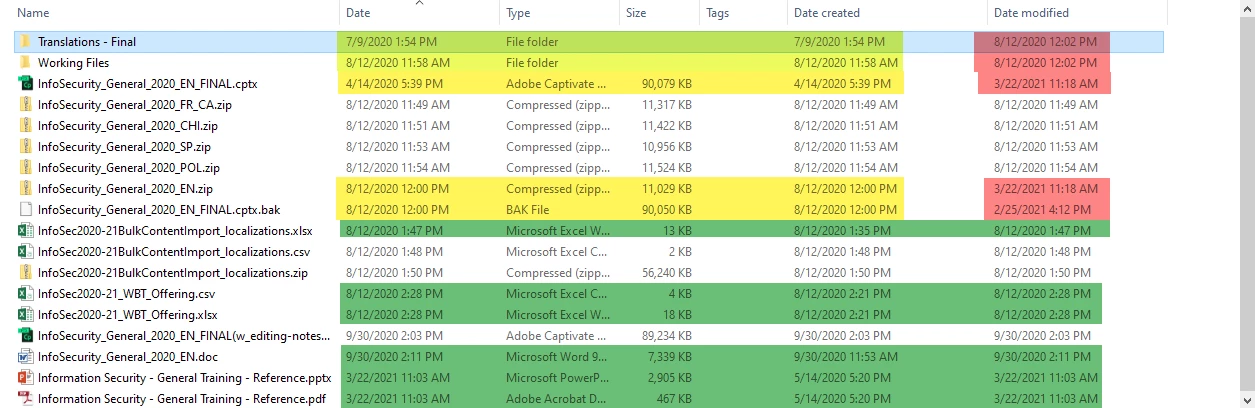
In that screen shot, the files that were modified and resaved in/from Captivate are showing the "Date Created" instead of the "Date Modified" in the "Date" column (yellow/red highlights). The green highlights are files saved in/from different programs (e.g., PPT) and the "Date" column correctly shows the modification date. (For the record, non-highlighted rows were saved once and never modified.)


Anyone else seeing this? Know how to resolve it? 


Thanks for any advice!

    This topic has been closed for replies.

    2 replies

    ChrisG LMS
    Inspiring
    March 30, 2021

    The "Date" of a file is a file type situation. Think about a date of a photograph jpg. Date is when the image was captured by the device.  I believe Captivate's Date inside the file is similar.


    Is there something specific you are trying to do by using the Date field?

    Participating Frequently
    March 30, 2021

    Thanks. Interesting. So what you're saying is that certain file types only ever display the "Date Created" value in the "Date" column. There does seem to be something to what you're saying. I went to my Pictures folder and I can see that the Date column shows Date Created for all PNGs, GIFs, and JPGs, but Date Modified for all MP4s.


    While I can see an argument for that for image files (though I wouldn't agree with it in the end), that seems like poor functionality for a Captivate file. I can't see an argument for displaying the Creation date over the Modified date by default for CPT-generated files.


    What I'm trying to do is Sort my files by the date/time I last worked on them, so when (not if) I get interrupted, I don't waste time second-guessing whether I already published that last file I was working on, or whether I forgot to edit the French or Spanish version of the CPTX to begin with, or which version is the most recent one if I had to do a "Save As" for any reason.


    Since the default in Explorer is to give me the Date column, and I've been using that successfully with Excel, Word, Txt, and just about every other file I use, it's a little frustrating to not be able to do that with Captivate.


    In the short term, obviously I can activate the Date Modified field in Explorer and use that, but it's frustrating to have to remember to do that just for Captivate.


    Seems like Windows ought to let you choose that behavior per file type if that's the issue (or at least let Date Modified become the default column). I'll have to research that when I get some time.

    ChrisG LMS
    Inspiring
    March 30, 2021

    I have always used date modified and date created for the same determination that you are making.  The Date field, I believe is, and probably always been determined by first looking at the metadata within the file (regardless of file type) and using that date if there is one, if not, defaulting to datemodified.


    I have always felt the "date" field is undependable based on this and always display datemodified and catecreated in explorer for exactly this reason.  I have also found that if you compare in ftp programs based on date, you run into this same issue. Very confusing indeed and can create versioning mistakes.


    Paul Wilson CTDP
    Community Expert
    Community Expert
    March 23, 2021

    Press F5 in Windows Explorer to see if it updates. Might just need to be refreshed.

    Paul Wilson, CTDP
    Participating Frequently
    March 29, 2021

    Thanks. Tried that multiple times. No change. It even survives a reboot.