

Inspiring
October 21, 2021
Question

Delete smartshape copies

  • October 21, 2021
  • 2 replies
  • 225 views

Hi

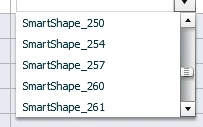
Is their a way to delete all the copies in Captivate. Everytime you copy a object captivate ads a _XX after.

    This topic has been closed for replies.

    2 replies

    Lilybiri
    Legend
    October 21, 2021

    With the exception of objects on master slides, each object needs to have a unique ID in order to be able to address it with actions like Show./Hide, Change State etc...

    You show a dropdown list in the Advanced Actions dialog box, probably because it is almost impossible to target the correct object when keeping the generic names. That problem is due to the fact that an advanced/shared action is able to target all objects in a project, contrary to the simple actions where lot of commands are limited to the objects on the same slide.

    First recommendation: label all objects you want to use in advanced actions. Have a look at:

    http://blog.lilybiri.com/tip-1-labeling-advanced-slash-shared-actions

    Why would you want to delete smartshapes as mentioned in the topic title? Can you explain?

    When using a good labeling system you can also take advantage of the Filtering functionality of the dropdown lists:

    http://blog.lilybiri.com/tip-2-filtering-advanced-slash-shared-actions


    Inspiring
    October 21, 2021

    The question was that I want to delete the smartshapes.
    I am working on a shared project so how and why it looks like it do today are not the issue here.

    I just need to delete it. 

    Sorry if I sound grumpy. Not my intention:)

    RodWard
    Community Expert
    Community Expert
    October 21, 2021

    Sure.  Go ahead and delete any Smart Shapes you don't think are needed in your project.


    But you won't be able to delete them by going to the drop-down menu in the Advanced Actions dialog.  You need to go to each slide, look at the objects there on the slide and delete any objects you don't need.  That will reduce the number of objects in your project, but not usually by a large amount because it's really the design of the slides that determines whether or not you can get by without certain items.


    If you also follow our suggestions to start labelling the Objects with more meaningful names, then you will be able to more easily find the ones you want.

    RodWard
    Community Expert
    Community Expert
    October 21, 2021

    What you need to understand is that every object in a Captivate project must have a unique ID.  So, whenever you add a new SmartShape or Image or Text Entry Box or any other type of object, the Object Name will be different to any of the others.  Captivate enforces this to make them all uniquely identified.


    So although you might think that all of those SmartShapes that are listed in the drop-down menu are just copies, they are in fact individual Smart Shapes that exist somewhere in your project.


    If you want to know exactly where they are and what they are used for, then you need to get into the habit of naming each object you add to a slide so that the Object Name is more meaningful and explanatory.  That will make the objet you want to manipulate with Advanced Actions easier to find when you are looking at these lists.

    Inspiring
    October 21, 2021

    If a smartshape gets removed from a slide. Will the name still be there? Since its not in the library I cant delete it as unused items

    RodWard
    Community Expert
    Community Expert
    October 21, 2021

    Nope.  If you delete the object from a slide its name will disappear from all lists.