Determining and Setting Recorded Audio Level
Using Captivate 5.5, When I navigate to Audio > Edit > Slide > Adjust Volume and select the Normalize option, is this applied to all audio recorded to slides in my project? Or must I repeat the action for each slide?
It seems as though the audio was turned up on other slides when looking at the audio row in the timeline; however, when I navigate to the Adjust Volume window again, the option None is shown (i guess by default?)
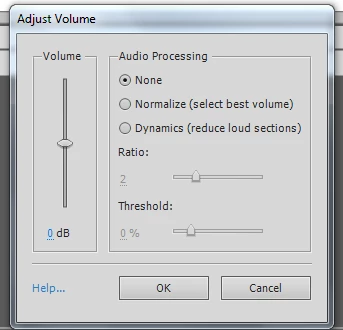
Is there any other way to definitively see a volume level number for each slide? This way, it would be more clear where slides fall above or beneath that number and need adjusting?
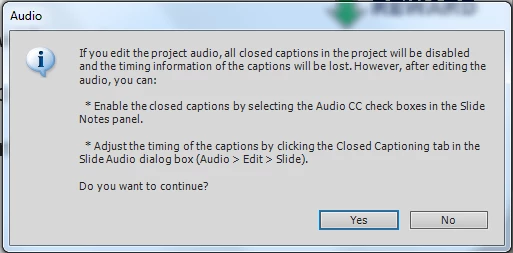
I did see the choice to Edit audio for the project, but was afraid to continue/use this as I was not clear exactly what would happen and cannot risk loosing and having to re-record... My project does not have closed captions.
Sorry to be a blockhead-lol
Thanks for your help!
Terri
 AdChoices