
Inspiring
July 26, 2016
Answered

Documentation on animations?

  • July 26, 2016
  • 1 reply
  • 366 views

Hi

I stepped away from Captivate for a while and now I'm back with version 9.... So I apologize for the n00b questions (again):

Basic animation question: If I want to animate a box across my slide I used to set my box in the start position, click an icon on the timeline to record current position, then move my box across the screen to the new position and turn off the record icon... Not sure if I'm getting confused with Edge Animate/Tumult Hype but how does one do this with Captivate?

Thanks in advance,

Rich
    This topic has been closed for replies.
    Correct answer Lilybiri

    Yes, you are confusing with another application.

    You have to select the 'box'  or any other object to which you want to apply a 'motion path' or a canned entrance/exit effect. Then use the right-click menu (or the Timing Properties panel) to Apply Effect. You have several categories for the move:

    • Entrance: has several movement, you'll preview the effect on the stage when hovering over it in the Timing Properties panel: the present location of the object will be the end point of the movement
    • Exit: similar, but the present location is the start point of the movement
    • Motion path: you have linear, polygonal, curved paths

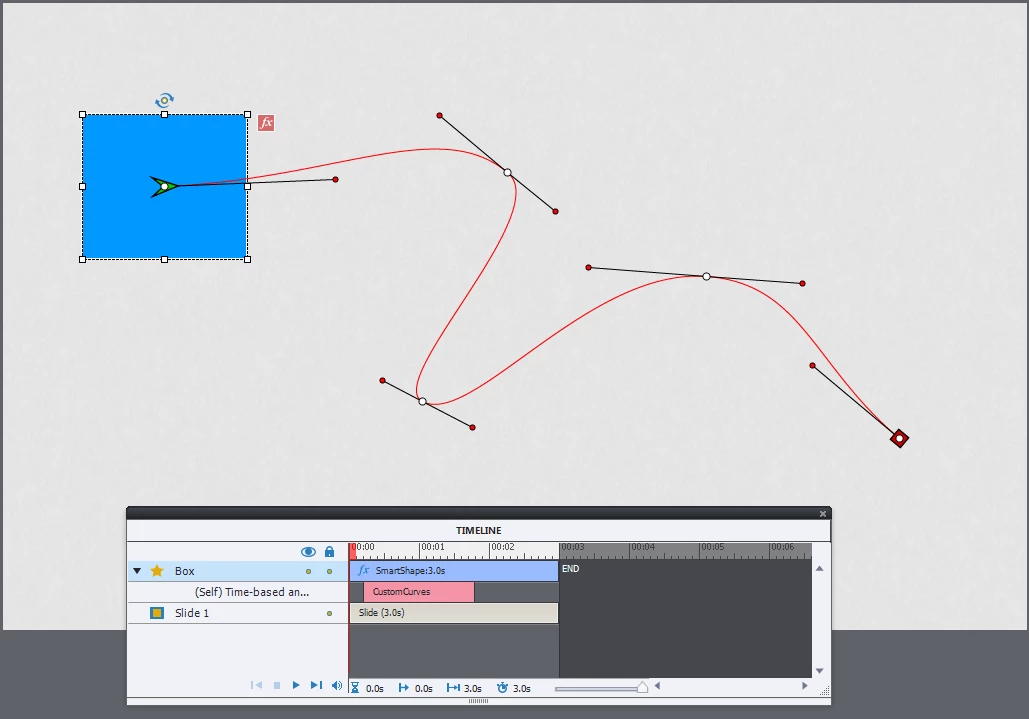
    You will see the motion path visually on the stage. Its timeline is under the object timeline, you can change the duration, the start etc just like for a normal timeline. The path itself can be edited on the stage: for curved paths you have Bezier curves, with points and tangent points.

    I mentioned some details in this blog post: Playing with Captivate 9 - Captivate blog

    I also use the Guides for positioning the points and tangent points:

    Guides Rule! - Captivate blog 

    1 reply

    Lilybiri
    LilybiriCorrect answer
    Legend
    July 26, 2016

    Yes, you are confusing with another application.

    You have to select the 'box'  or any other object to which you want to apply a 'motion path' or a canned entrance/exit effect. Then use the right-click menu (or the Timing Properties panel) to Apply Effect. You have several categories for the move:

    • Entrance: has several movement, you'll preview the effect on the stage when hovering over it in the Timing Properties panel: the present location of the object will be the end point of the movement
    • Exit: similar, but the present location is the start point of the movement
    • Motion path: you have linear, polygonal, curved paths

    You will see the motion path visually on the stage. Its timeline is under the object timeline, you can change the duration, the start etc just like for a normal timeline. The path itself can be edited on the stage: for curved paths you have Bezier curves, with points and tangent points.

    I mentioned some details in this blog post: Playing with Captivate 9 - Captivate blog

    I also use the Guides for positioning the points and tangent points:

    Guides Rule! - Captivate blog 

    Inspiring
    July 26, 2016

    Thanks LilyBiri