
October 15, 2019
Answered

Drag and drop

  • October 15, 2019
  • 1 reply
  • 753 views

Hello everyone!

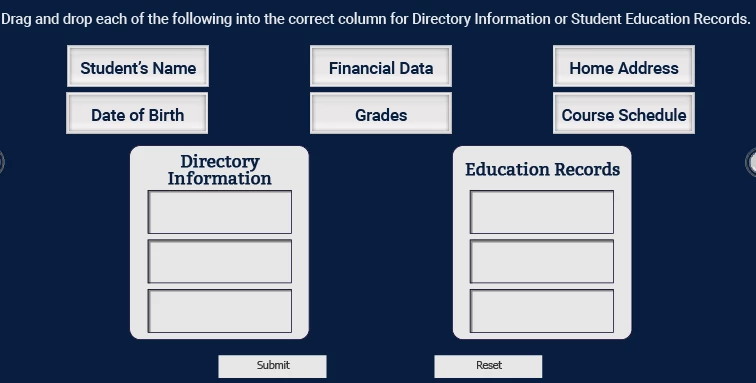
I am trying to create a drag and drop knowledge check that allows the drag sources to go into multiple drop targets. However, once one drag source is dropped onto a drop target, I want that drop target to not be available anymore to the rest of the drag sources. The reason why I want the drag sources to go into multiple drop targets is because the drag sources can be placed in any order. The issue I am having is that because multiple drag sources can be dropped onto multiple drop targets, the learner can drop two or three in the same drop target. The drop targets in my activity are the empty boxes below. Is there a way to do what I want to do: assign multiple drag sources to multiple drop targets but once one drag source has been dropped onto a drop target make that drop target unavailable for the rest drag sources that originally were assign to it as well? Please and thank you!
    This topic has been closed for replies.
    Correct answer Lilybiri

    You have to select a drop target to populate the Format tab of the D&D panel. Click the button "Object Actions' to open the dialog box shown by StagPrime.

    Have several blogs about D&D slides. This one is old, but explains the process of opening that dialog box which has two goals: to define Acceptance for drag zources and to indicate which Object actions have to be executed.

    http://blog.lilybiri.com/drag-and-drop-tips

    1 reply

    Stagprime2687219
    Legend
    October 15, 2019

    You should be able to set this up so that once an object is placed it will reject the others.

    Uncheck accept all and still have all checked and the count shall be 1.

    Any of them should be accepted but only one. The rejected item will return to its original position.


    October 16, 2019
    Thank you for answering, Stagprime. What version are you working with? I have Captivate 2019 and cannot see this Accepted Drag Sources box. This is where I have been entering my answers:
    Lilybiri
    LilybiriCorrect answer
    Legend
    October 16, 2019

    You have to select a drop target to populate the Format tab of the D&D panel. Click the button "Object Actions' to open the dialog box shown by StagPrime.

    Have several blogs about D&D slides. This one is old, but explains the process of opening that dialog box which has two goals: to define Acceptance for drag zources and to indicate which Object actions have to be executed.

    http://blog.lilybiri.com/drag-and-drop-tips