Those are NOT templates (is important), they are Quick Start Projects, which you can freely use and edit by replacing text, images, edit setups etc. A template file has placeholders as in master slides, and placeholder slides.
OK, now I know which slides you are point at. What you see in those slides is due to the setup of the Drag&Drop Interaction. I looked at the setup in Alliance. Here are the steps to correct this so that you can submit an incorrect answer. I will add a screenshot as well:
- Go to the Drag&Drop panel (can be opened from Window menu).
- Make the interaction visible by clicking the eye icon if it is barred with a red slash
- Select one of the drop targets. They have a blue border. You'll see that the Format tab has now options.
- In the format tab, click the button 'Object actions'. Title is bit confusing, because the dialog box which appears has not only Object actions but controls also the behavior after dropping a drag source in this targe.
- You will see that the option 'Accept All' has been unchecked, and only one Drag source is allowed on this target. You will also see the 'Go Back' option here.
- You need to change these settings. I did it an here is the resulting screenshot:
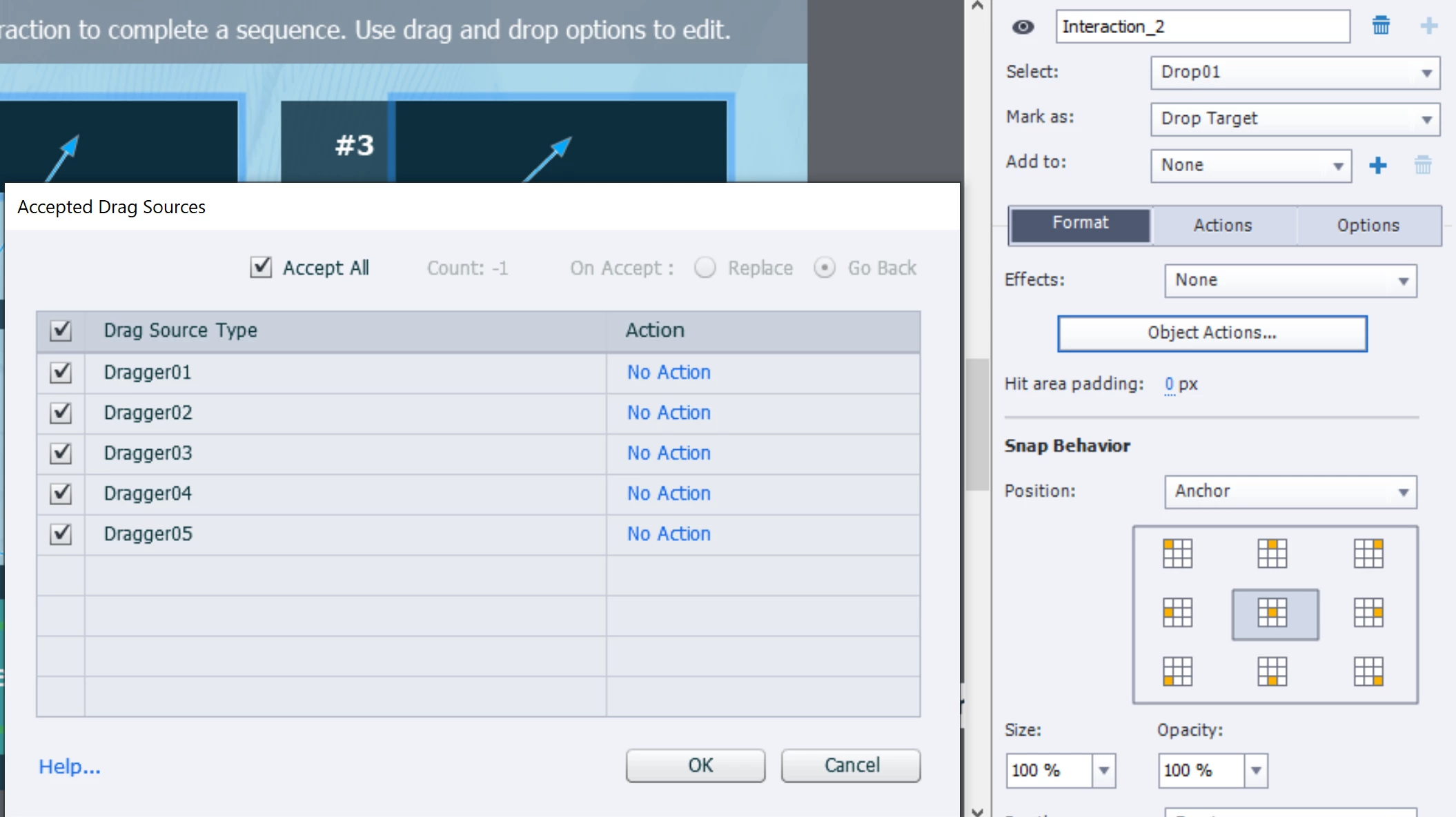
You need to repeat this workflow for each of the drop targets. I may write out a blog to explain how to edit Drag&Drop slides from the QSPs. I already blogged several times about them, to explain workflows. Here are two links:
http://blog.lilybiri.com/editing-ready-to-go-slides-quick-start-projects-part-1-text-and-images
http://blog.lilybiri.com/editing-ready-to-go-slides-quick-start-projects-part-2-interactions




 AdChoices