
Stephen Boogaerts
Known Participant
March 20, 2018
Answered

Fade Out Only timing

  • March 20, 2018
  • 1 reply
  • 764 views

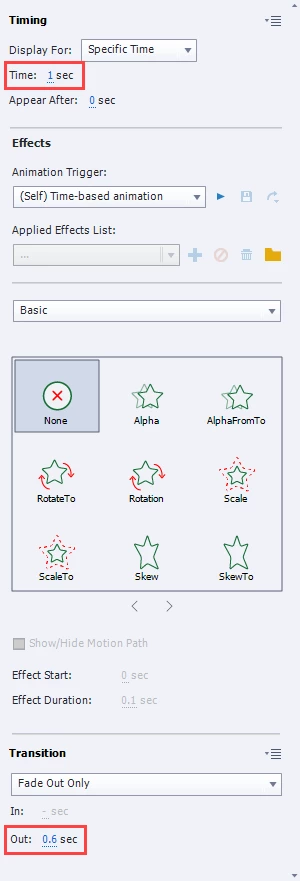
I'm having an issue with the Fade Out Only timing. I'm wanting an image to fade out as soon as the slide begins but there seems to be difference requirement between the time the image is to appear on the slide and the fade out only 'out' time. When I attempt to change the time of the 'out' time to match the specific time, captivate automatically changes it to .5 or .6. Typically the default is .5 but if I make enough attempts the time will default to .6. This makes me think it may be a bug?

My goal is for the image's Fade Out Only 'Out' time to match the Specific Time. For example, Time: 1 sec = Out 1 sec

Anyone else having a similar issue? Am I doing something wrong?

Thanks
This topic has been closed for replies.
Correct answer sabre123

Just for my own curiosity, I spent a little more time on this. I did encounter some strange and inconsistent behavior. In my original post in this thread, I added a shape, changed the duration to 1 sec. and then experimented with different fade out times.

This time, I did the following:

  1. added a rectangle shape in a new project which defaulted to it's 3 second display time,
  2. added a fade out and changed the time to 3,
  3. it set the fade out to 2.5 instead of 3.
  4. I changed the display time of the shape down to 2 seconds by dragging the right side of the timeline obj, and the fade out updated to 2.
  5. I dragged it back to 3 seconds, changed the fade out to 3, and 3 seconds stayed.

I adjusted down to various times, and the fade out time adjusted to match display time. So, I got it to display the behavior you both experienced, but it did correct itself. Maybe you both can follow the steps I just mentioned and see if what you're experiencing is different?

1 reply

sabre123
Participating Frequently
March 21, 2018

Works fine for me. Actually, the control is 'smart' enough to adjust the fade out time to match the display time (when decrementing) since you obviously cannot fade out for longer than an object is displayed.

To test, set your object to display for 1 sec. and the fade out time to 1 sec, then drag the object's end time in the timeline to the left (or type a display time in the Time box that is < 1 sec.) and the fade out time reduces to match.

Perhaps there is something else going on that is causing your issue. Have you done a simple test on a new empty project, shut down and restarted Captivate, etc.?

Lilybiri
Legend
March 21, 2018

I can confirm the result of the OP. Just want to know if we are talking about the same version and the same OS? I am on CP2017, using Windows 10. It is impossible for me to have the Fade out time set to the same time as the display time. The maximum Fade out time for an object displayed for 1 sec is 0,5sec.   If the display time is set to 3 secs, the maximum Fade out time is 2,5 secs. I tried this out on shapes and text captions. I also double-checked on CP9 and behavior is the same.

I have tried out many workflows: using the numbers in the Timing panel, dragging the timelines, using shortcut keys (arrows) to reduce numbers or to shorten the timeline. For me there is no way to set the transition time exactly to the same number as the display time for any object.

The alternative with the Basic effect Alpha From To is working however.

sabre123
Participating Frequently
March 21, 2018

I'm on CP2017 and Windows 7.