May 11, 2011
Answered

Failure Caption to replace Text Caption

  • May 11, 2011
  • 2 replies
  • 618 views

Hello,


How would I be able to achieve the following in Captivate 5:


Situation:

I have an image, a clickbox on it and a text caption instructing the learner to click the clickbox. If someone clicks out of the clickbox, a failure caption appears.


What I am looking for:

Currently, the failure caption only shows for the time of the slide (3 sec), then it disappears and the text caption shows again. However, I want the failure caption to replace the text caption completely.


Can anyone advise me on what I need to do?


Thanks!!
    This topic has been closed for replies.
    Correct answer

    Hello BettinaK,

    Welcome to Adobe forums.

    You can set the timing for text caption in its properties lets say 3 seconds. After 3 seconds it will disappear.

    Now if user clicks out of the clickbox, you will get " type failure text here", you can click on it and set the timing for it as well, like rest of the slide.

    Here are the screenshots

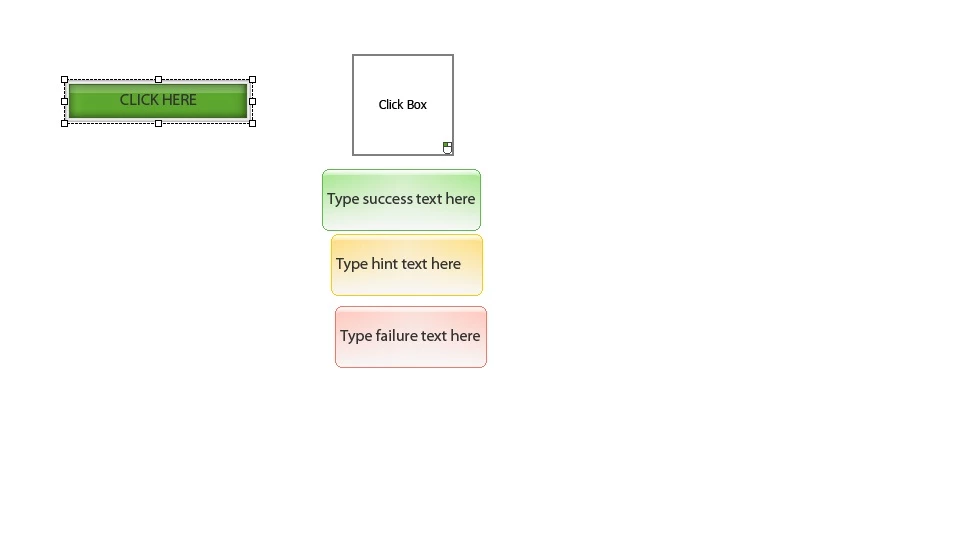
    Step1> your slide is something like this (i am sorry for not using any image in the slide)

    Step 2> now you can set the timing for text caption(click here). Over here i set it up for just 3 seconds, so it will disappear after 3 seconds

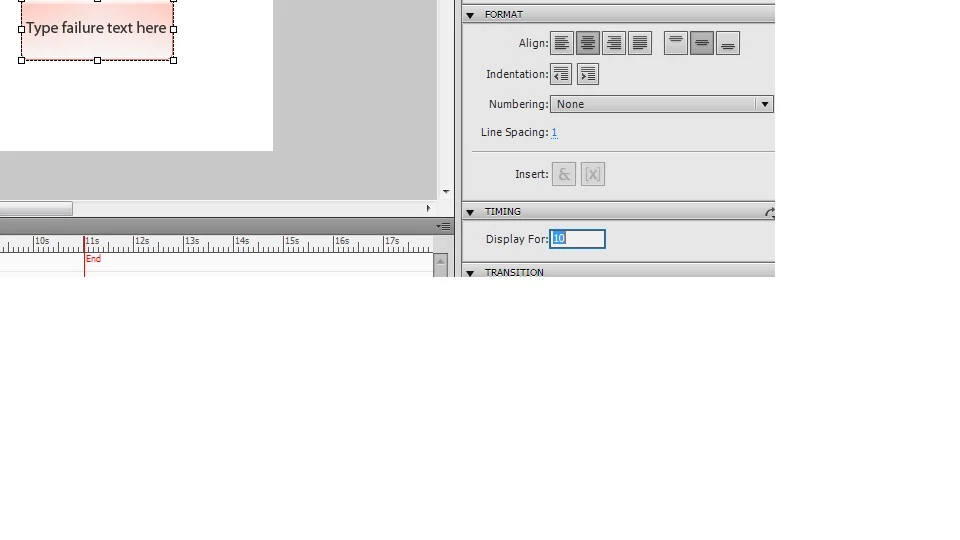
    Step 3> Now click on " Type failure text here" and set the timing in its properties as well

    By doin this Type text failure here will display for the amount of time which you want and it will take place of Text Caption

    Hope it helps!!!

    Vishal

    2 replies

    RodWard
    Community Expert
    Community Expert
    May 11, 2011

    Since the default behaviour of the Failure captions is to be timed for a given number of seconds, you need a way of hiding the caption with the instructions and showing another caption that is exactly the same size and situated at the same coordinates, but with your failure message instead.

    You can do this with Advanced Actions using Show/Hide actions. Turn off all the other default On Success and On Failure captions for the clickbox. Create an Advanced Action that has one statement that hides the visible caption, and a second statement that shows a hidden caption with your failure text.  Have this Advanced Action executed On Failure for the clickbox.

    Correct answer
    May 11, 2011

    Hello BettinaK,

    Welcome to Adobe forums.

    You can set the timing for text caption in its properties lets say 3 seconds. After 3 seconds it will disappear.

    Now if user clicks out of the clickbox, you will get " type failure text here", you can click on it and set the timing for it as well, like rest of the slide.

    Here are the screenshots

    Step1> your slide is something like this (i am sorry for not using any image in the slide)

    Step 2> now you can set the timing for text caption(click here). Over here i set it up for just 3 seconds, so it will disappear after 3 seconds

    Step 3> Now click on " Type failure text here" and set the timing in its properties as well

    By doin this Type text failure here will display for the amount of time which you want and it will take place of Text Caption

    Hope it helps!!!

    Vishal

    May 11, 2011

    Hi Vishal,

    that is a great workaround! I changed the timing for the failure caption to 500 sec (which is hopefully enough until the learner has actually clicked where he/she is supposed to click) and placed it directly over my text caption.

    I was initially worried that changing the timing for the failure caption (or hint or success caption for that matter) would increase the size of my project, but clearly that does not seem to be the case as the actual slide length is not affected.

    Thank you so much!!!

    Best regards

    Bettina