
Participant
June 3, 2017
Answered

Fluid Box Training/Resources

  • June 3, 2017
  • 1 reply
  • 633 views

After monitoring the community for a while, it seems some pretty solid content exists around this topic. For example, this article is very helpful but I have had issues replicating the demonstration set up in this article...namely the instructions in Knowledge Facts 2. I feel as though I am missing some vital piece of information to start the build, as I cannot manage to even replicate the initial set up of the fluid boxes. Is anyone else experiencing similar problems. Better yet, what resources have you found to fill the knowledge gap? Do any helpful user guides or video demos exist elsewhere that fill in the blanks?

The tool seems to be a great improvement on Captivate's responsive design abilities, but I think some helpful information must be missing somewhere. 

Any help would be greatly appreciated.

Cheers!
This topic has been closed for replies.
Correct answer Lilybiri

I recently published an article explaining how the quizzing master slide fluid boxes have been designed, and offer some tips:

Fluidize your Quizzes | eLearning

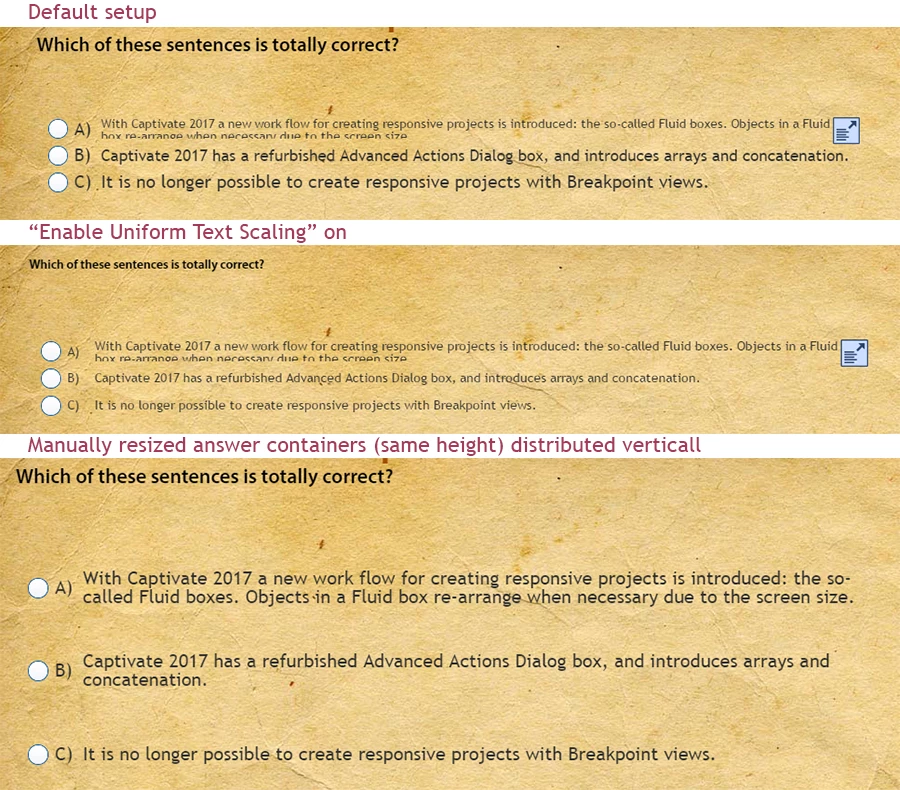
The way text is treated depending on the chosen settings is interesting, here is an image from that article:

The 3 articles by Zeeshan, and those by Mohana Das on the portal give a good introduction. What was your problem with setting up the example in the second article of Zeeshan? What Zeeshan forgot to tell, is that you best switch to the Blank master slide before trying his setup. When you open a responsive project with the default theme (White) the filmstrip has only the Title slide. That title slide, based on the master slide 'Title' has a root Fluid box with already an 'object' included, the Title Placeholder. You cannot insert fluid boxes in a fluid box which has already objects. If you switch to the Blank master slide, it has no fluid boxes on the master slide and you can start from scratch.

Another tip: if you have a specific design to realize, it helps a lot when you activate the Rulers (and create eventually some guides). For a responsive project rulers are in %. Read more about them:

Guides Rule! - Captivate blog

1 reply

Lilybiri
LilybiriCorrect answer
Legend
June 3, 2017

I recently published an article explaining how the quizzing master slide fluid boxes have been designed, and offer some tips:

Fluidize your Quizzes | eLearning

The way text is treated depending on the chosen settings is interesting, here is an image from that article:

The 3 articles by Zeeshan, and those by Mohana Das on the portal give a good introduction. What was your problem with setting up the example in the second article of Zeeshan? What Zeeshan forgot to tell, is that you best switch to the Blank master slide before trying his setup. When you open a responsive project with the default theme (White) the filmstrip has only the Title slide. That title slide, based on the master slide 'Title' has a root Fluid box with already an 'object' included, the Title Placeholder. You cannot insert fluid boxes in a fluid box which has already objects. If you switch to the Blank master slide, it has no fluid boxes on the master slide and you can start from scratch.

Another tip: if you have a specific design to realize, it helps a lot when you activate the Rulers (and create eventually some guides). For a responsive project rulers are in %. Read more about them:

Guides Rule! - Captivate blog

Inspiring
June 3, 2017

Hi Fahima,

I'm working on micro-learning project incorporating Fluid boxes, specifically for mobile devices and understand where you are coming from. I have been able to do pretty much everything I wanted to but did have to play around extensively to get the desired outcome.

Here are a couple of key points that really helped me.

Flow

Your choice of Flow either horizontal or vertical is critical to understanding how they will change at different aspect ratios. For example if you choose horizontal then if you bring it out 1024 it will form straight line of objects, that looked different and great at smaller dimensions. That is because of Flow. I think you should really design for a specific range of devices -- In my case its iPhone s5 up to an IPad. You can also design fine for desktops but your design decisions may not work as expected at smaller form factors so you need to be aware of that. There are some techniques to overcome this (for example Options) but you should test at all dimensions to be sure

Blue Arrows

When you highlight a box it gives you the name of the box and an arrow, that arrow denotes the flow for that specific box -- thats how you can determine each individual box parameters.

Selecting Boxes

When you select a box, all the options are specific to that box -- you can change all the parameters for every box in your stack. This is really powerful and customizable.

Multimedia

It handles media really well. I think this is the killer feature of Fluid Boxes.

Like you I am still learning, so if anyone from Adobe wants to jump in with more comprehensive answers, that would be welcome.

Cheers,
Steve

Participant
June 4, 2017

Hey Steve,

Thank you for your insight! I think this points really help fill in the blanks and I will try to incorporate these moving forward. Hopefully, this will clear up the trouble areas. Thank you again for sharing the fruits of your exploration of the tool, I very much appreciate it!

Cheers!