
Answered
Full screen software simulation using multiple monitors
This isn't something I've done a lot of in the past, but it seems badly broken to me, at least when using multiple monitors. I thought I'd sound-out the forum before submitting yet another bug report...
(Seems to be a problem in both 2017 and 2019, but worse in 2019 because of the added complication of all the webcam stuff.)
- create a new software simulation (select 'no webcam' if using 2019)
- With 'full screen' selected, there's no choice of monitor. You have to select 'custom size', then re-select 'full screen', and only then do you get a choice of monitor.
- It only seems to be able to cope with two monitors, neither of which is the one I want to record, so I have to disable my third monitor.
- I get to the end of a section and press the 'End' key, the recording stops, and I get the familiar Captivate editing screen, where I tweak the captions, fiddle with the timings etc. So far so good.
- Now I want to resume, adding more recording slides to the same file, so I click the 'Slides' button, and select 'software simulation'. Captivate kindly asks me where I want to insert more slides, so I choose the last one and click 'OK'.
- Now, the dialogue that appears doesn't even give me the option to record full screen, let alone a choice of monitor.
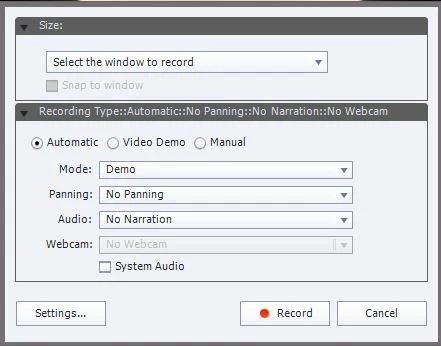
The workaround seems to be to to choose File...Record a New Software Simulation, and start a new file, eventually ending up with several files and copying all the slides into one of them, hoping that I can keep them in order.
Have I missed something or is this a bug?


 AdChoices