



Nenzio
Known Participant
March 13, 2016
Answered

Go To Next Slide - problem!

  • March 13, 2016
  • 1 reply
  • 848 views

Hi everybody,

First thing: I'm not an Captivate expert, but I'm learning day-by-day to use this great software... so, please, be patient

QUESTON:

I'm trying to generate a course, very small and simple, but I've a problem: when I click "preview" I see that each slide appears after the previous. I need to let the user choose when he want to go forward!
Example: I must generate a slide that required 2min of reading, but after this time it's important to stop the automatic progress. I've choose to dont't show the progress-bar but the problem remains.
    This topic has been closed for replies.
    Correct answer Lilybiri

    Hi Lily, maybe I'm stupid Ok, but... I can't understand how Captivate think: I can't stop the change of slide at the end of the time of each one. And I can't set two action at the same object.
    Example: I've a button, I want 2 condition 1) when user clic it a little image come in, and then go to the next slide. Is difficult for me, but... I don't know, I'm disoriented


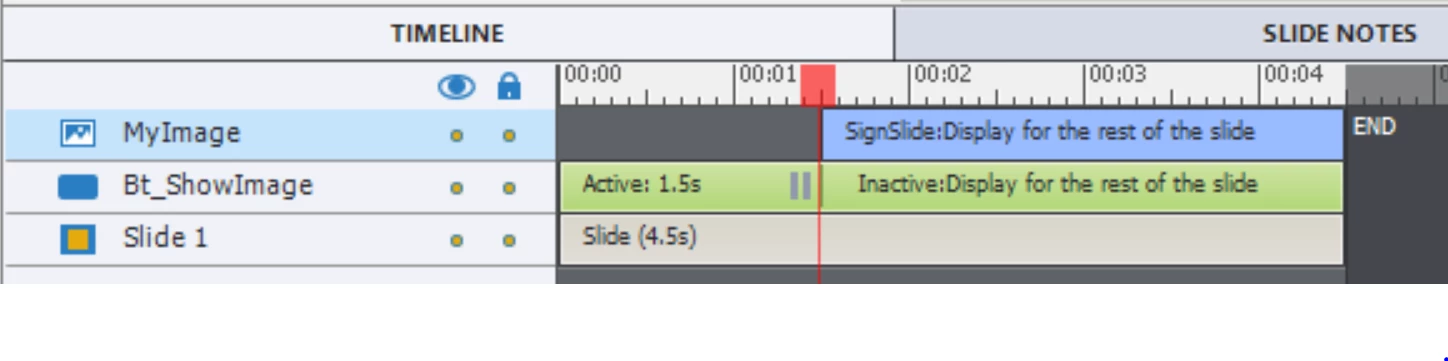
    All commands in a standard advanced action will be executed in sequence. If you want to show an image, you'll have to leave time to the user to see that image before the playhead moves on to the next slide. If you are on Captivate 9 you can use the 'Delay next actions' command. An easy way that can also be used on previous versions:

    • Create the button just with the simple command Continue
    • Let the image timeline start just after the pausing point of the button
    • Extend the image timeline till the end of the slide (CTRL-E)
    • Estimate how long the image timeline needs to be.
    • When the playhead is released by the button click, the image will appear and playhead will move on till the end of the slide, then go to the next slide

    1 reply

    Lilybiri
    Legend
    March 13, 2016

    You have to add an interactive object to pause the slide. If you want this

    on each slide, to pause at its end, the easiest way is to add a shape

    button to the main master slide.

    Nenzio
    NenzioAuthor
    Known Participant
    March 13, 2016

    Hi Lilybri, tnx for your answer, so... If I can, i would like to ask you that: when I've to use "master slide"? I mean, what is the difference between normal slide (I start to create a project using blank slide) and Master slide?

    Lilybiri
    Legend
    March 13, 2016

    Blank master slide is normally meant for software simulations. Use tje

    master slides, and the object styles which are both part of the theme to

    make your project have a consistent, branded look. Items you want on each

    slide like number of slide, copyrights, etc go on the master slides.

    Objects on the main master slide can be inherited by the daughter master

    slides. I start each project by creating a theme (object styles, master

    slides and skin) all using the colors of a theme colors palette.