Inspiring
February 25, 2011
Answered

Greying out multiple buttons after click

  • February 25, 2011
  • 9 replies
  • 4131 views

Hi all.

I have a slide with 7 buttons on which link to other slides.

These slides, once accessed link back to the original slide with the 7 buttons.

I'd like a simple way of either muting or greying out the buttons (so that they can still be clicked) but which indicates that they have been clicked already.

I'm very new to Captivate and am trying to work out if this is possible without the use of advanced actions as I haven't got to grips with that yet.

Cheers

    This topic has been closed for replies.
    Correct answer Lilybiri

    Hi Lilybiri.

    Many thanks for all your help, apologies for the delay, I've only just got to work as I had a dentist appointment this morning.

    With regards your query around the nevigation for slide 10,

    The way I had set the slides up was that I didn't want the learners to be able to skip the slides by clicking "Next" and with my limited knowledge the only way I could come up with was to get the last slide accessed to point to a duplicate slide but one that had the "Next" button on the screen.

    I know that if the users were clever they could still skip the slides by just accessing the last slide which would navigate to the duplicate slide with the "Next" button, but let's be fair. they just aren't that sneaky!

    I'm guessing that with advanced actions you can set a condition that the "Next" button appears after all the menu buttons had been clicked (and greyed out).

    Huge thanks for this! I just hope that I am able to replicate what you are doing for the other 6 chapters that I have!! Lol!


    Hello,

    It is ready, I'll send you a link to the file by PM.

    For the button Next to appear on the Menu slide when all other buttons have been greyed out, I copied a button from the other slides and set it to invisible.

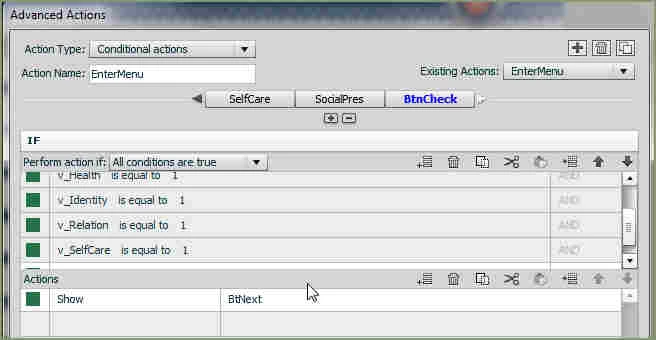
    Then I added another Decision to the conditional action EnterMenu I described in my previous mail. This (last) decision has a combination of And condition, 7 in total to check the values of all the user variables. Only when all are set to 1 the button Next will get visible on the Menu slide. Here is a screenshot of this last decision, but I cannot show all 7 conditions, hope it is clear enough what I mean.
    Lilybiri

    9 replies

    Colday213Author
    Inspiring
    March 10, 2011

    Once again Lilybiri gives brilliant advice and examples.

    Worked out how to apply it to my project and it works like a charm.

    That is going to save me a whole load of grief and make my project look a LOT more professional.

    HUGE thanks once again!

    Colday213Author
    Inspiring
    March 10, 2011

    Wow, I've had a look at that and I think I'm going to have to sit down and read it half a dozen times before I get my head round it.

    Maths isn't my favourite subject.

    I understand the 1=1 bit however, just need to work out how to apply it to my slides.

    With my project, I don't show the playbar anyhow.

    I really need to read through all the variables and work out what they do!

    Cheers

    Colday213Author
    Inspiring
    March 10, 2011

    Right, I'm having some right issues here!

    This is how it is at the moment.

    I have a list of 7 headings.

    These headings have rollover slidelets over them which pops up a TC box in the slidelet.

    I've set variables that on rollover set literal to 1 for each variable.

    I'm struggling with two things.

    If I pause the project with either the click box as suggested or the widget I downloaded, I can rollover the headings to pop up the TC boxes no problem, however once they are all done I don't get my "Next" box appearing as it should.

    If I don't pause the project then it works fine, except that if the learners are slow then the slide moves onto the next one without the "Next" box appearing as it is currently invisible till all the variables are set to 1 by the advanced actions.

    Seem to be caught between a rock and a hard place really.

    I've been scratching my head for a while now and trying different things but have had zero success, so someone please help before I have to go and sit in a darkened room!

    Cheers!

    Lilybiri
    Legend
    March 10, 2011

    Hello,

    You will need again an advanced conditional action that will check every time if all variables have been set to 1. When all have been set to 1 you will have to show the Next button. How did you populate the user variables, by a simple action "Assign with ..." triggered by the rollover? If that is the case, you will have to replace it by an advanced action, with a combination of a standard action (to set the user variable to 1) and a conditional action after that first one that checks all the user variables. That is a bit tricky in Captivate 5: combining a standard with a conditional action. Since I am a bit lazy (do not want to repeat same answer over and over again), I once wrote an article explaining the workflow:

    Combining a standard and conditional action

    Hope you do not mind pointing to that?


    Lilybiri

    Colday213Author
    Inspiring
    March 10, 2011

    Doh!

    Why didn't I think of that?

    I've gone to the effort of downloading the "Pausemenow_AS3" widget which works pretty well.

    Thanks RodWard.

    I'll have a go with the click boxes and see which one works better for me.

    Cheers

    Colday213Author
    Inspiring
    March 10, 2011

    Which is why I feel guilty asking all these questions as it's taking your far more valuable time to answer them!

    Anyhow, another question.

    Can I pause a slide somehow without putting a button in place?

    For example, Rollover slidelet in place that once rolled over shows the Next button.

    Problem is the project doesn't pause until the button appears, meaning that if the learner doesn't rollover the slidelet the project just keep ploughing on to the next slide.

    Any ideas?

    RodWard
    Community Expert
    Community Expert
    March 10, 2011

    Click boxes also pause slides and have the added advantage of being invisible.

    Colday213Author
    Inspiring
    March 9, 2011

    That's great Lilybiri, many thanks once again.

    Also RodWard, many thanks also.

    I hopefully only have one more question.

    I've edited one of my slides with advanced actions and now wish to delete some of the variables.

    I've deleted all references from the project for all variables/actions but I still cannot delete or modify any of the variables.

    The modify/delete buttons remain greyed out.

    Any ideas anyone?

    Many thanks.

    Lilybiri
    Legend
    March 9, 2011

    Hello,

    Which menu option do you choose to delete the variables? You need to go to Project, Variables, not with the Variables button from the Advanced actions dialog box because ffrom there you cannot delete variables. Select the variable that you want to delete and click on the button Remove.

    Lilbyri

    Colday213Author
    Inspiring
    March 10, 2011

    Once again I show my ignorance and imbecility.

    Cheers again Lilybiri.

    Colday213Author
    Inspiring
    March 6, 2011

    Is it possible to do something similar with Rollovers?

    I have a slide with rollovers that I want to pause antil all the rollovers have been rolled over. (try saying that quickly 5 times)

    I've assigned each Rollover (Ro) with a variable that increases to 1 after the rollover.

    Once all the Ro's have been rolled over I have an instruction that allows the "Next" button to appear.

    However it seems there is no interaction between the mouse cursor and the rollovers, meaning they dont their value changed.

    I guess I can put transparent buttons over the top and assign the values to these but it seems a long way round as I would then need a variable for each Text Caption (Tc) to be shown on click. Sort of defeats the object of the rollover really.

    Cheers again.

    Lilybiri
    Legend
    March 6, 2011

    Hello,

    The only rollover object that has a 'rollover event' to which you can attach an advanced action is the Rollover Slidelet. So you will have to work with that object, not with a Rollover caption or Rollover image. Even though it seems overkill, you can also use a Rollover Slidelet simply to show a Text Caption on it.

    Lilybiri

    RodWard
    Community Expert
    Community Expert
    March 7, 2011

    You can also use the Event Handler widget to trigger an Action on Mouse Over or Mouse Out: http://www.infosemantics.com.au/catalog/widgets/interactive/wdgt_event_handler_01

    Just attach the Event Handler to the Rollover Area of the object, not to the caption or image that appears.

    Colday213Author
    Inspiring
    March 5, 2011

    Thanks again Lilybiri.

    I've not used the Effects at all in any project so far.

    I will probably have a go in the next project that I start this week. Is going to be a cut down version of the full project I'm getting near completing. (With your help)

    Adding Effects at this stage will just confuse me. I've learnt so many good practices over this last few weeks that I need to implement them from the beginning of a project to see the main benefits.

    Cheers

    Lilybiri
    Legend
    February 25, 2011

    Hello,

    I would suggest advanced actions, but you do not want that. If the sequence of clicks is imposed on the menu slide (first item first, second....) you could perhaps try to create 7 copies of the menu slide and on each of them one more button is greyed out?

    Lilybiri

    Colday213Author
    Inspiring
    February 28, 2011

    Hi Lilybiri.

    Many thanks for your response, I had considered this but was trying to minimise the size of my project as it has to be uploaded to an LMS.

    Could you suggest the method for using the Advanced Actions as I think this may be the only way to go.

    Time to knuckle down and understand them.

    Lilybiri
    Legend
    February 28, 2011

    Hello,

    Could you please tell me which versoin of Captivate you are using? I cross my fingers that it is the latest, Captivate 5

    I am prepared to help you anyway. There are a few articles that I wrote, and blog posts about Advanced actions. Here is the link to my blog:

    lilybiri's posterous

    The article that will give you some inspiration, although it is not really the same use case is:

    Customized course menu

    If you want me to work out an example for your situation, could you provide me with the slides and a detailed explanation or is that not possible? And may I use it in an article to help out other users? I am aware (from the number of views on my blog) that a lot of CP-users want to have more examples. BTW: I am not working for Adobe, just a user like you.

    Lilybiri