
Participant
March 19, 2019
Answered

Help - Can't edit style in properties (only change opacity)

  • March 19, 2019
  • 2 replies
  • 420 views

Hi!

My recent project worked just fine, but now, I can no longer edit any of the style properties.
My work has stopped completely and I feel desperate.
To show you how it looks, it looks like this.
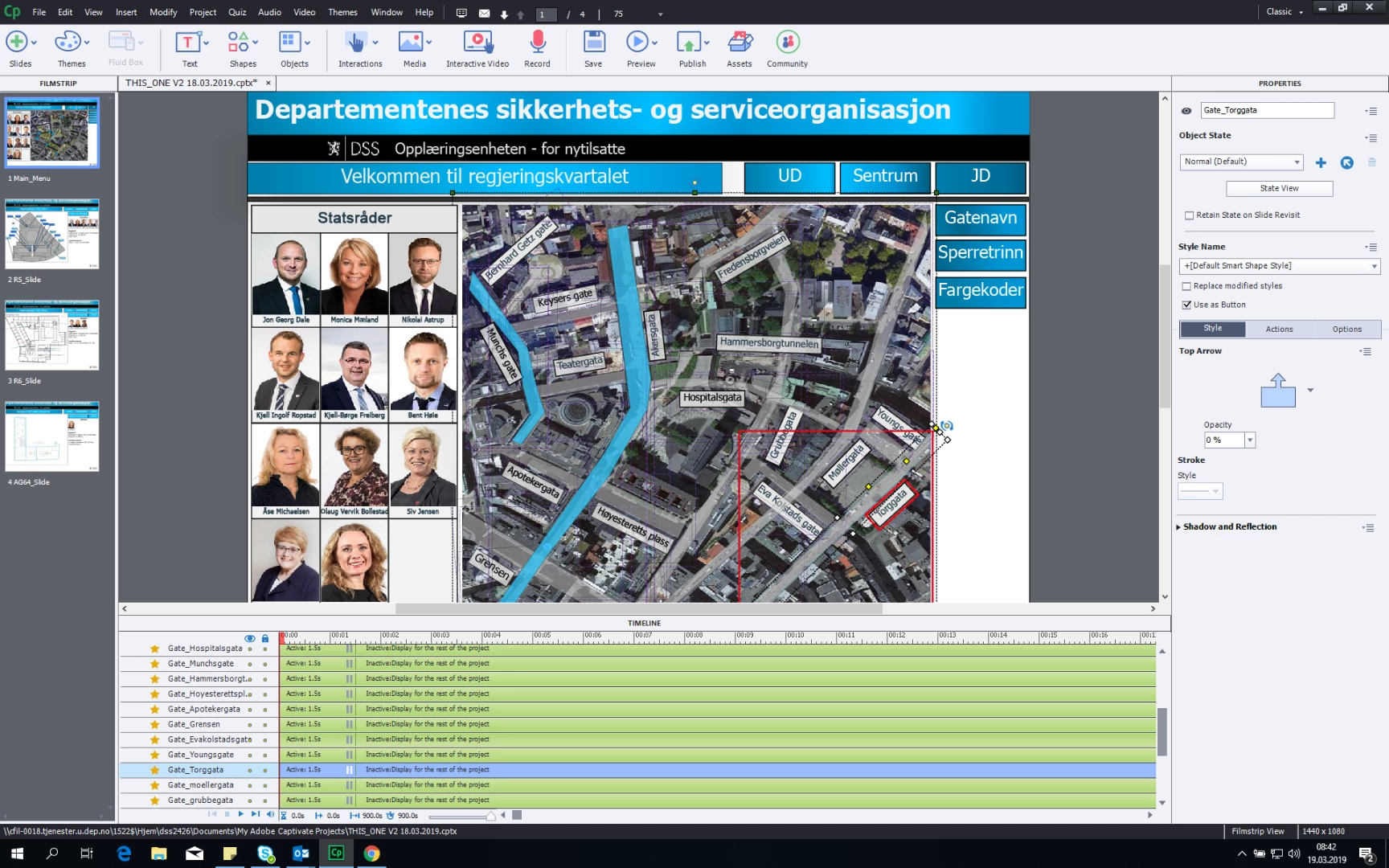
As you can see, I have an object selected, but can only change opacity.
Fellow community, I need your help!

Regards
Robin

This topic has been closed for replies.
Correct answer Debiprasad_Maharana

Hi Robin,

As discussed today on chat resetting the Captivate 2019 preferences resolved the issue.

Here are the steps that helped us resolve the issue.

1. Save the projects in Captivate 2019 and close Captivate 2019.

2. Go to this location C:\Program Files\Adobe\Adobe Captivate 2019 x64\utils in the Windows computer.

3. Run this file in the folder "CleanPreferencesWin.bat".

4. Start Captivate 2019 and the issue should be resolved.

Kindly check the page Adobe Captivate Learn & Support for assistance regarding issues with Adobe Captivate.

Regards,

Debiprasad Maharana

Adobe Inc.

2 replies

Lilybiri
Legend
March 19, 2019

Adobe staff posted a solution when this is due to corruption of the Captivate application. By cleaning the Preferences you could also lose customisation. I explained how to restore them in an older blog which is stil valid:

http://blog.lilybiri.com/cativate-8-dot-0-1-install-keep-your-customisation

However, if the file itself has become corrupted, this workflow may not repair the problem. In that case you should start from a new project using the same theme (provided the theme is not corrupt) and resolution, then copy/paste the slides from the project to that new one in small bunches.

Participant
March 19, 2019

Thank you so much! Turns out both Your and adobe-staff solution worked.
I'm really glad you helped.

Debiprasad_MaharanaCorrect answer
Adobe Employee
March 19, 2019

Hi Robin,

As discussed today on chat resetting the Captivate 2019 preferences resolved the issue.

Here are the steps that helped us resolve the issue.

1. Save the projects in Captivate 2019 and close Captivate 2019.

2. Go to this location C:\Program Files\Adobe\Adobe Captivate 2019 x64\utils in the Windows computer.

3. Run this file in the folder "CleanPreferencesWin.bat".

4. Start Captivate 2019 and the issue should be resolved.

Kindly check the page Adobe Captivate Learn & Support for assistance regarding issues with Adobe Captivate.

Regards,

Debiprasad Maharana

Adobe Inc.