Known Participant
September 20, 2012
Question

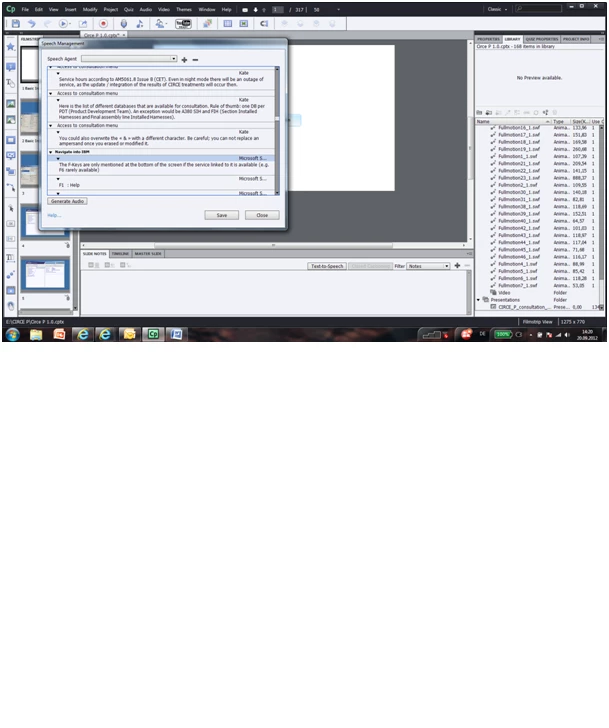
How can I change all of (or more than one) speaker note to a voice at once?

  • September 20, 2012
  • 1 reply
  • 525 views

Hello... 

   I have a lot of speaker notes that I need to apply a specific voice to.  How do I apply the same voice to all of the speaker notes in the whole project at once?  Or at least more than one?  Any help would be appreciated.  Thank you!   I am working with Captivate 6.
This topic has been closed for replies.

1 reply

VikramGaur
Adobe Employee
Adobe Employee
September 20, 2012

Hello,

Welcome to Adobe Forums.

On Speech Managment, Click on the Voice Name for Slide 1 and Press "Ctrl" and hold it, then Click on the Voice of Slide 2

You can follow this process and select mulitples Slide Voices, then change the voice from Drop-Down Menu, all the voices will be changes.

Hope this helps !!

Thanks,

Vikram

rscharferAuthor
Known Participant
September 20, 2012

Hi Vikram,

Thanks. That tip definitely helps! You just have to be careful when you use the CNTRL button and not highlight the name of the slide as you try to highlight the voices. If you do that, then the drop down box becomes “unclickable”. Unfortunately, when using the control button, it is sometimes impossible not to highlight the name of the slide as well.

Ryan

Von: VikramGaur

Gesendet: Donnerstag, 20. September 2012 16:25

An: Scharfer, Ryan

Betreff: How can I change all of (or more than one) speaker note to a voice at once?

Re: How can I change all of (or more than one) speaker note to a voice at once?

created by VikramGaur<http://forums.adobe.com/people/VikramGaur> in Adobe Captivate - View the full discussion<http://forums.adobe.com/message/4713463#4713463