Participant
November 20, 2022
Question

How can I quickly change the font of a text caption?

  • November 20, 2022
  • 2 replies
  • 605 views

Hi,


I have read some of the answers but still have some questions about changing the font. I am a non-English speaker, so perhaps you could go into a little more detail, thank you very much. The software version I am using is CP 2019.

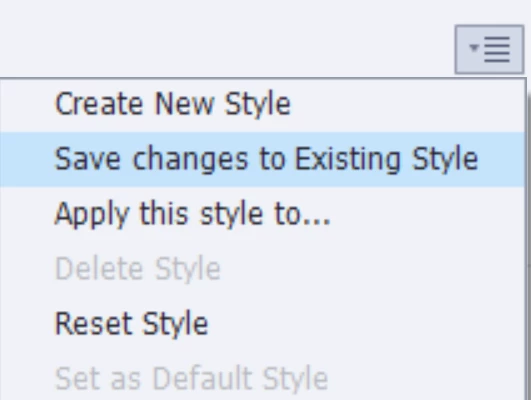
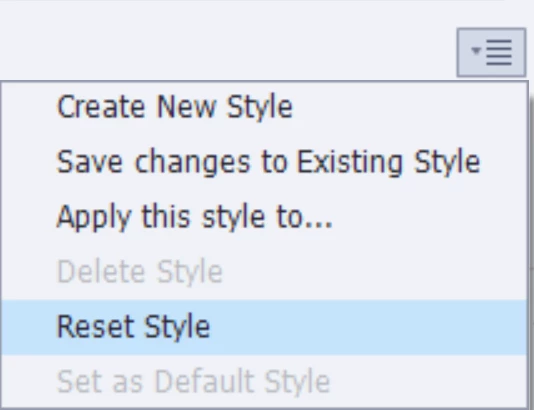
For example, I would like to change all the fonts from Arial to calibri. All of my Style Name of text caption is +[Dafault Caption Style], next I select a text caption and change the font of the text inside to calibri, and selcet "Save changes to existing style". The next step is to select the text caption in the other pages and click on "Reset Style". So I still need to repeat the operation many times, do I understand correctly? Is there a more efficient way to do this?

Thank you for your time!


    This topic has been closed for replies.

    2 replies

    Lilybiri
    Legend
    November 20, 2022

    I want to add some information to the answer by Rod Ward.

    First of all, there have been important changes between version 11.0 and 11.5 concerning Themes which include all Object Styles. Both versions are on the common label CP2019. You can detect your exact version number under Help, About Captivate. For this comment I will suppose that you are on 11.5 or 11.8.


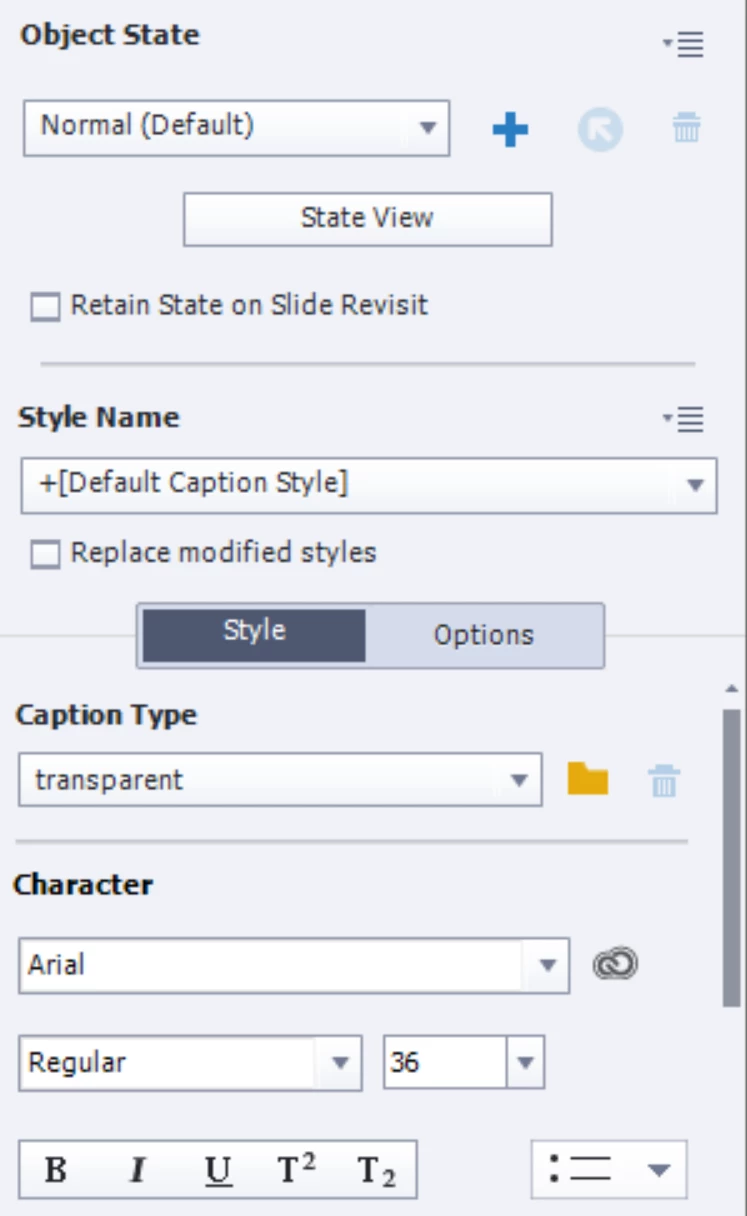
    Look at the Properties Panel in your screenshot, under Style Name. This object style has a + sign, which means that the Object style has been 'overridden' which is a bad practice to avoid except for some rare exceptions. This makes any change to fonts very difficult.

    Since 11.5 you have the possibility to change up to 3 fonts used in the project to other fonts under the Theme fonts. That is the quickest way to change all object styles using that font, without having to do it individually for each caption. This is possible provided:

    • You did not override the object styles (see above)
    • You do not use multiple themes in the project. That was another change in 11.5 which causes a lot of problems especially when you are new to Captivate. I experienced this while answering questions everywhere and doing consultancy jobs.

    The problem is that new users ignore the importance of Themes, and you will not find a lot about them on YouTube.  I will not comment on that, but feel very sad because so much work hours are lost because of this particular ignorance. I bet that you never create nor saved a custom Theme which IMO should be one of the first steps in the development workflow. Still today often the comment 'I don't use a Theme' appears, which is  - sorry - nonsense because every project is based on a Theme.


    Overridden object styles do not even allow to use the useful feature 'Apply Style to...'.  The new Copy/Paste Appearance inherited from MS and praised by many also can lead to overridden styles. 


    I will not burden you with more links to blog posts I wrote about Themes. If you want more information, please do not hesitate. Is there a language which is easier for you? I understand Dutch, French, German and some Russian. However from the nickname I fear that those wouldn't help you.

    Eve_NingAuthor
    Participant
    November 21, 2022

    Thank you for telling me these details!! I checked the version, which is 11.5. I am sorry to say that I don't understand any of the languages you understand, except English, haha. If you don't mind, I'd like to see the blogs you mentioned (If it is written in English).

    And let me try to summarise what you and RodWard said. 

    I still want to change all the fonts to calibri. So my steps should be: 1. Add a text caption(When I create a new blank project, so it's the first caption of the project); 2. Change the default font to calibri; 3. Save changes to Existing Style; 4. Add other text captions, and its font will automatically become calibri.

    Am I right? 

    RodWard
    Community Expert
    Community Expert
    November 21, 2022

    No. Adding one caption to a project and setting it's default font as Calibri does not automatically make Calibri the default font for all other text objects. It's not quite that simple.  All you are doing there is changing the default font for one particular text caption style.  Yes, if you base other caption styles on that same style then they will also start with Calibri.  And you can set that first style you created to be the default style for all text captions.  But text captions are not the only type of text object in a Captivate project.  You also have Shape Objects and Text Entry Boxes, etc.  So there are quite a few complexities to consider.


    As Lieve has pointed out, you really need to learn as much as you can about how Captivate uses Themes to control certain aspects of the "look and feel" of an e-learning module.  Themes are important in your particular question because they do allow you to set the default Font family for a module.  AFTER you have set this default font, then creating a set of useful Object Styles becomes a little easier.


    If you go to the large Themes button on the toolbar and click the Theme Properties button, this will allow you to set the default fonts and colours for your chosen Theme.

    When the Theme Properties dialog opens, click the Edit button in the bottom left corner.

    This then allows you to set three default fonts in order of priority.

    This is where you would set your preferred font as Calibri.  But the reason there are two other choices available is that you need to remember many people's systems may not have Calibri available.  So you need to set a couple of other preferred fall-back fonts just in case Calibri is not present.


    Then when you have set up all of this, you should really save your changes as a Custom Theme with a different name to ensure it does not get overwritten by some forthcoming Captivate update.

    RodWard
    Community Expert
    Community Expert
    November 20, 2022

    Yes that is the process.  Once you have all of your custom styles set up and used across your project, changing the font or settings in the Object Styles Manager would cause all objects with that style applied to comply with the changes automatically.  However, you also need to remember that if you have applied a style to an object but then made some other minor style change to that object (e.g. made it bold) then changes made to the central style will not affect that particular object until you select it again and click Reset Style.