

How can I toggle the display of a scrolling text object?
I'm a fairly new Captivate user and I am trying to use the Scrolling Text Learning Interaction in Captivate 8. Specifically, I'd like to have a button on screen that when clicked, the scrolling text box will display for the learner. Also, when it displays, I want a DISMISS or CLOSE button to allow the user to hide the scrolling text box. Basically, I want them to be able to toggle the scrolling text box off and on at their convenience. I have the following elements set up.
1. READ MORE graphic.
2. Click Box 1 interaction drawn on top of the READ MORE graphic.
3. Learning Interaction Scrolling Text.
4. CLOSE button.
5. I have a Click Box 2 interaction drawn on top of the CLOSE button.
6. I have items 3 & 4 grouped together into GROUP_1.
7. GROUP_1 is set to NOT VISIBLE IN OUTPUT.
8. Click Box 1 has action set so that On Success it is to SHOW GROUP_1.
9. Click Box 2 has action set so that On Success it is to HIDE GROUP_1.
Here's what it looks like:
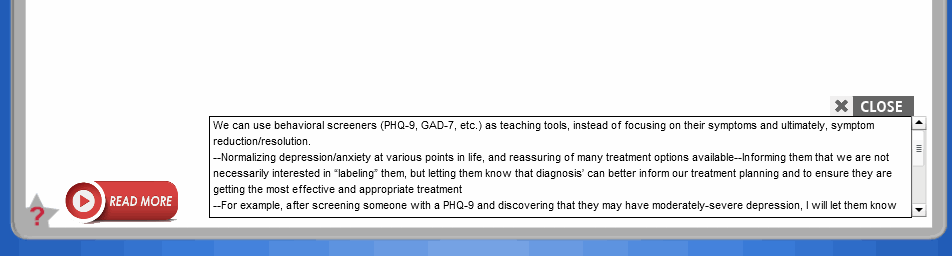
When I preview my project, the first part works fine, I click READ MORE and my scrollable text box and CLOSE button show up as they should. However, when I click the CLOSE button, it advances to the next slide instead of simply hiding the group.
Also, if I publish the project, the scrollable text box does not show up at all. The CLOSE button shows up when it's supposed to, but the space where the text box should show up is not displaying anything. I've tried viewing it in Chrome Version 43.0.2357.132 m, IE Version 11, and Firefox v39. It seems to be related to having the scrollable text box as part of a group because I put a scrollable text box on a separate blank screen and it shows up fine in all browsers.
So, I'm looking for advice, is there an easier way to accomplish the goal of toggling the scrollable text box on and off the screen? TIA!
Dee


 AdChoices